How to Connect a Heart Rate Monitor to the Pulsoid Windows App
Want to show your heart rate from your PC?
The Pulsoid Desktop app for Windows allows you to stream your real-time heart rate directly to Twitch or display it on VRChat.
The Windows app offers exclusive features not available on mobile, including:
- Discord BPM Activity: Display your live heart rate as your Discord status.
- VRChat OSC Integration: Send heart rate data directly to your VRChat avatar or in the chatbox.
Requirements:
- Windows OS
- Built-in Bluetooth or a USB Bluetooth adapter
- Dedicated BLE (Bluetooth Low Energy) heart rate monitors
Compatibility Note:
Although smartwatches (Wear OS, Fitbit, Garmin) and fitness trackers (Xiaomi, Huawei, Amazfit) work with the Pulsoid mobile app, they cannot connect directly to a PC via Bluetooth, or the connection may be unstable. If that happens, connect your device to the mobile app first, then send your heart rate to your PC via the Pulsoid Cloud feature in the Windows app.
How to Connect Your Heart Rate Monitor to a Windows PC
- Get a supported heart rate monitor
- Create an account on pulsoid.net
- Install the Pulsoid Windows app on your PC
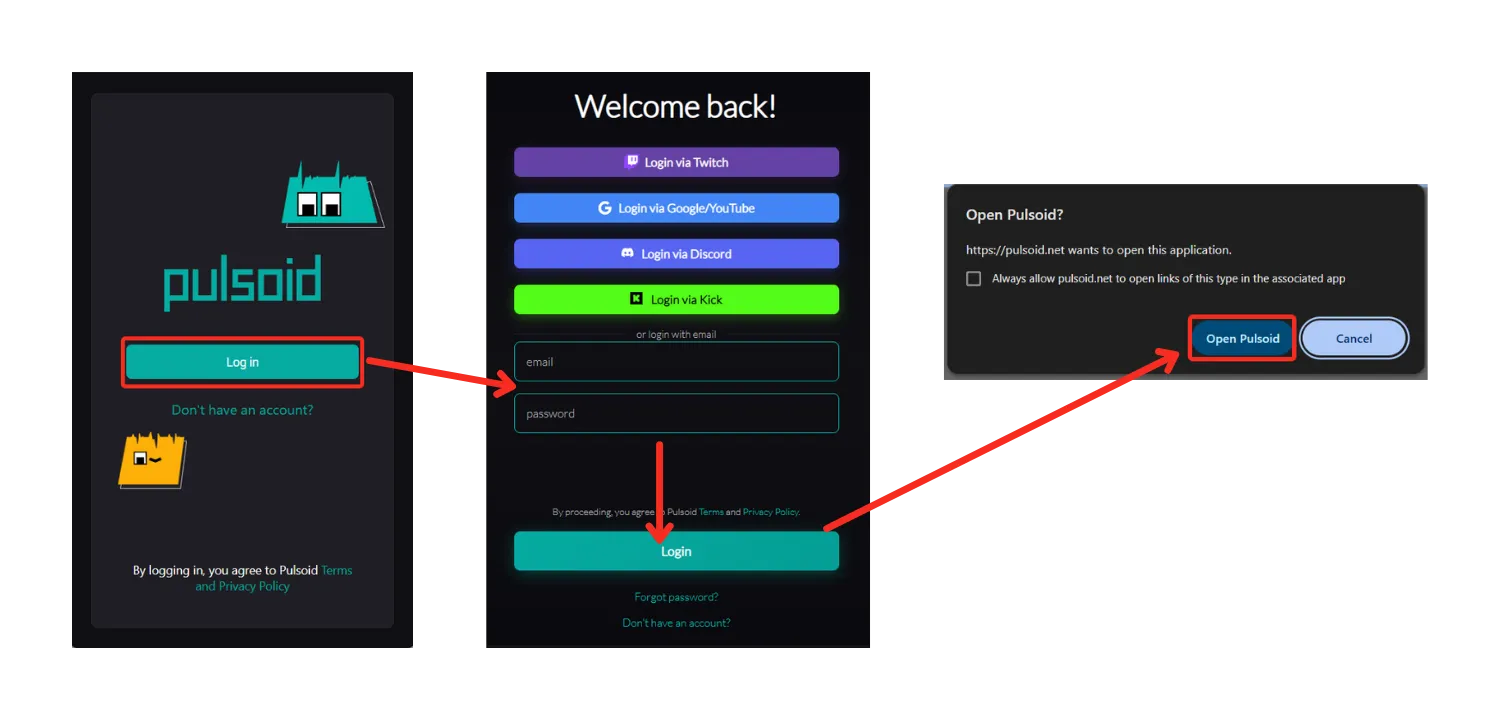
- Click “Login” in the app. Your browser will open; log in to your account if needed, then select Open Pulsoid to return to the app.
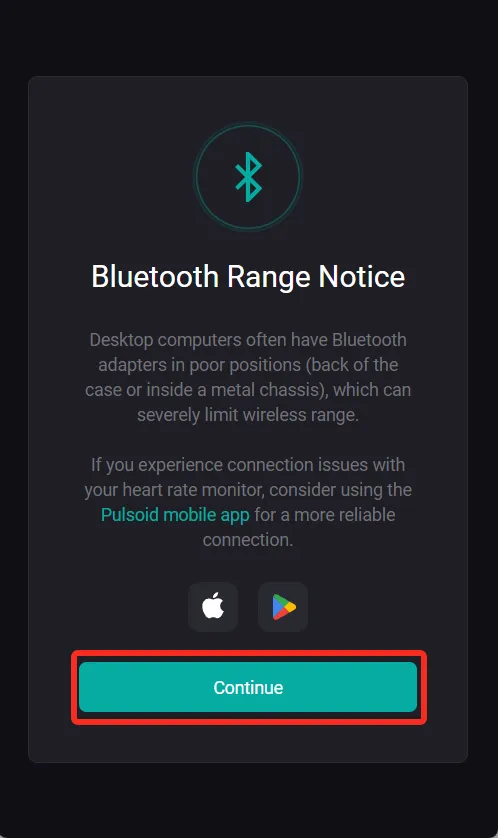
- Click “Continue”
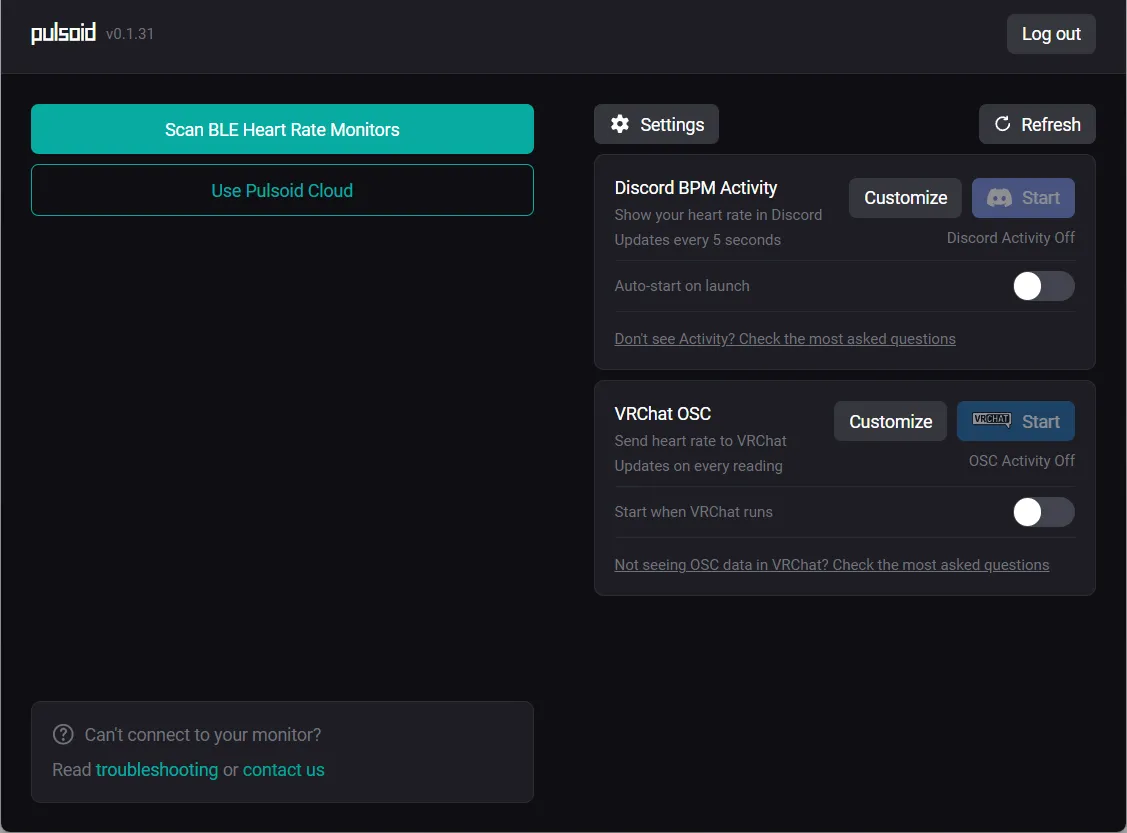
- Put on your heart rate monitor, then click “Scan BLE Heart Rate Monitors” or select “Use Pulsoid Cloud” if your device isn’t found.
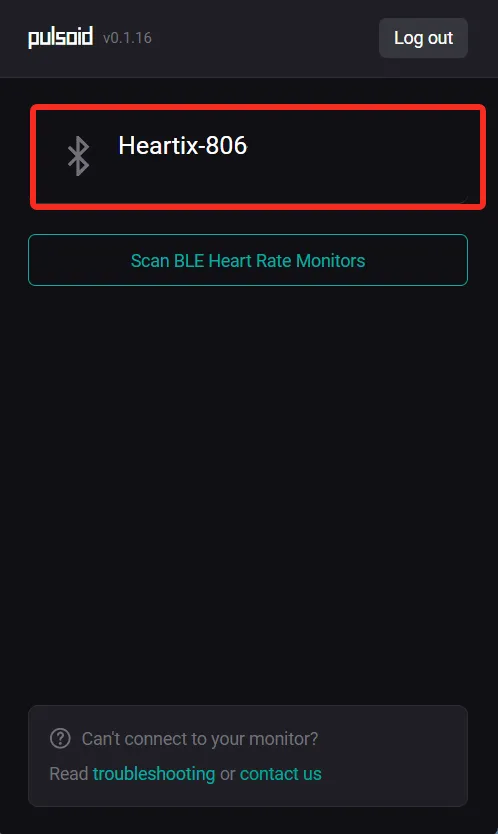
- Select your device from the list
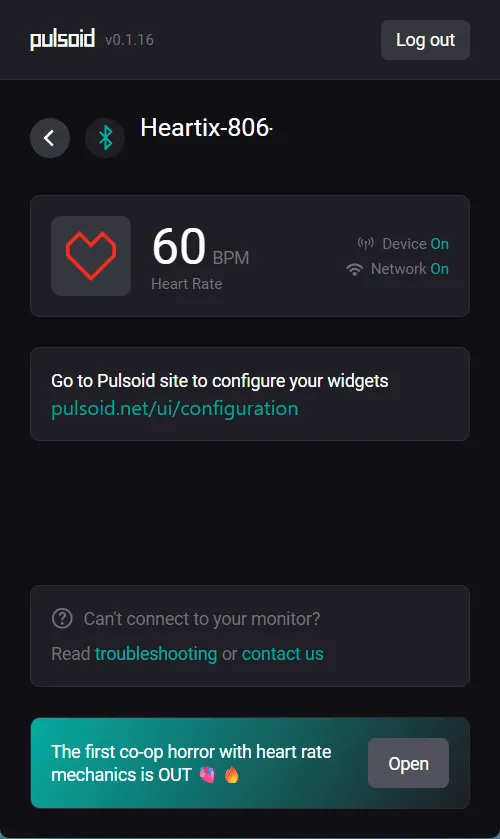
- Your heart rate monitor is now connected
Startup Settings
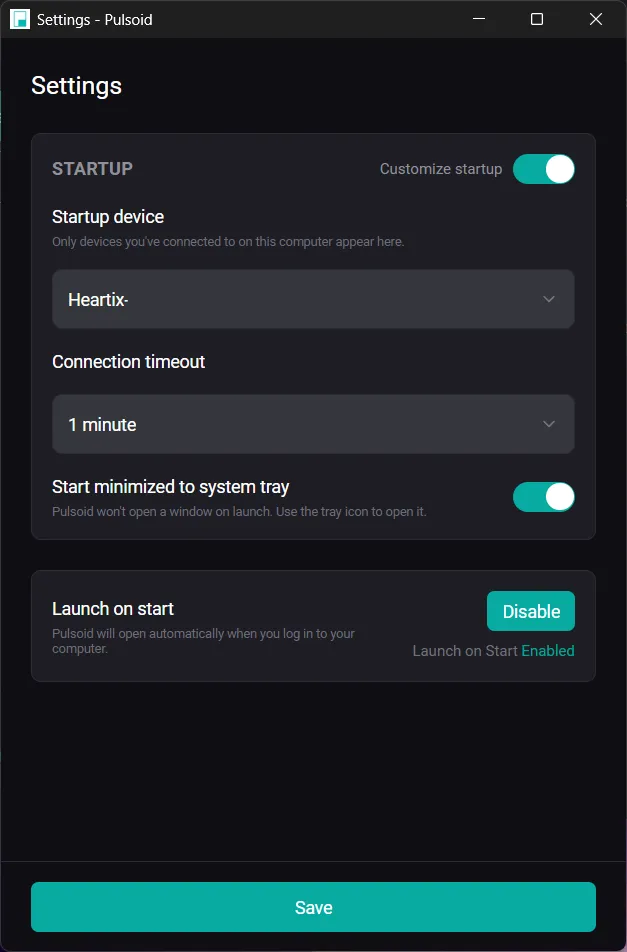
To optimize your workflow, navigate to Settings to customize how Pulsoid launches on your PC:
- Auto-connect: Automatically binds to a specific heart rate monitor.
- Connection timeout: Sets threshold limits for device searches.
- Start minimized: Sends the application directly to the Windows system tray.
- Auto-launch: Launches the application automatically upon Windows startup.
Need help? Reach out to our team on Discord or email us at support@pulsoid.net