How to Show Heart Rate on Discord Profile
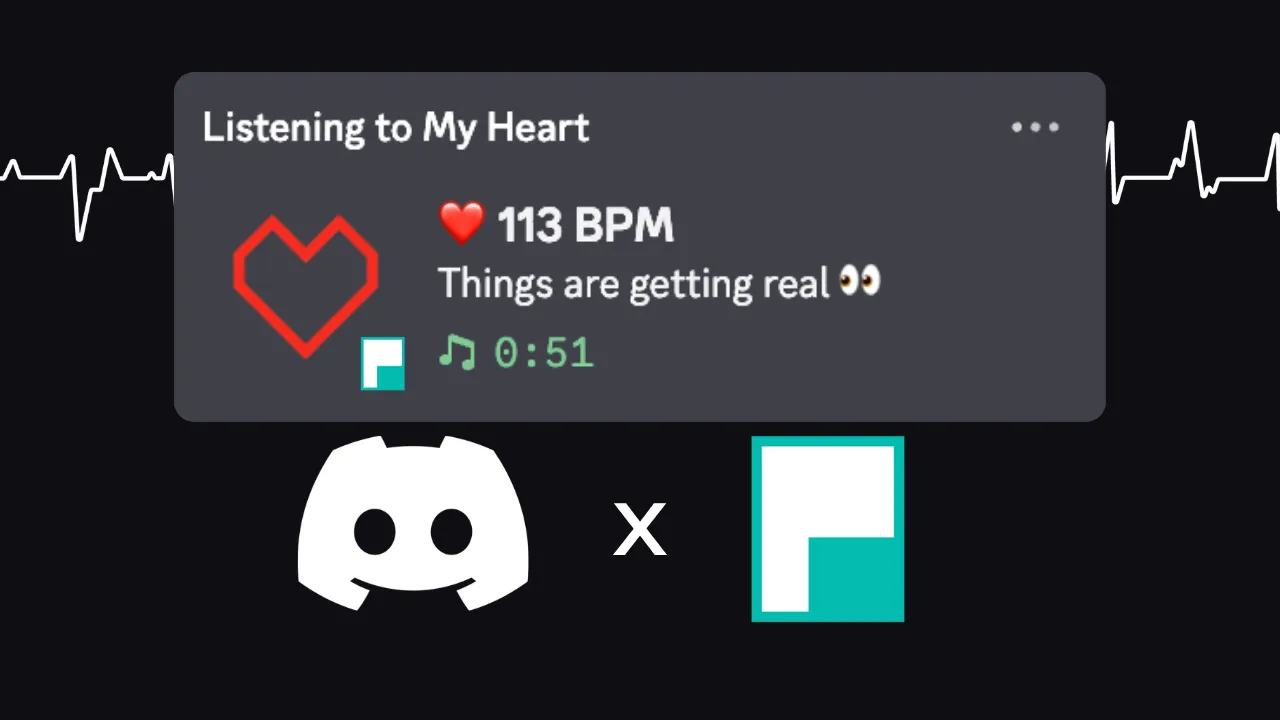
Want to show your real heart rate on Discord?
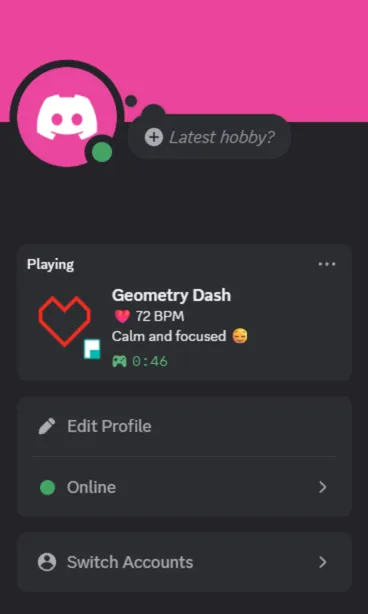
With Discord BPM Activity, a custom Discord Rich Presence feature, you can display your live heart rate in your Discord profile, DMs, and server member lists.
Discord BPM Activity can display:
- real-time BPM
- text
- images and GIFs
- links to your stream or social platforms
This feature is available only in the Pulsoid Desktop app.
Note: Discord BPM Activity is part of the BRO Plan.
What You Can Customize in Discord BPM Activity
Activity Type
Choose what your Discord Rich Presence says you are doing:
- playing
- watching
- listening
- competing
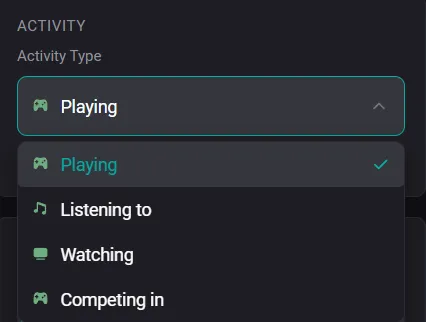
You can also set a custom activity name.
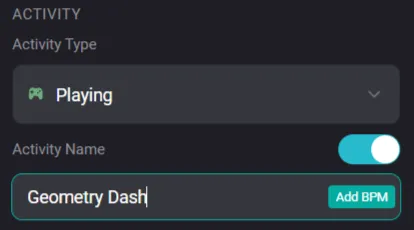
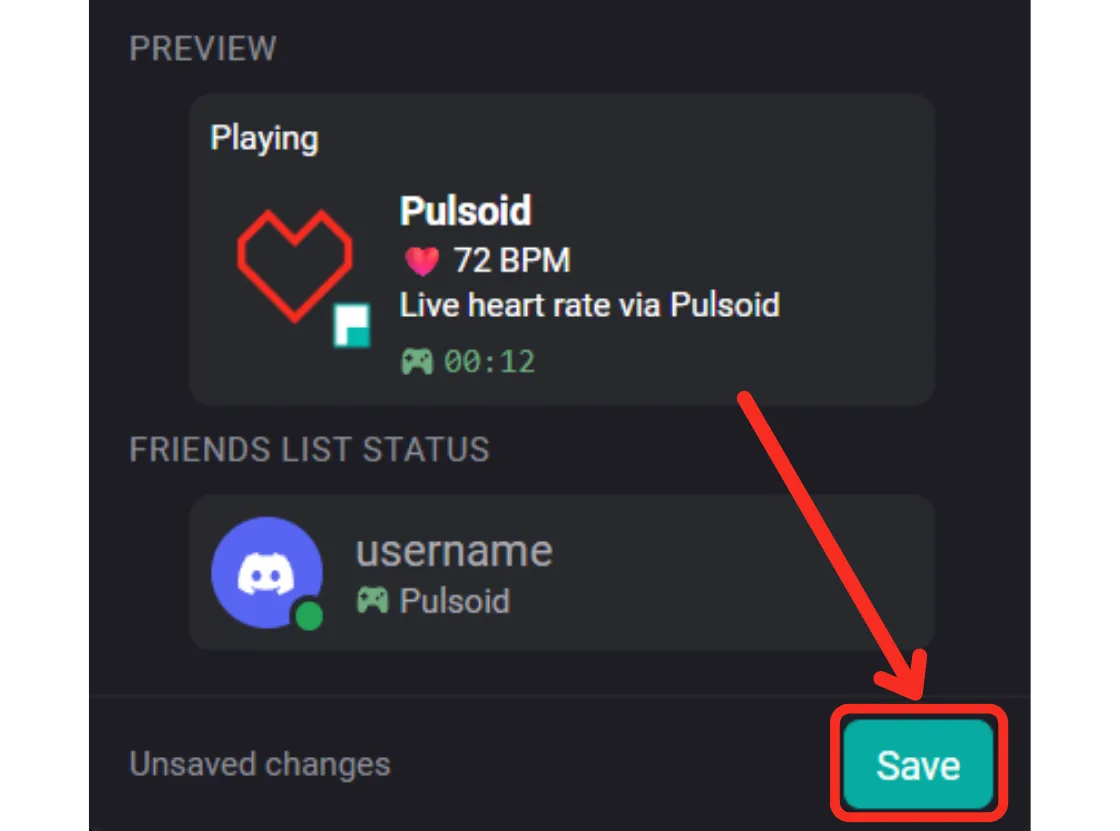
Every change is shown instantly in the Preview, so you can see exactly how it will look.
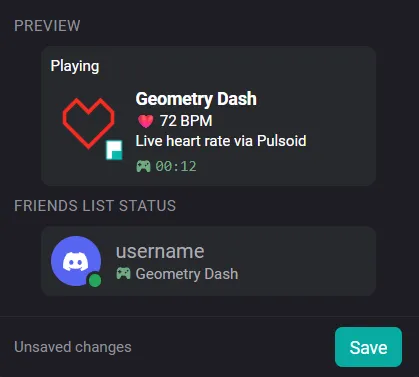
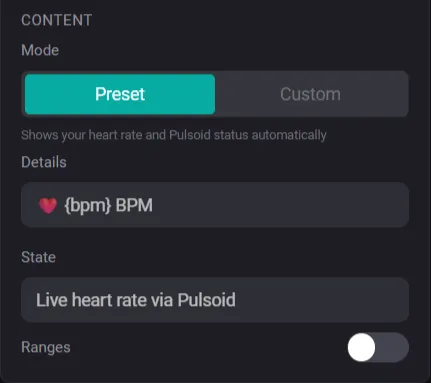
Content
Discord BPM Activity has two modes:
- Preset — ready to use and not editable
- Custom — fully customizable
Heart rate ranges can be enabled in both modes.
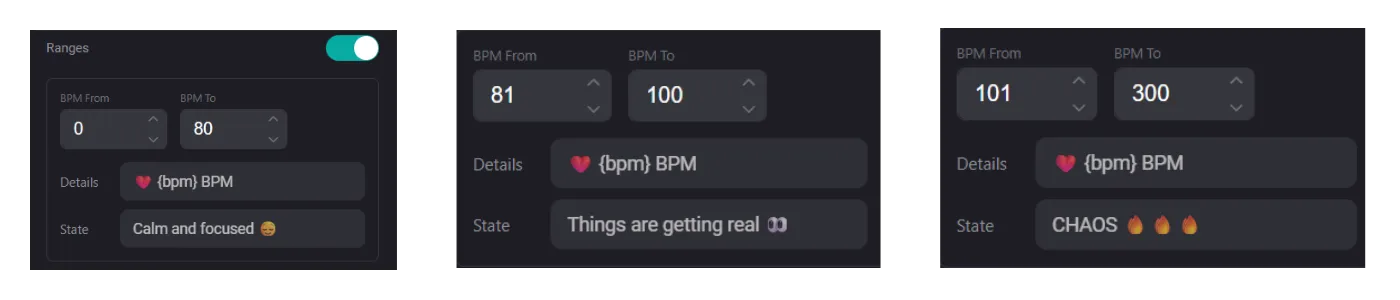
In Custom mode, you can:
- edit or hide Details and State fields
Tip: Wherever you see the “Add BPM” button, you can add {bpm} to display your real heart rate in that field.
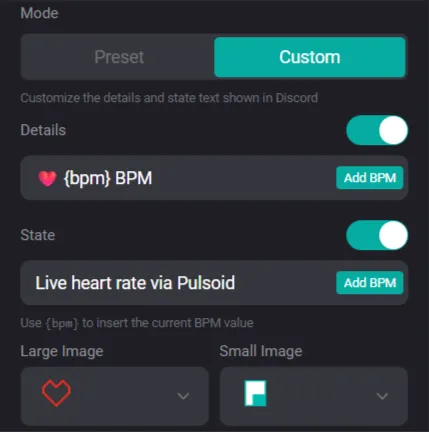
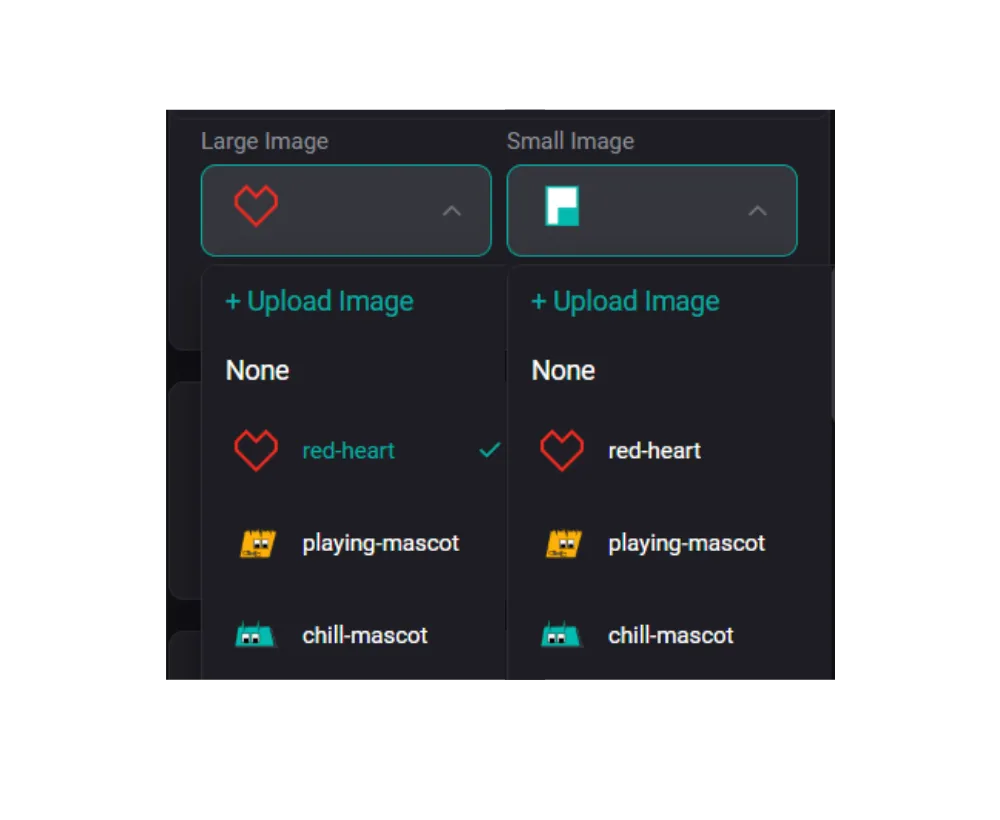
- change large and small images.
If no large image is selected, the Pulsoid logo will be used automatically.
- Customize heart rate ranges

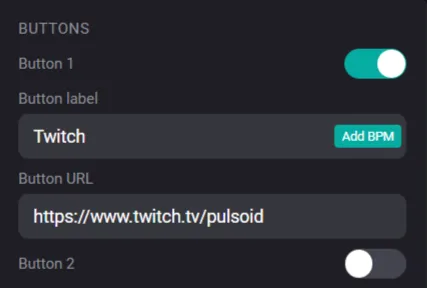
Buttons
Add links to your Twitch, YouTube, or other platforms. This helps people instantly check your stream.
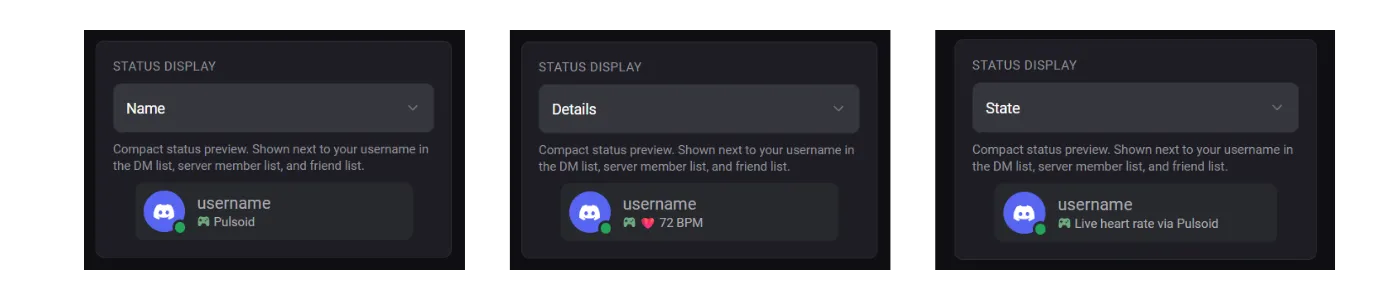
Status Display
Choose what appears in the compact Discord preview:
- activity name
- details
- state
How to Set Up Discord BPM Activity
1. Get a Compatible Heart Rate Monitor
To use Discord BPM Activity, you need a dedicated BLE heart rate monitor.
If your device doesn’t connect to the desktop app, connect it to the Pulsoid mobile app instead. Then turn on Pulsoid Cloud in the desktop app.
2. Install the Pulsoid Desktop App
Download and install the Pulsoid Desktop app. If you already have it installed, update it to the latest version.
3. Install the Discord Desktop app if you haven’t already
Open Discord and go to:
User Settings → Activity Privacy → turn on Share my activity
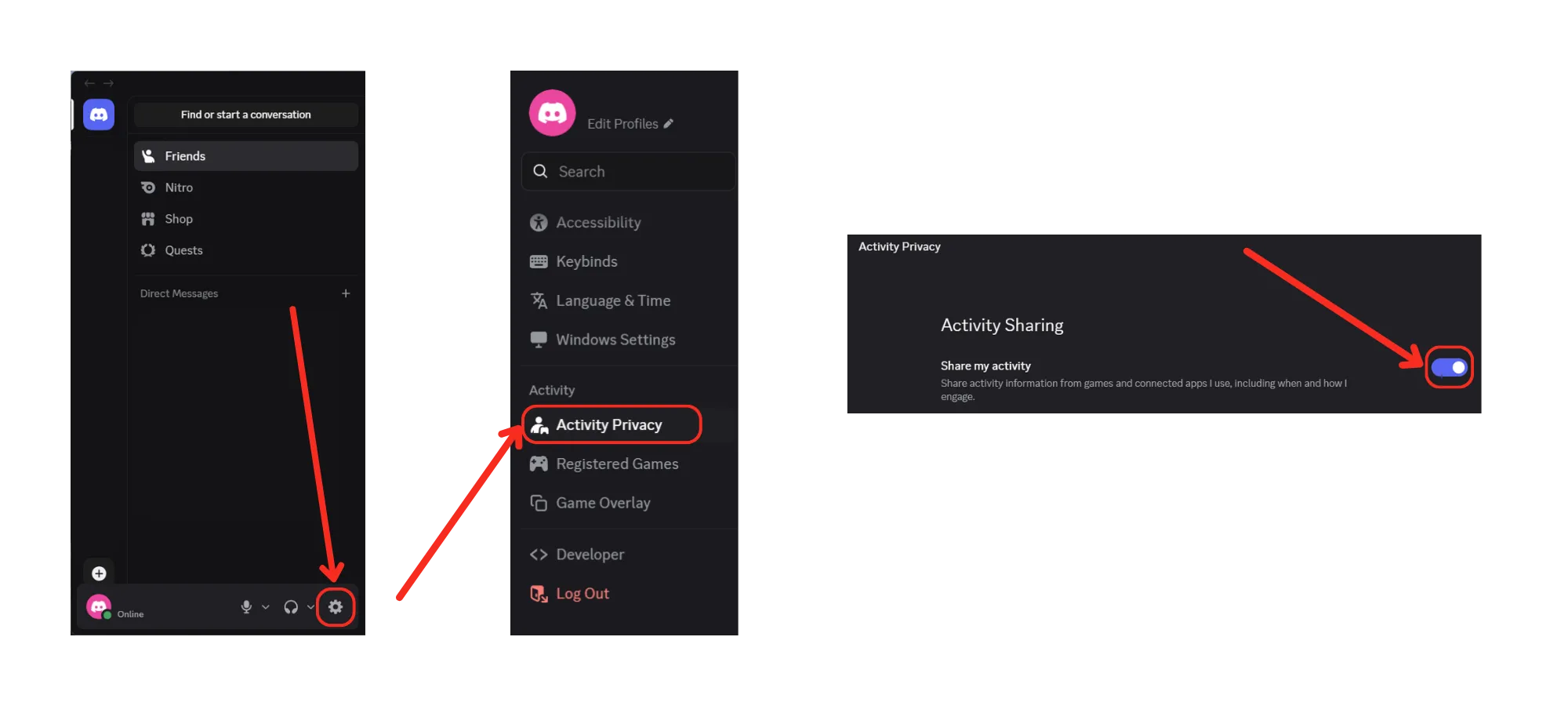
Make sure your Discord status is not set to Invisible. Otherwise, Discord BPM Activity will not appear.
4. Open the Pulsoid Desktop app and connect your heart rate monitor.
If you’ve never done it before, check this setup guide
5. Customize Discord BPM Activity
To unlock Discord BPM Activity, you need the BRO Plan
On the Discord BPM Activity tab, click Customize if you want to personalize it more.
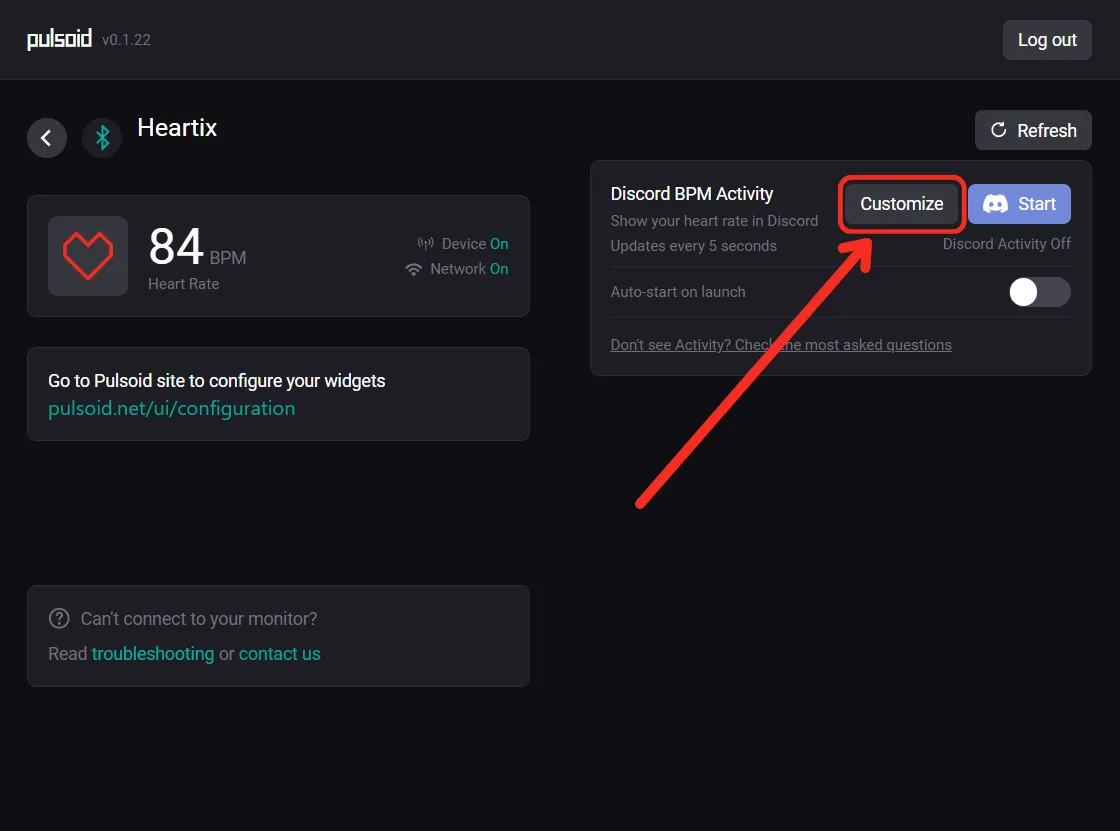
When you finish customizing, click Save.
6. Start Discord BPM Activity
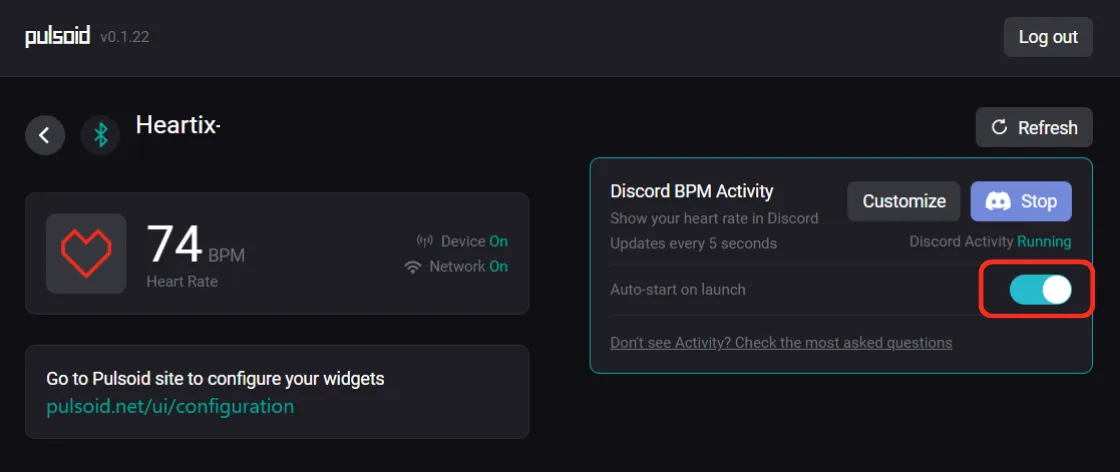
Click Start to launch your Discord Rich Presence.
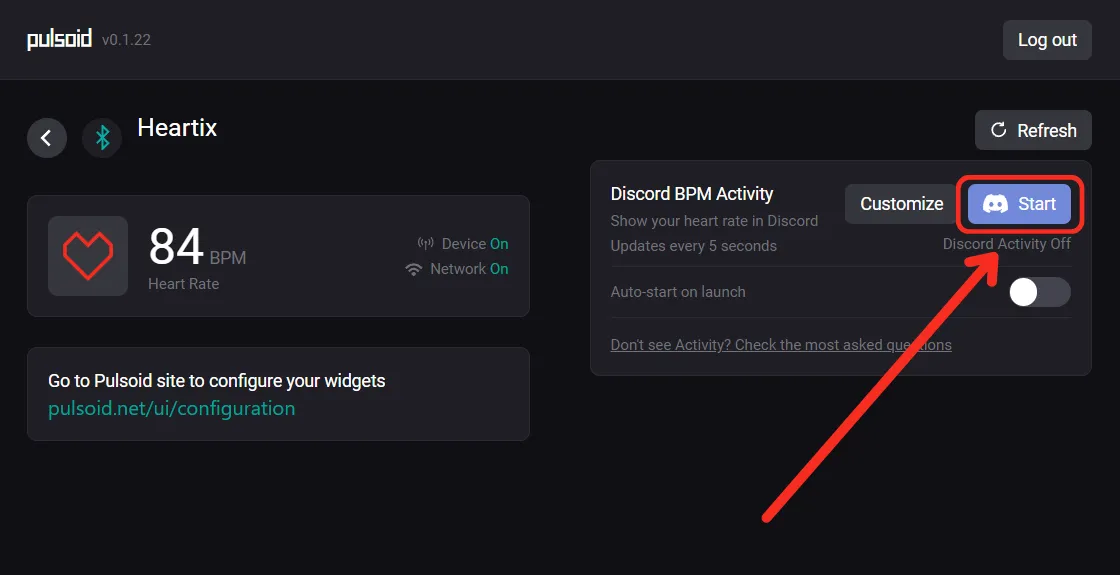
Done! Your real-time heart rate is now visible on Discord.
Tip: Enable Auto-Start to launch Discord BPM Activity automatically when your monitor connects
Need Help?
If you have problems with Discord BPM Activity, contact us: