How to Show Your Heart Rate as a Floating Window on Android

Want to show your heart rate while recording gameplay on your phone? Now you can.
In the latest Pulsoid Android app update, you can display your heart rate as a floating overlay on top of other apps.
Right now, this feature is only available on Android. It is not supported in the Pulsoid iOS app.
Note: Wear OS or Fitbit users need Pulsoid Cloud for this feature to work. Read this guide to learn more.
How to Turn On the Heart Rate Overlay
If you’re using Pulsoid for the first time, check the setup guide.
- Put on your heart rate monitor.
- Open the Pulsoid Android app.
- Choose your monitor from the Devices list.
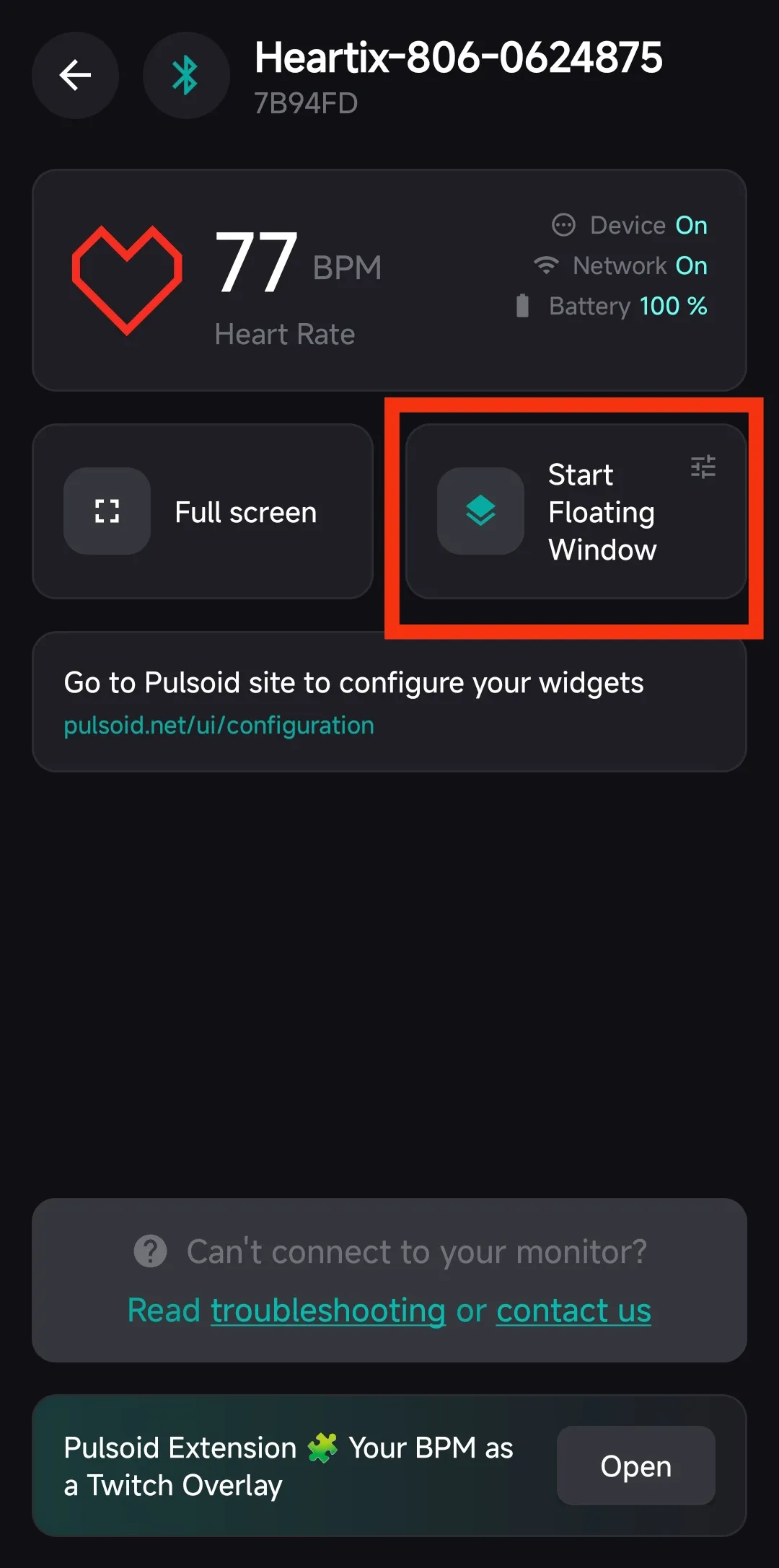
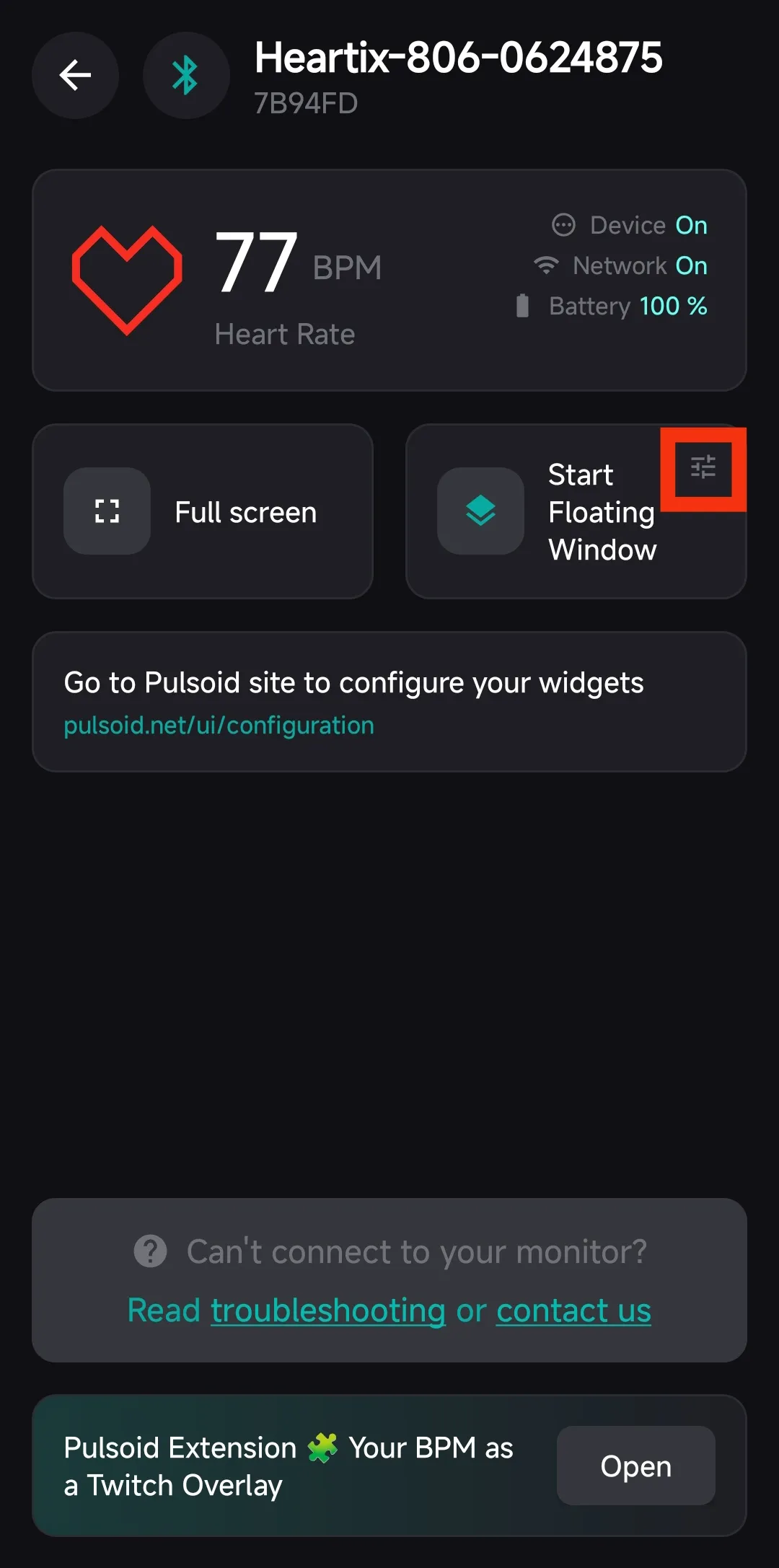
- Tap Start Floating Window.
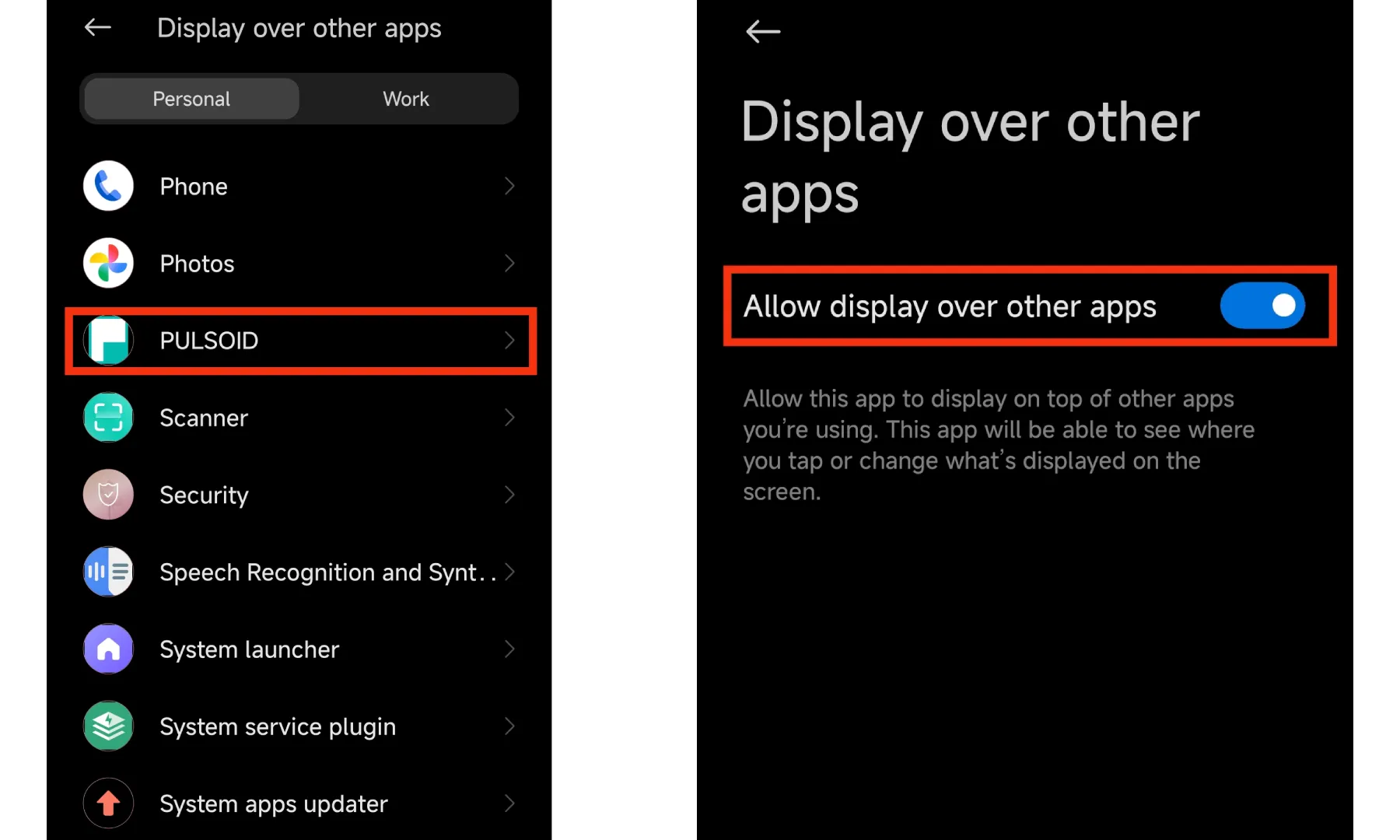
- Give Pulsoid permission to be displayed over other apps.
- Go back to Pulsoid and tap Start Floating Window again.
That’s it. Your heart rate will now appear on top of other apps.
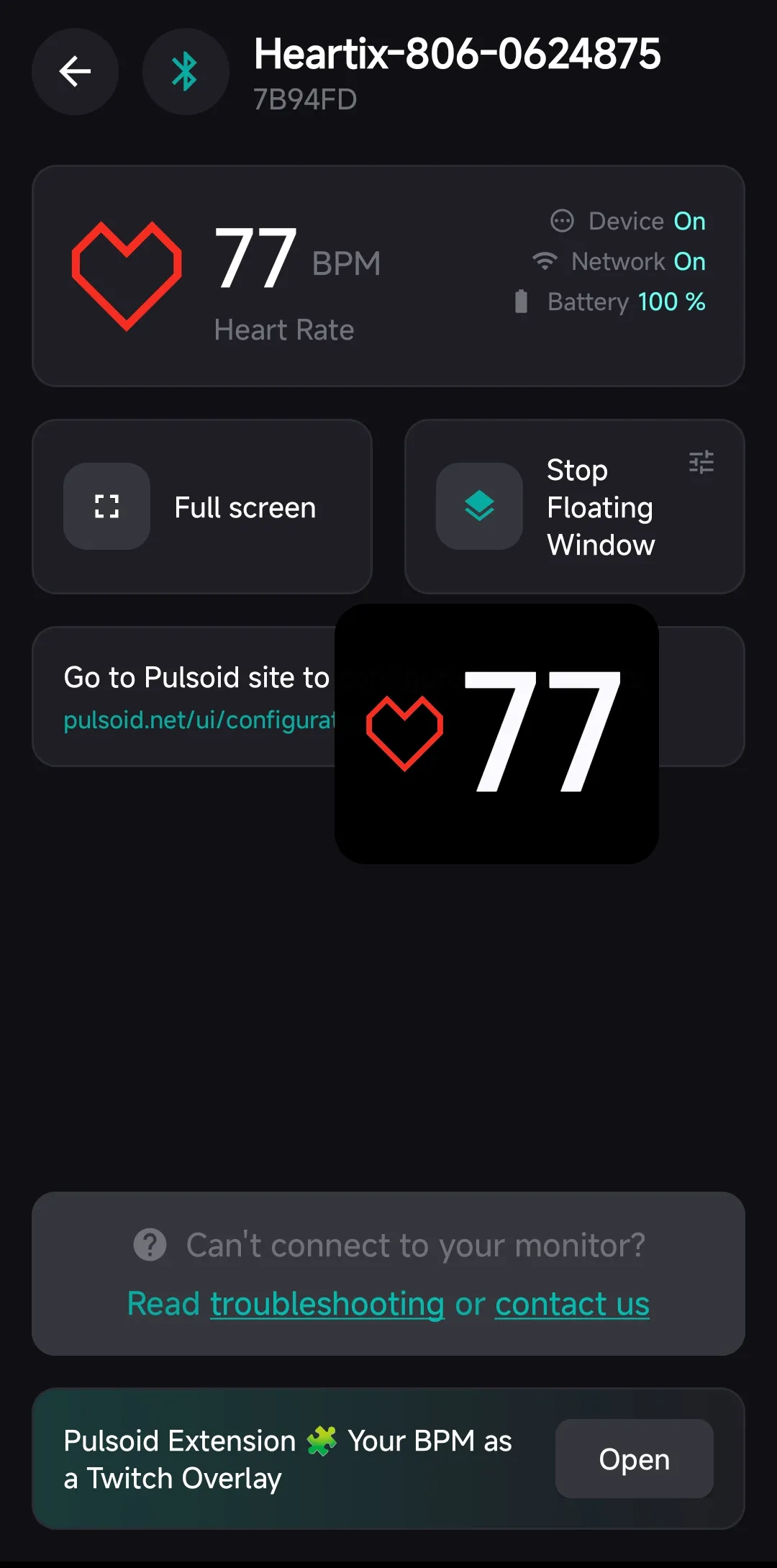
To remove the overlay, just tap it, then tap the close button. You can drag the overlay anywhere on the screen to position it how you like.
How to Customize the Overlay
To adjust the look of the overlay:
Tap the Customization button
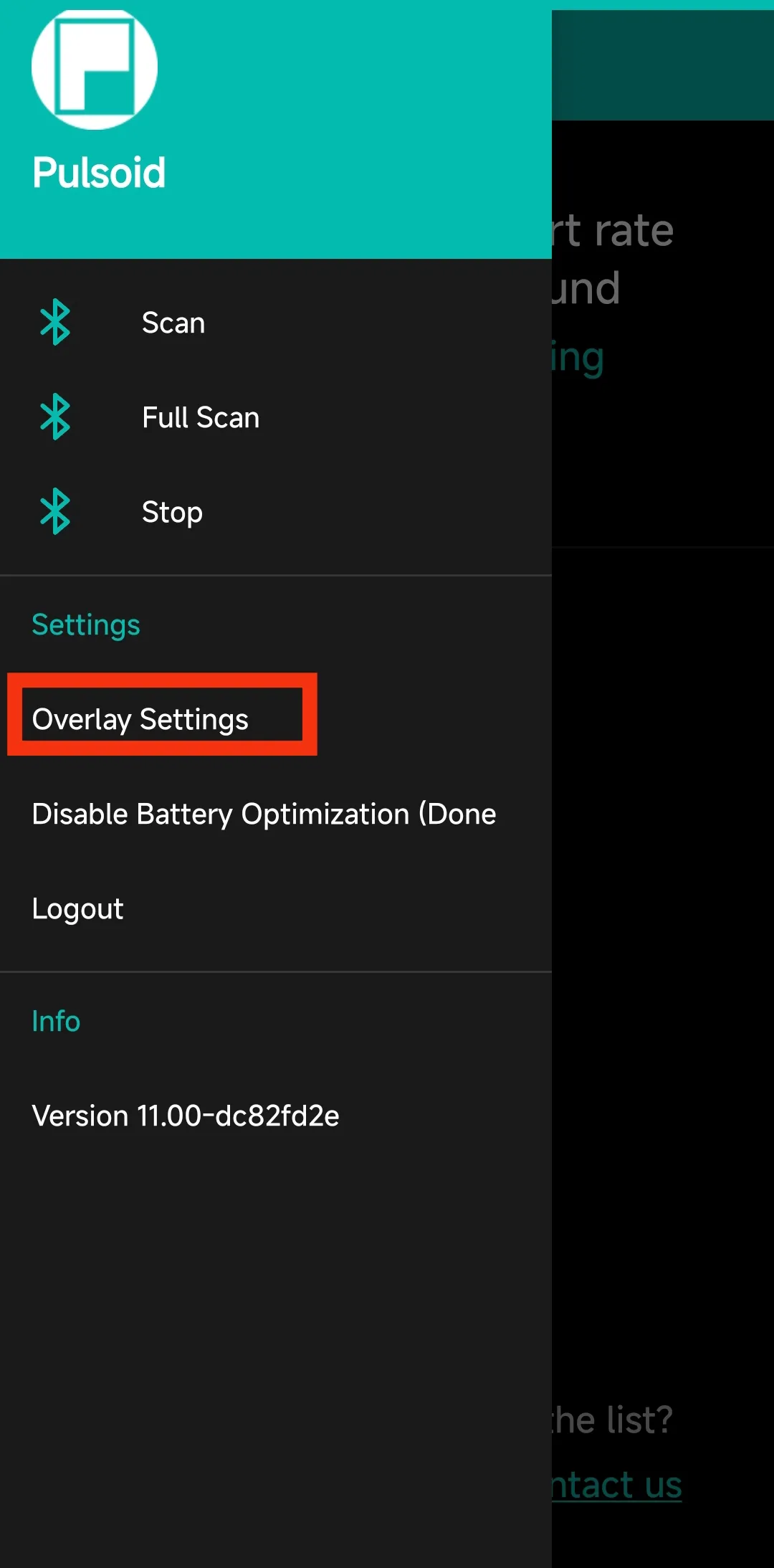
Or open Overlay Settings from the left sidebar menu
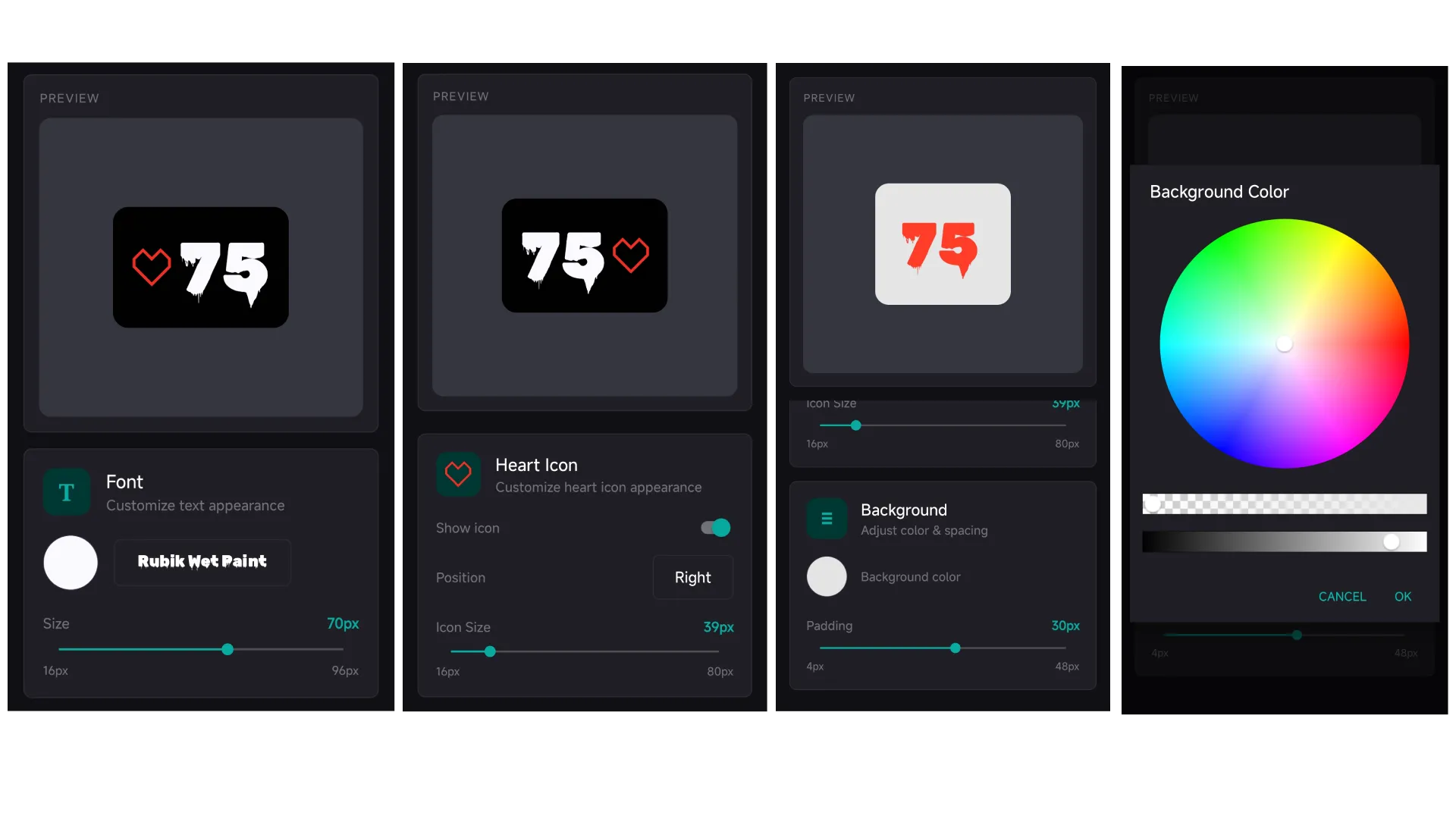
You can:
- Change the font, text size, color, and transparency
- Show or hide the heart icon
- Adjust the icon position and size
- Change the background color and transparency
- Modify spacing
When you finish customizing, start screen recording your gameplay or any other content. Your heart rate will stay visible on top of the screen.