Pulsoid Desktop OSC Setup Guide for VRChat
Setting up Pulsoid Desktop OSC allows you to send your real-time heart rate directly into VRChat without complicated setups. Whether you want to share your VRChat heart rate inside the VRChat chatbox or show it directly on VRChat avatar using parameters, this guide will walk you through the configuration process step by step.
You can read this article in Japanese
Before You Begin
Make sure you have the following ready before starting the setup:
- A compatible heart rate monitor (such as a chest strap, arm monitor, or smartwatch).
- A registered Pulsoid account.
- An active BRO subscription (native OSC features require a BRO subscription).
- The Pulsoid Desktop app installed on your PC.
- VRChat OSC is enabled.
How to Enable OSC in VRChat
Open the VRChat Action Menu, go to Options, select OSC, and toggle it On. VRChat won’t receive any OSC data until this is enabled.
Setup Guide
-
Install Pulsoid Desktop
Download the app from the official Pulsoid Desktop download page, run the installer, and sign in using your Pulsoid account.
-
Connect Your Heart Rate Monitor
Turn on your heart rate monitor, select it in Pulsoid Desktop to pair it, and confirm your live heart rate preview is actively updating inside the app.
-
Open OSC Settings
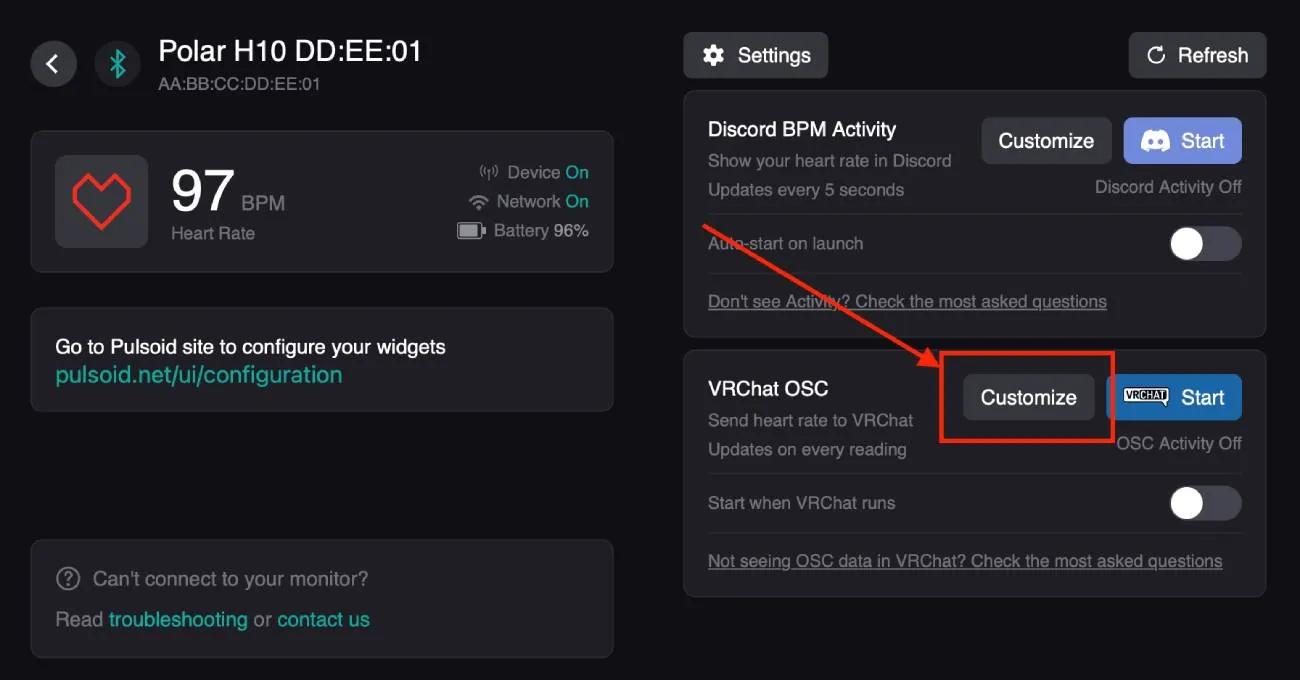
Click Customize in the OSC section to configure your chatbox text, select parameter presets, and adjust specific output settings.
-
Pick How Your Heart Rate Displays
Pick one or both of the options below depending on how you want your heart rate displayed.
Option 1: Avatar Parameters
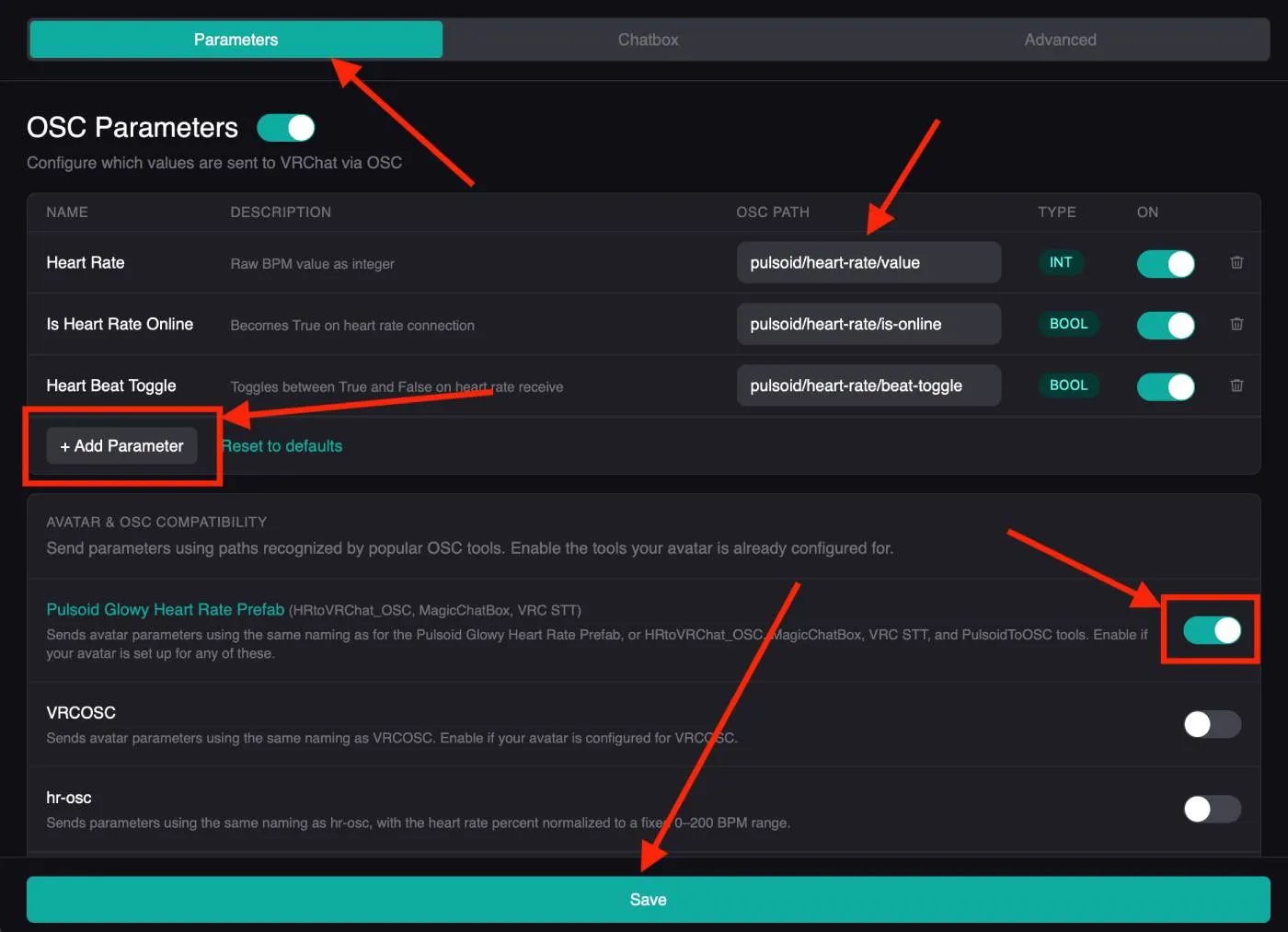
Open the Parameters tab, enter your custom VRChat avatar parameters path (or pick an OSC compatibility mode preset if your avatar prefab was built for another tool), and click Save. For a complete list of compatibility modes and supported avatar prefabs, visit the Pulsoid OSC page.
Option 2: Chatbox Messages
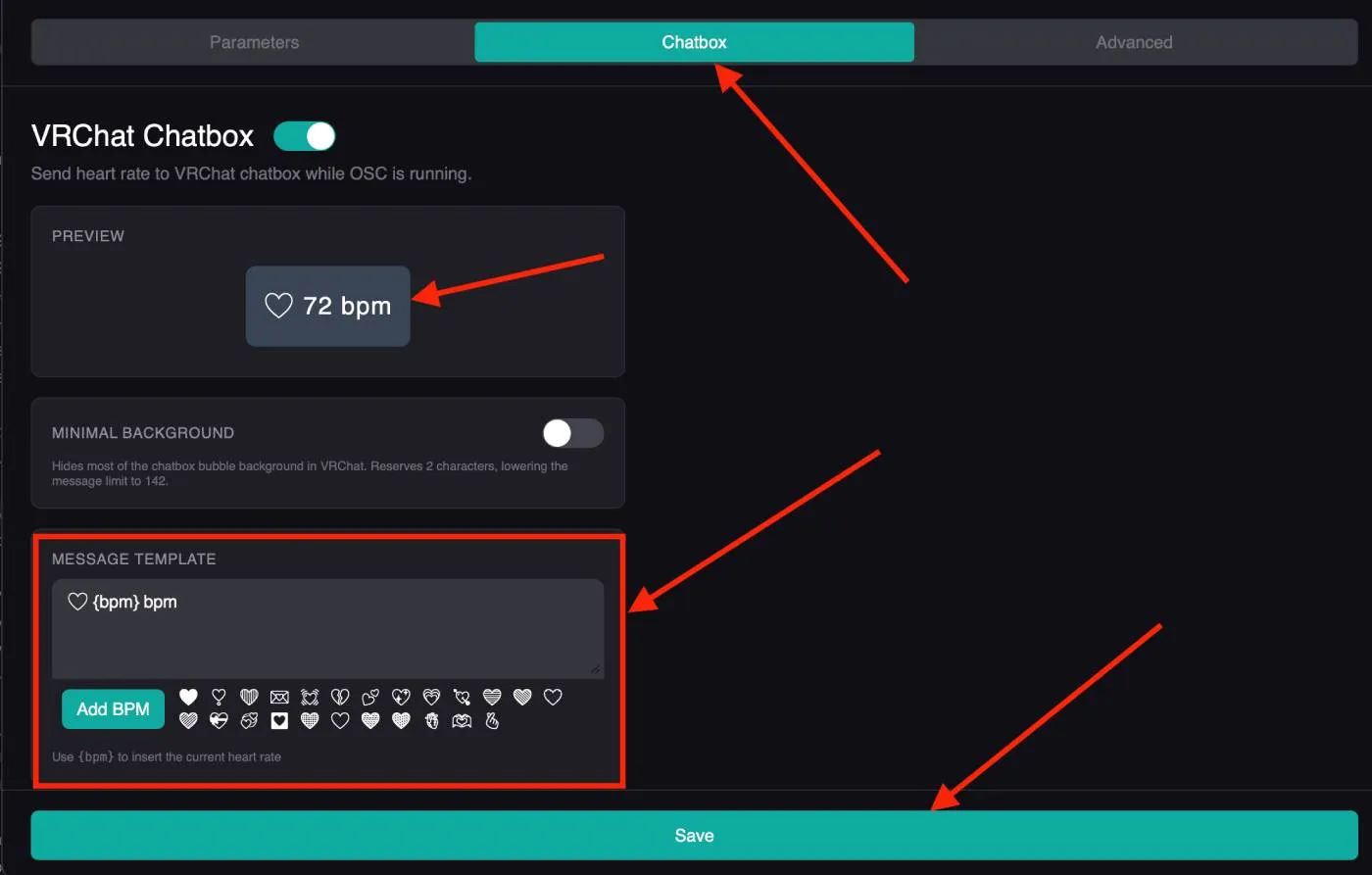
Open the Chatbox tab, enter your custom text template using {bpm} that will automatically be converted to your real heart rate, check the preview, and click Save.
-
Start OSC
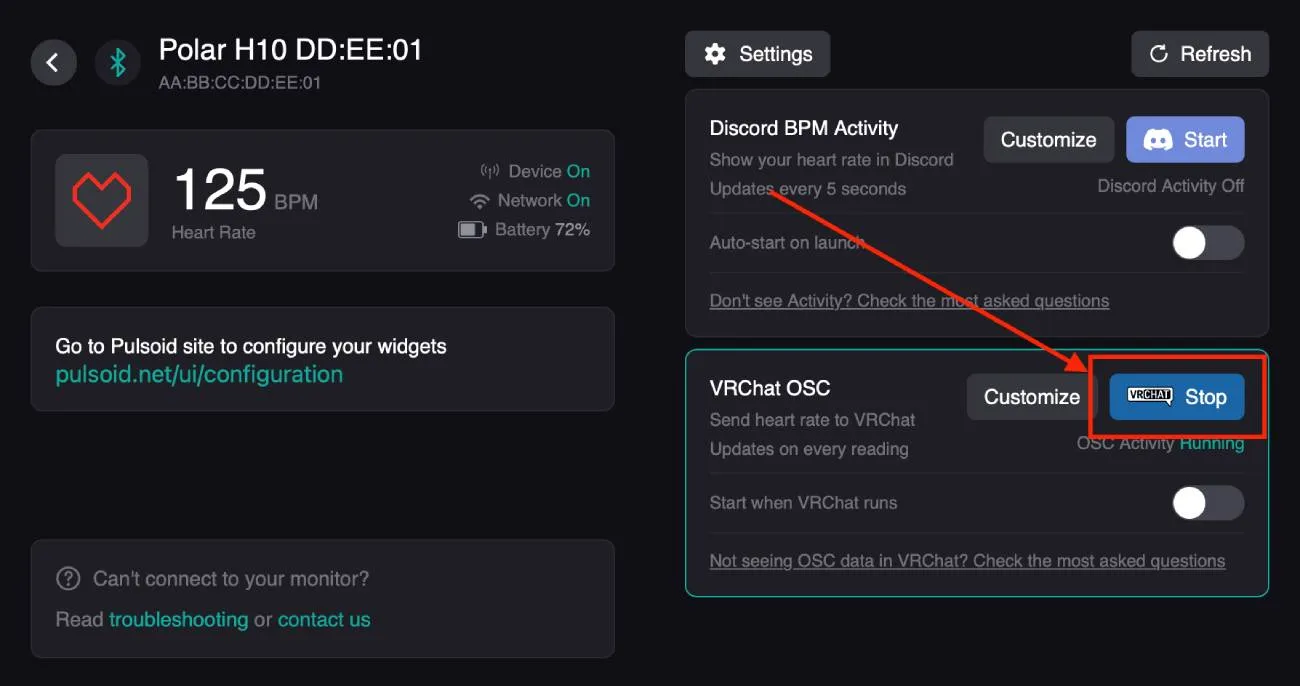
Click Start under the OSC section in Pulsoid Desktop, then launch VRChat to start streaming your heart rate data.
If you run into any issues or have feature requests, feel free to join our Pulsoid Discord server for help!