Pulsoid Heart Rate Prefab for VRChat Avatars: Glowy Heart Rate
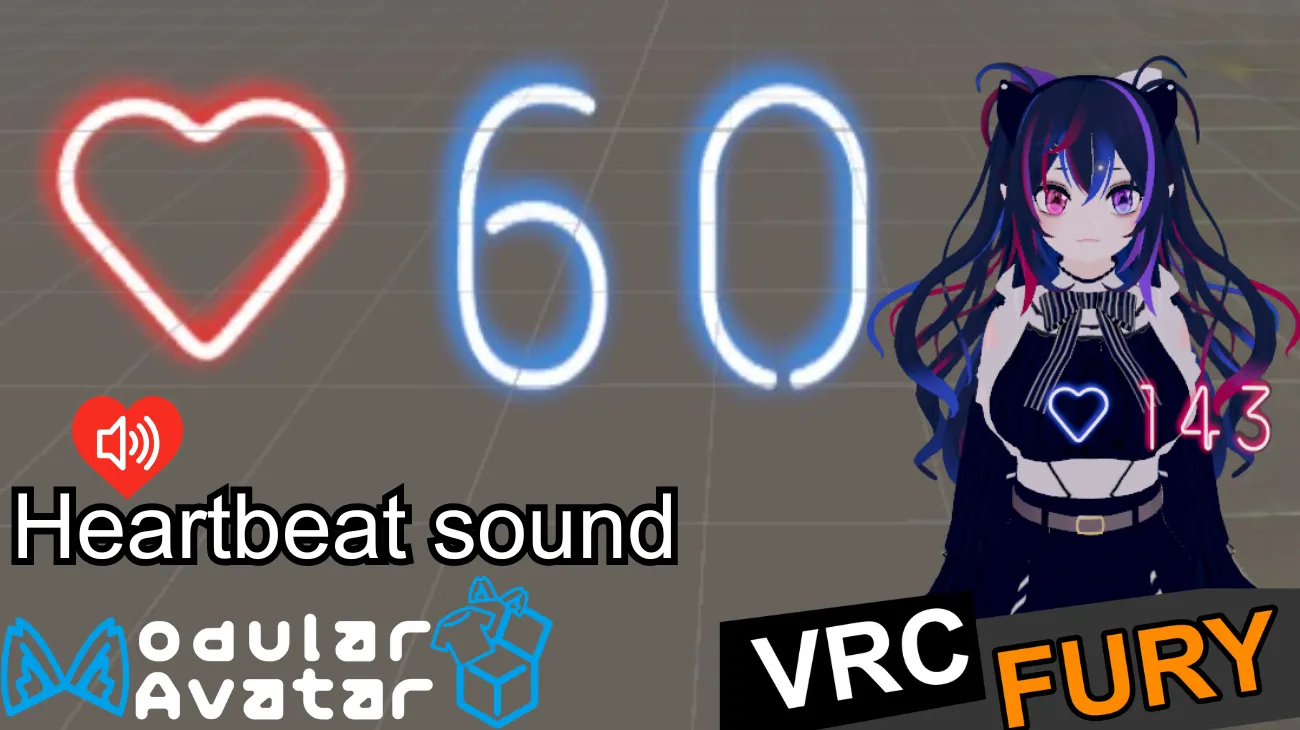
The Glowy Heart Rate prefab is a VRChat add-on that lets you show your real-time pulse directly on your avatar. It includes a bright glow effect, full color controls, BPM range settings, and an optional heartbeat sound. The prefab works with VRCFury and Modular Avatar, and you can set it to auto-hide or toggle the display whenever you need. This makes it a simple and customizable way to add live heart rate visuals to your VRChat world or avatar. Oh, and it’s super easy to set up! Firstly, check out the requirements for the Glowy Heart Rate prefab:
What You’ll Need
- Unity 2022
- VRCFury or Modular Avatar added to your Unity project
- A Pulsoid account connected and set up. If you haven’t set it up yet, learn how here (only first 3 steps)
- An OSC tool that sends heart rate parameters
Note: On Quest and Android avatars, the prefab does not work. When creating a PC-first avatar with a Quest or Android compatible version, follow the VRCFury or Modular Avatar documentation to ensure proper syncing between versions.
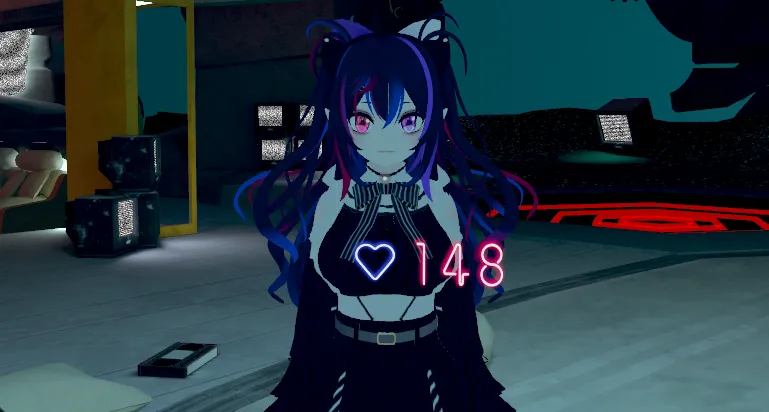
How to set up the Glowy Heart Rate prefab for your VRChat avatar
Setting up your VRChat Heart Rate prefab is quick and easy. Follow these simple steps to get everything working.
Basic Setup Guide
- Get the Glowy Heart Rate prefab and import the downloaded .unitypackage into your Unity project by dragging and dropping it into the Assets folder.
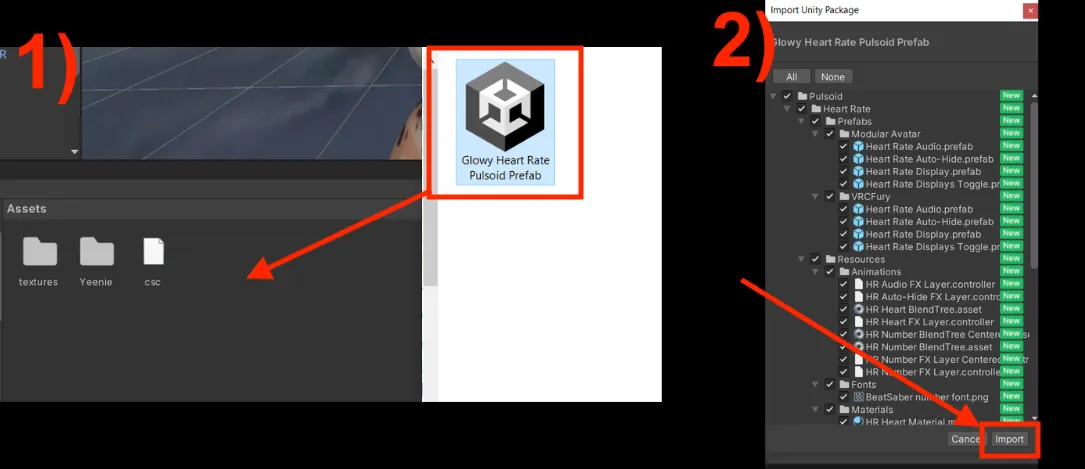
- In the Assets folder in Unity, navigate to Pulsoid > Heart Rate > Prefabs > VRCFury (or Modular Avatar, depending on what you use).
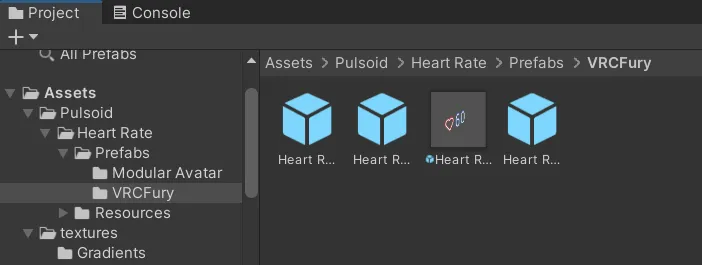
- Drag and drop the Heart Rate Display Prefab onto the armature you want to attach it to (for example, the chest).
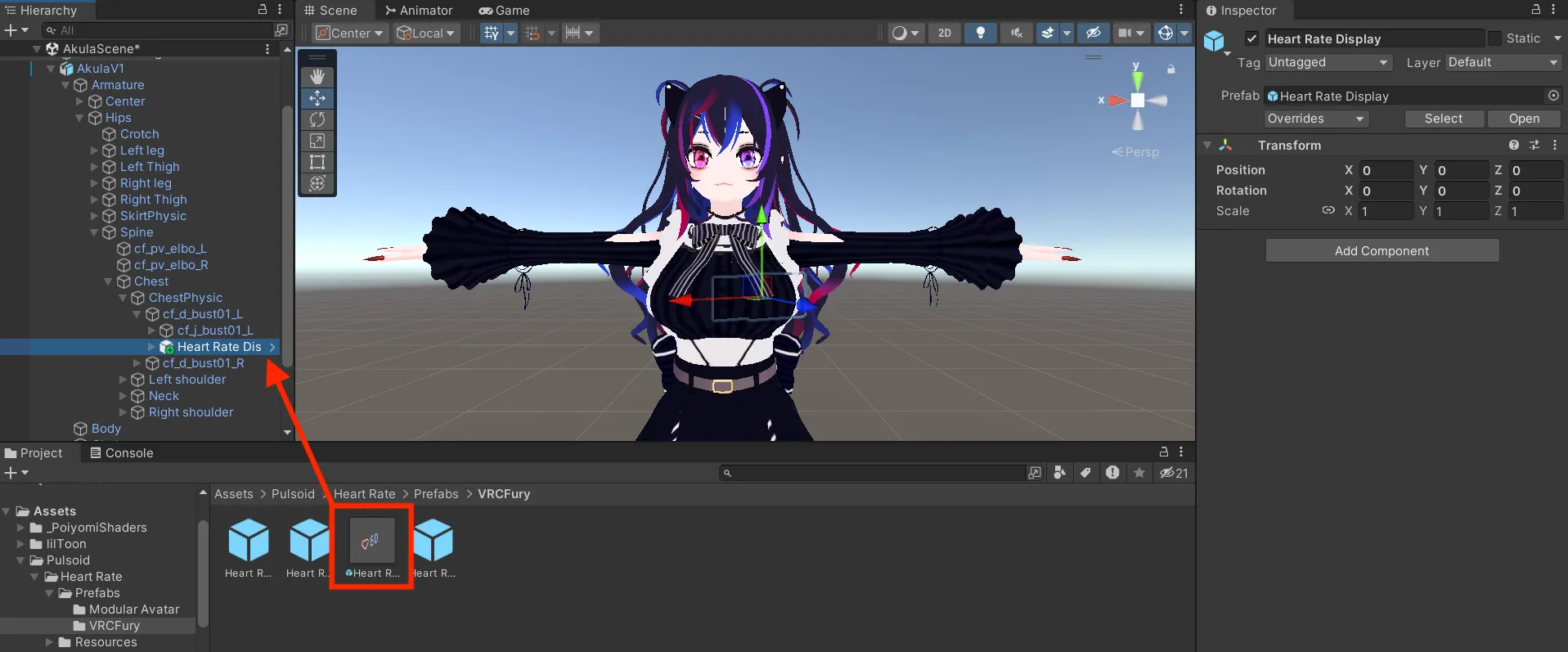
- Adjust the position, rotation, and scale of the prefab to fit your avatar.
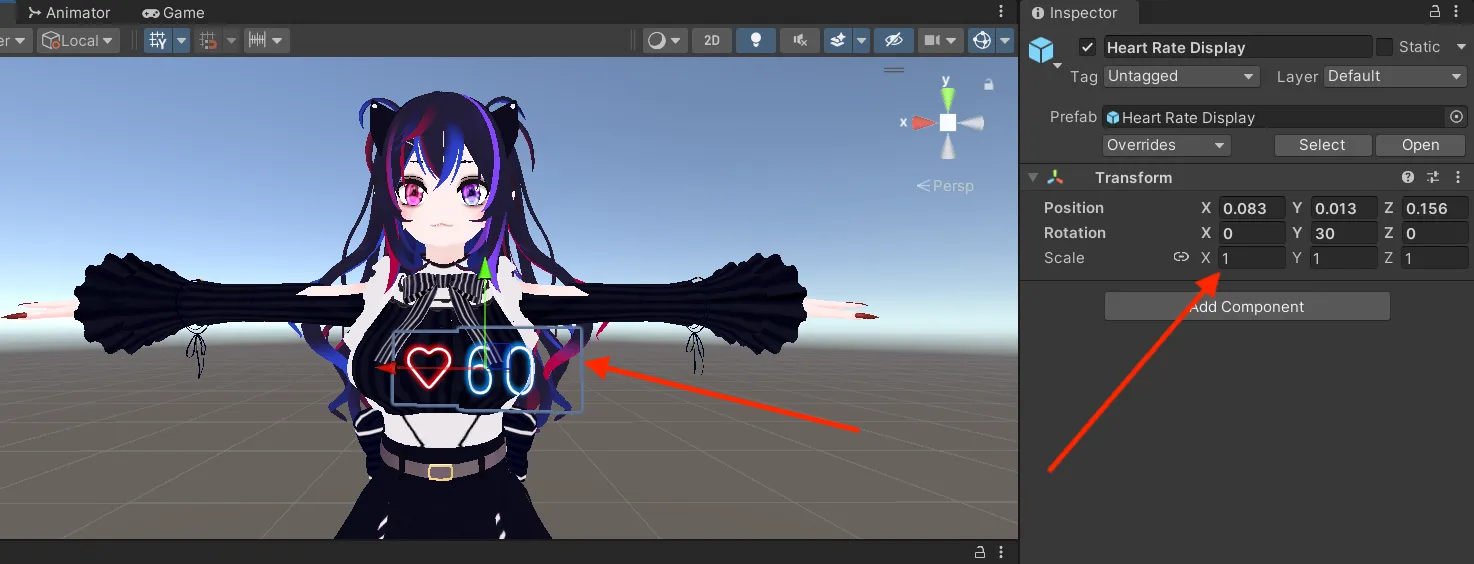
- Connect your real heart rate. To display your actual heart rate in VRChat, make sure your heart rate monitor is on and connected to Pulsoid, then run your OSC tool that sends heart rate parameters. If you use Pulsoid OSC, it already matches this prefab’s parameter names, so there’s nothing to configure. If you’re using another OSC tool, learn how to set the parameter names to match this prefab.
Changing Colors to Match Your Avatar
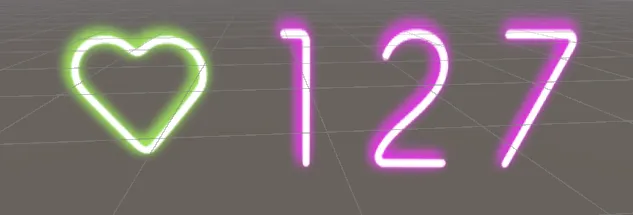
- Click the Heart Rate prefab in the scene, then select either the Number or Heart (depending on what you want to change). Or in the scene Hierarchy: Heart Rate Display > Heart Rate Number (or Heart) > Number Renderer
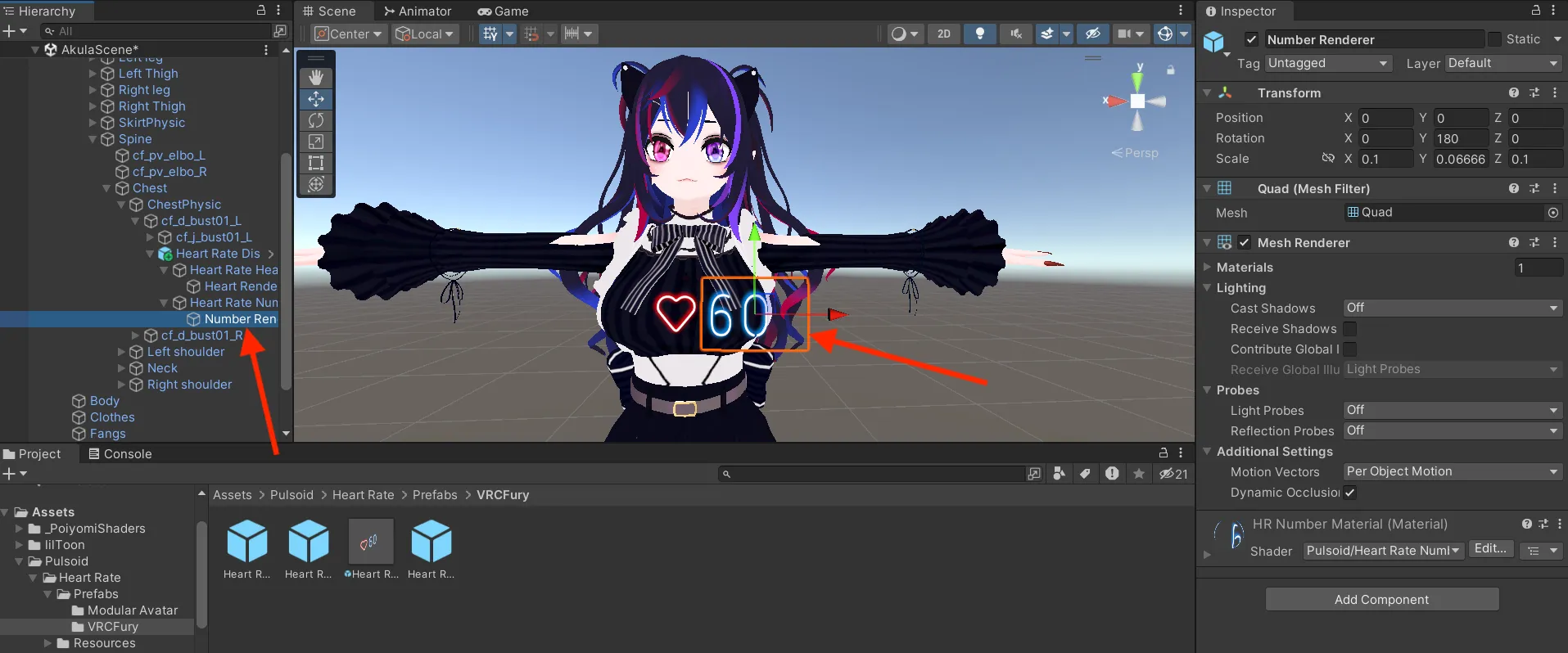
- In the Inspector on the right side, open the shader properties.
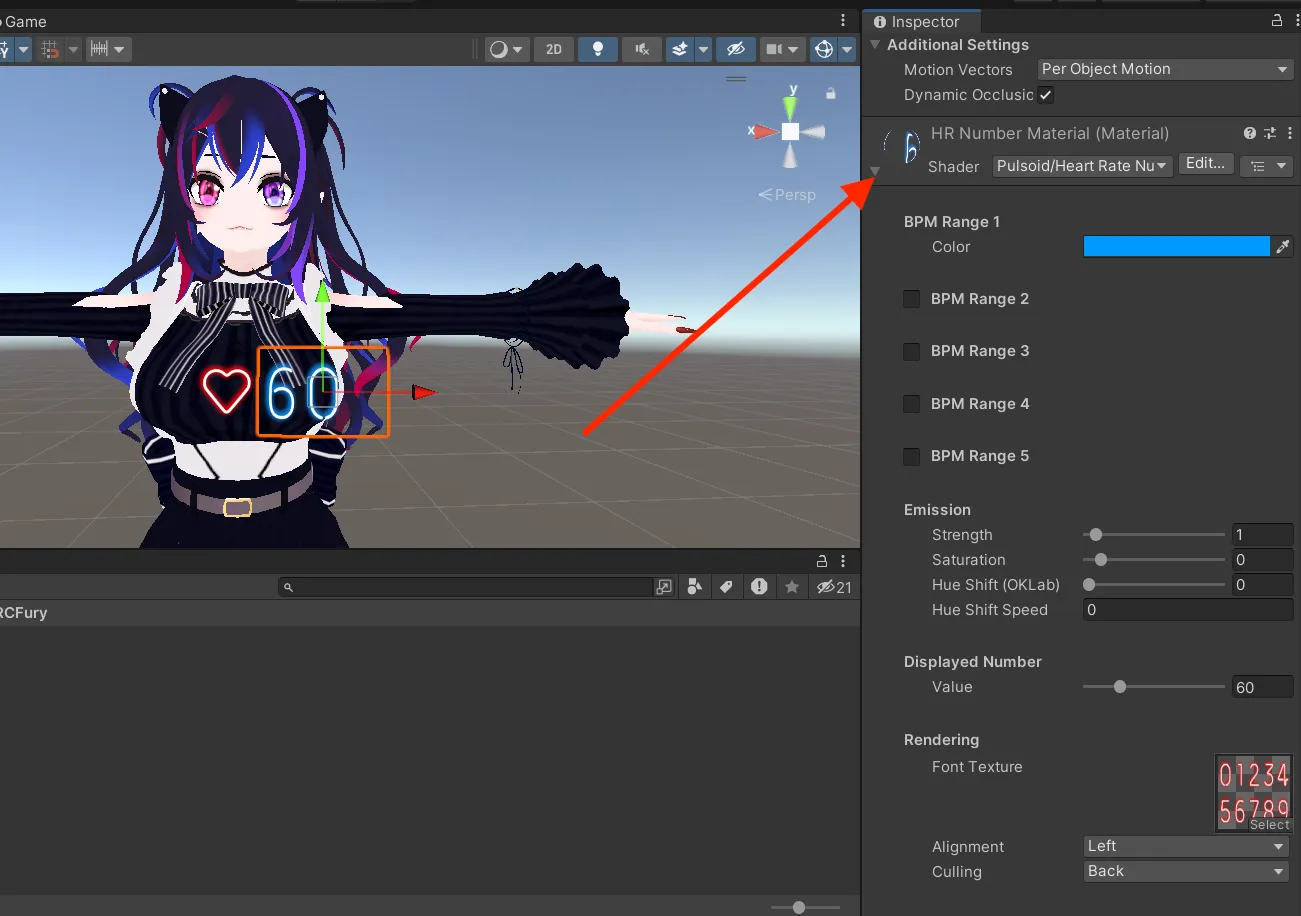
- To set a single color, adjust the Range 1 BPM color.
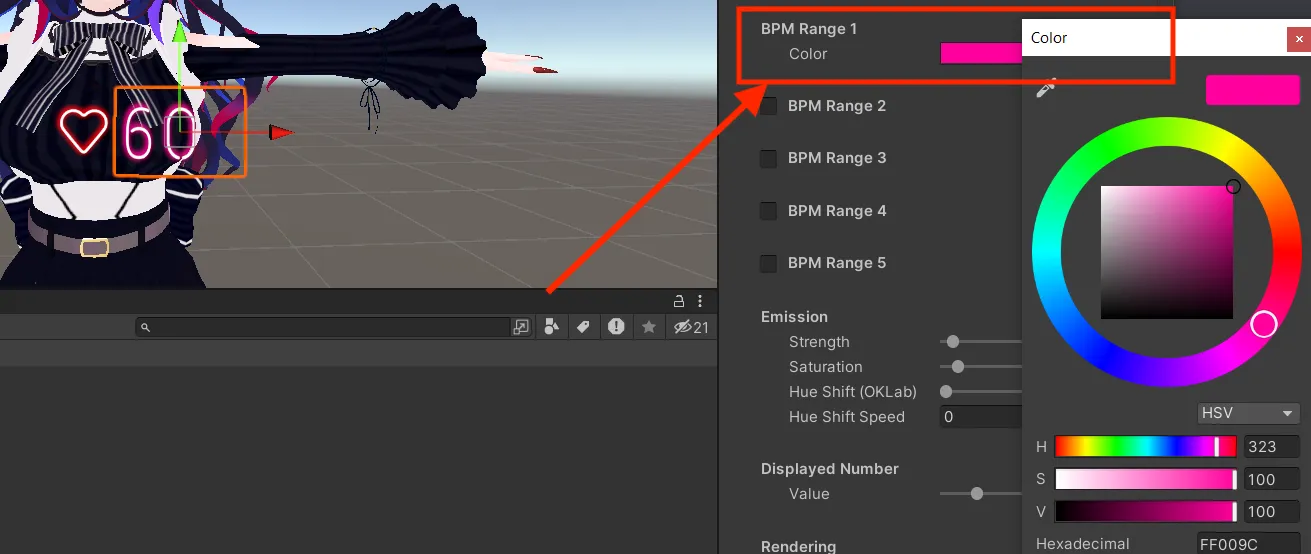
- To make the color change based on your heart rate, enable additional BPM Ranges by checking their boxes.
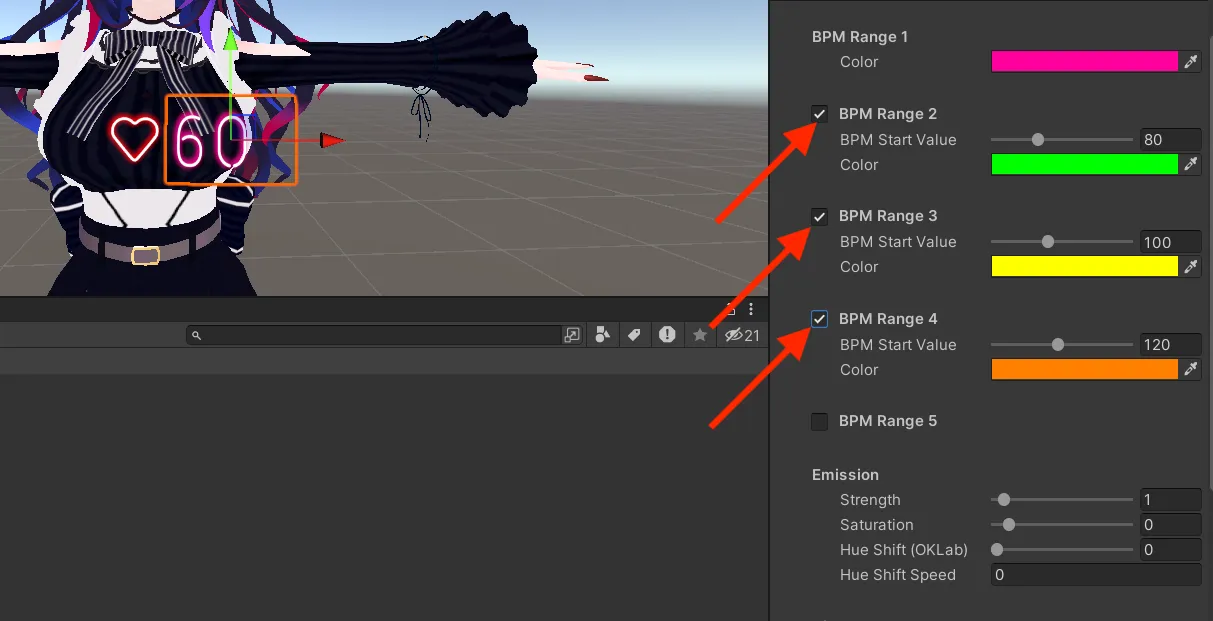
- Each new range must have a Start BPM higher than the previous one.
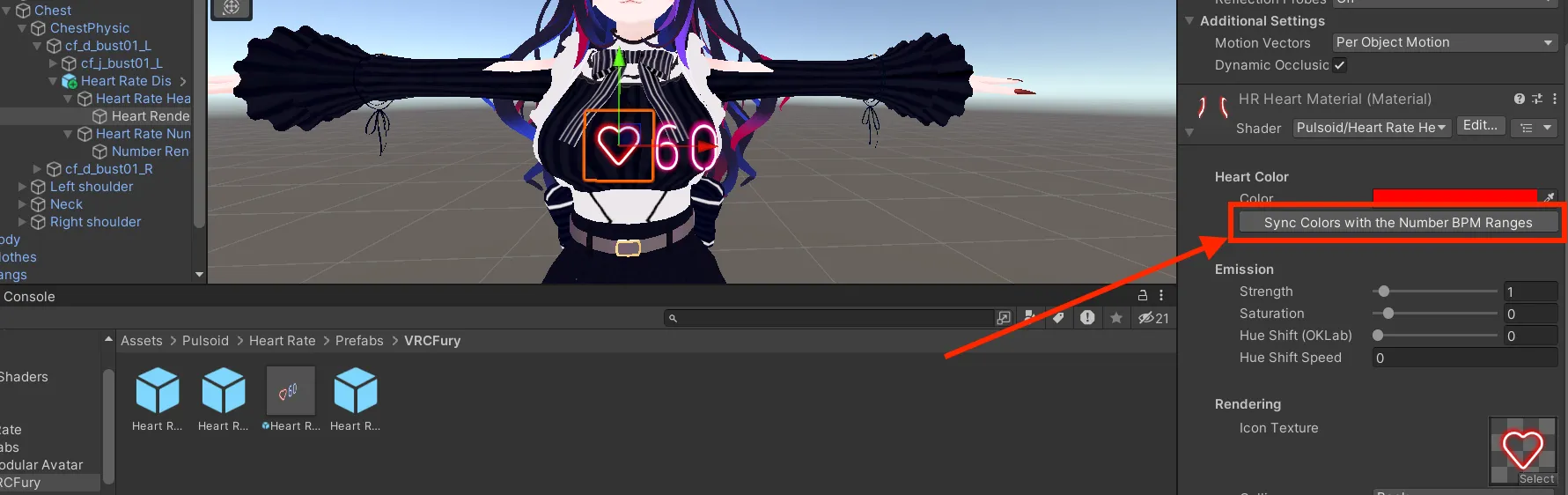
- In the Heart Icon prefab, you can click “Sync colors with Number BPM Ranges” to match the heart icon colors with the number display.
That’s all for setting up the prefab on your avatar. You can build and upload it now if you only want to show your heart rate visually.
If you want to enable more features like audio, auto-hiding, or expression toggles, continue reading below.
Adding Heartbeat Sound
The heartbeat sound reacts to your real heart rate and beats faster as your heart rate increases. Other users will hear it more clearly when they are close to you.
To set it up:
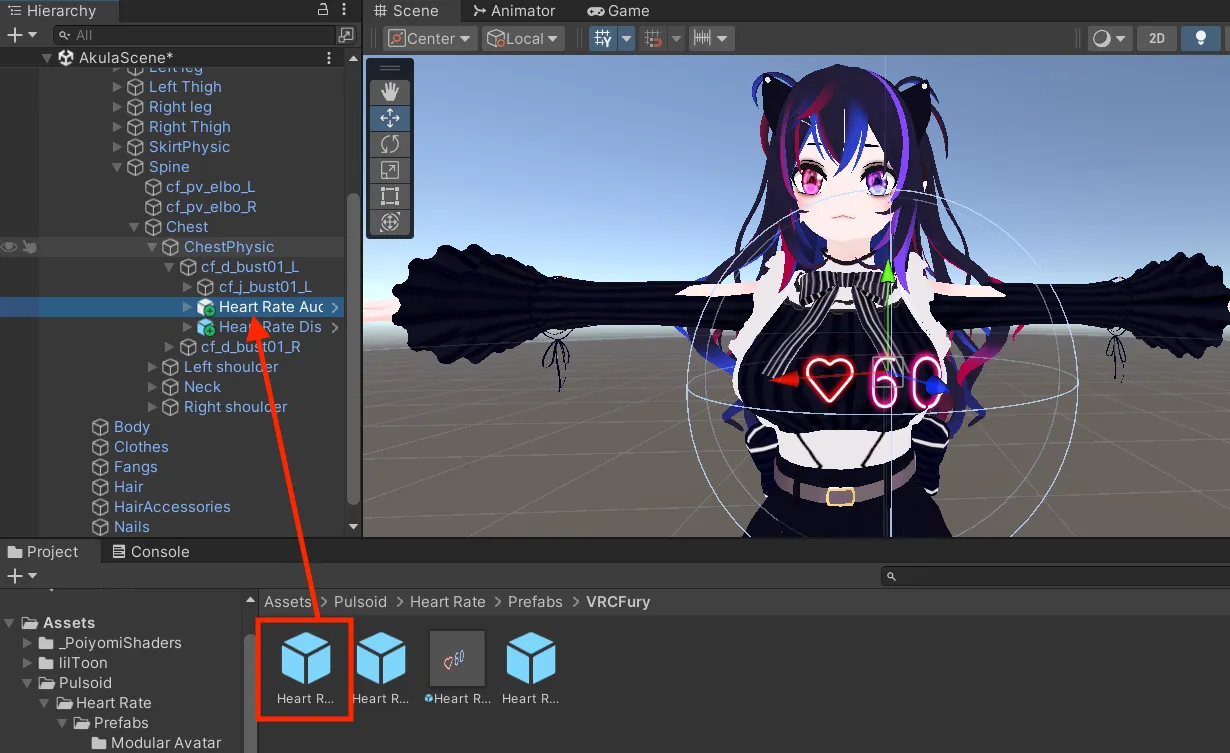
- In Pulsoid > Heart Rate > Prefabs > VRCFury (or Modular Avatar), find the Heart Rate Audio Prefab.
- Drag and drop it onto the armature where you want the sound to play from. Don’t add it too close around your head because you’ll constantly hear the heartbeat sound.
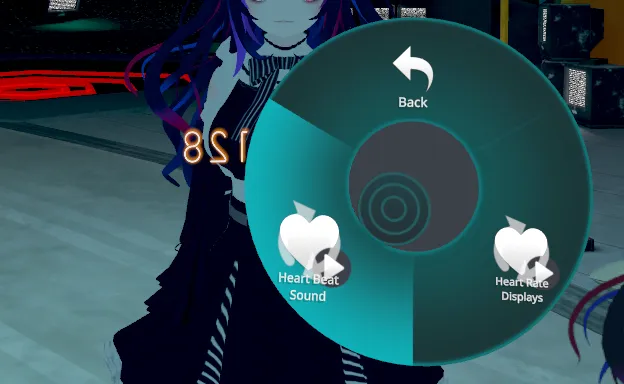
- You should now be able to see the Toggle in the VRChat Expressions
Other Useful Features
Heart Rate Toggle in Expressions
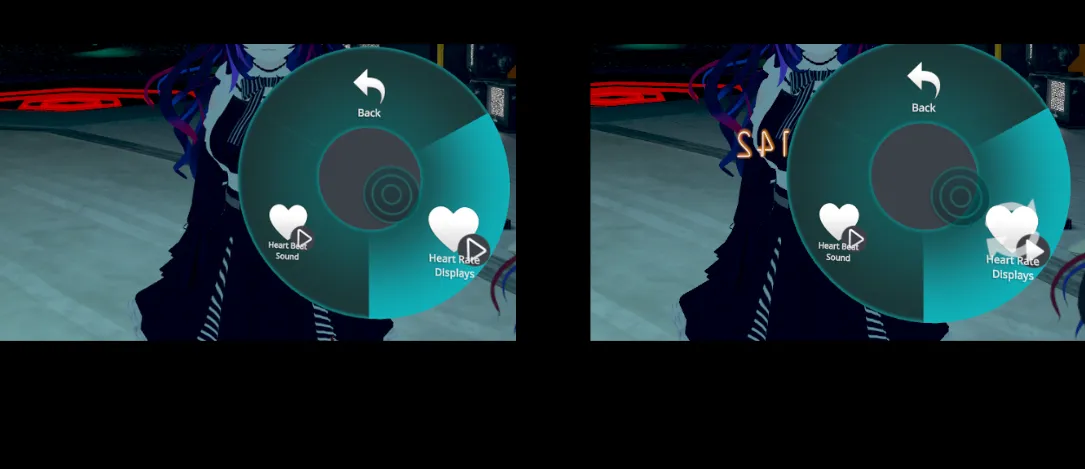
You can add a toggle in your avatar’s Expressions menu to hide or show your heart rate manually.
- In Pulsoid > Heart Rate > Prefabs > VRCFury (or Modular Avatar), find the Heart Rate Toggle Prefab.
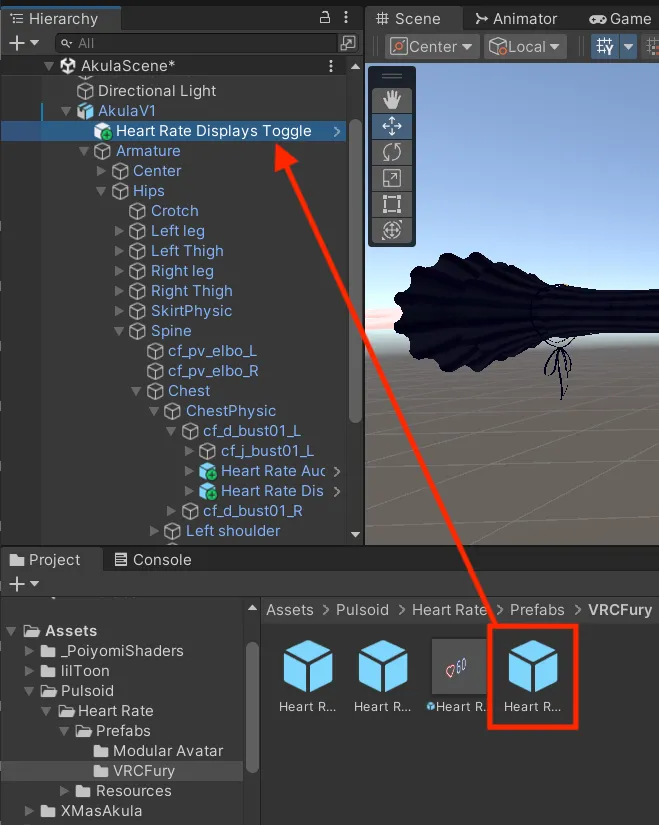
- Drag and drop it onto the root of your avatar in Unity.
- You should now be able to see the Toggle in the VRChat Expressions
Heart Rate Auto-Hiding
This feature automatically hides your heart rate display after 10 seconds if VRChat stops receiving heart rate data.
- In Pulsoid > Heart Rate > Prefabs > VRCFury (or Modular Avatar), find the Heart Rate Auto-Hide Prefab.
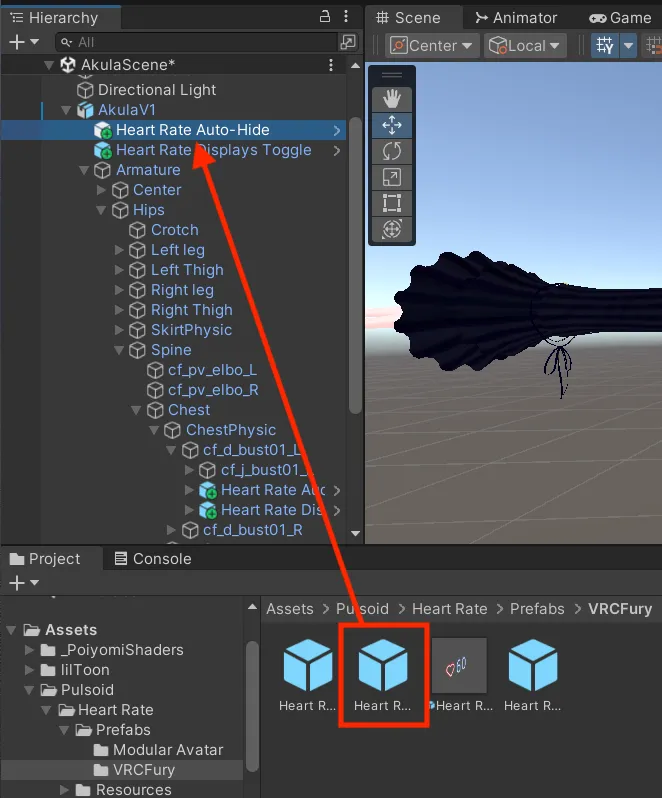
- Drag and drop the prefab onto the root of your avatar.
Done! That’s it! You’re all set to show your real heart rate in VRChat.
If you ever run into problems or have questions, our Discord channel is the best place to get quick help and share feedback.