How to Show Your Heart Rate in Geometry Dash with GDPulse Mod
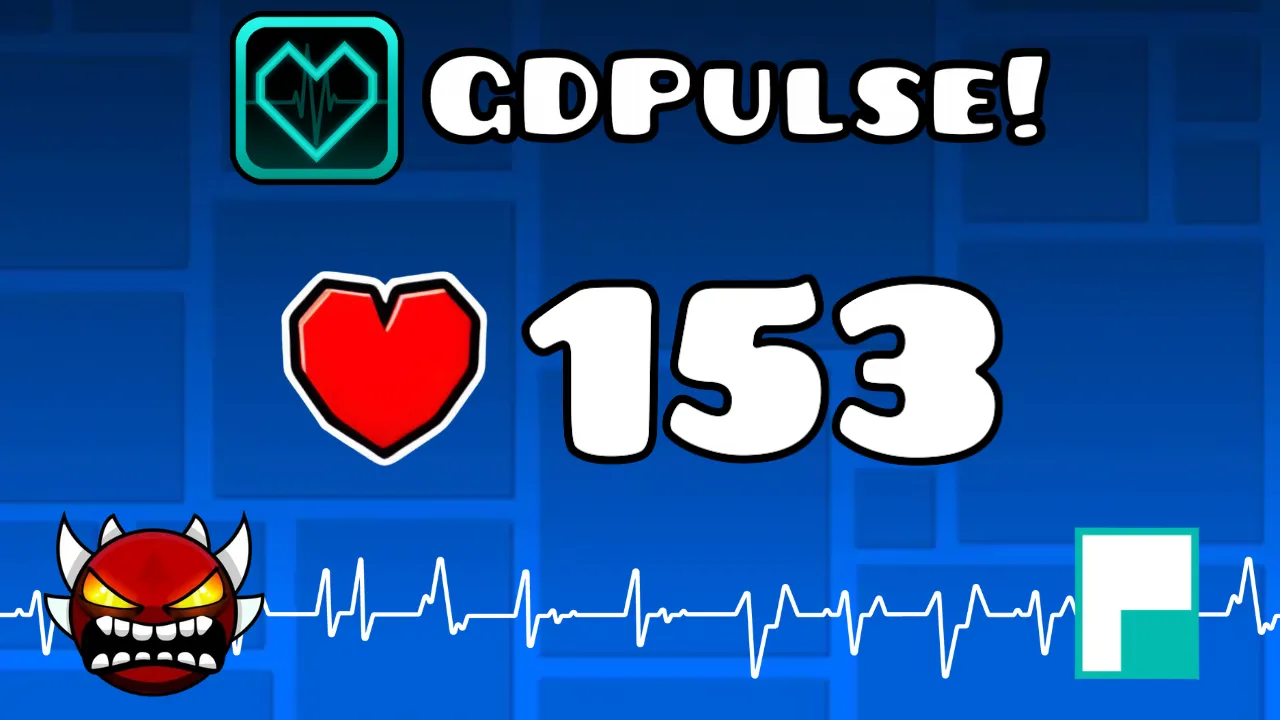
The GDPulse mod lets you show your heart rate directly in Geometry Dash by connecting Pulsoid to your heart rate monitor or smartwatch. Your BPM appears in real time during gameplay, so you can see how calm or stressed you are during tough levels and fast sections. It’s also great for streams and videos since it adds a more intense vibe. With features like losing the level when your BPM reaches a set number, the mod adds a fun and unique challenge to the game.
Who is this mod for?
- Streamers: Add emotion to your content by showing your physical reaction to clutch moments
- YouTubers: Enhance your Demon completions and challenge videos with real BPM excitement
- Players: Simply visualize your heartbeat to see how calm (or stressed) you remain during intense levels
How to set up GDPulse mod
Before we begin, make sure Pulsoid is fully set up. It’s required to show your real time heart rate in the game. Here’s what you’ll need if you haven’t done it already:
- Make sure your heart rate monitoring device is supported by Pulsoid. It can be a heart rate monitor belt or an armband with BLE support, as well as an Apple Watch or WatchOS device. Find the right device for you in our list of supported devices
- Create an account on pulsoid.net
- Download the Pulsoid app to your IOS or Android smartphone
- Put on your heart rate monitoring device, open the app, and select your device there. Follow our troubleshooting guide if you have problems connecting your device to the app
(Note: Ensure your BPM is visible in the mobile app before proceeding).
To install the GDPulse for Geometry Dash you’ll also need the Geode mod loader. Here’s how to get it working.
Install Geode Mod Loader
- Go to the official Geode SDK installation page.
- Download the installer for your operating system (Windows, Mac, or Android).
- Run the installer. This will replace the standard Geometry Dash launcher with the Geode version.
Now that all the preparations are ready, let’s get the mod into the game.
How to install the GDPulse mod
- On the main menu, click the Geode icon to open the mod list.
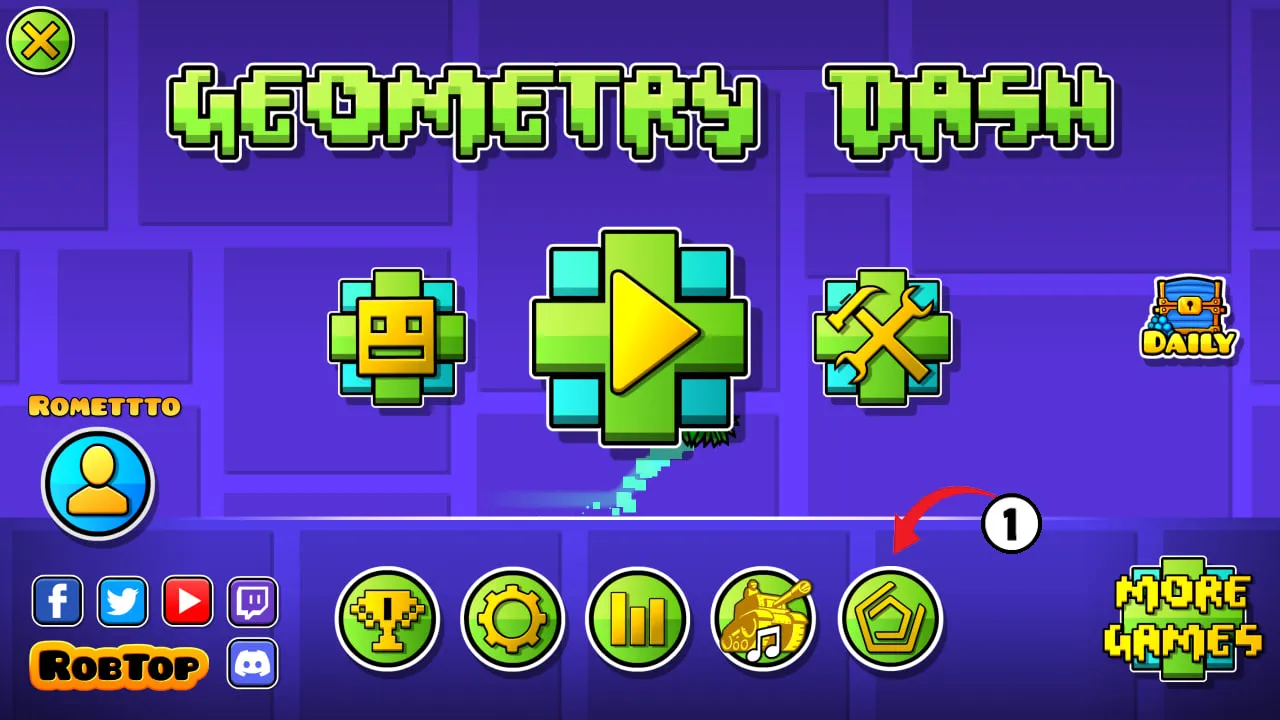
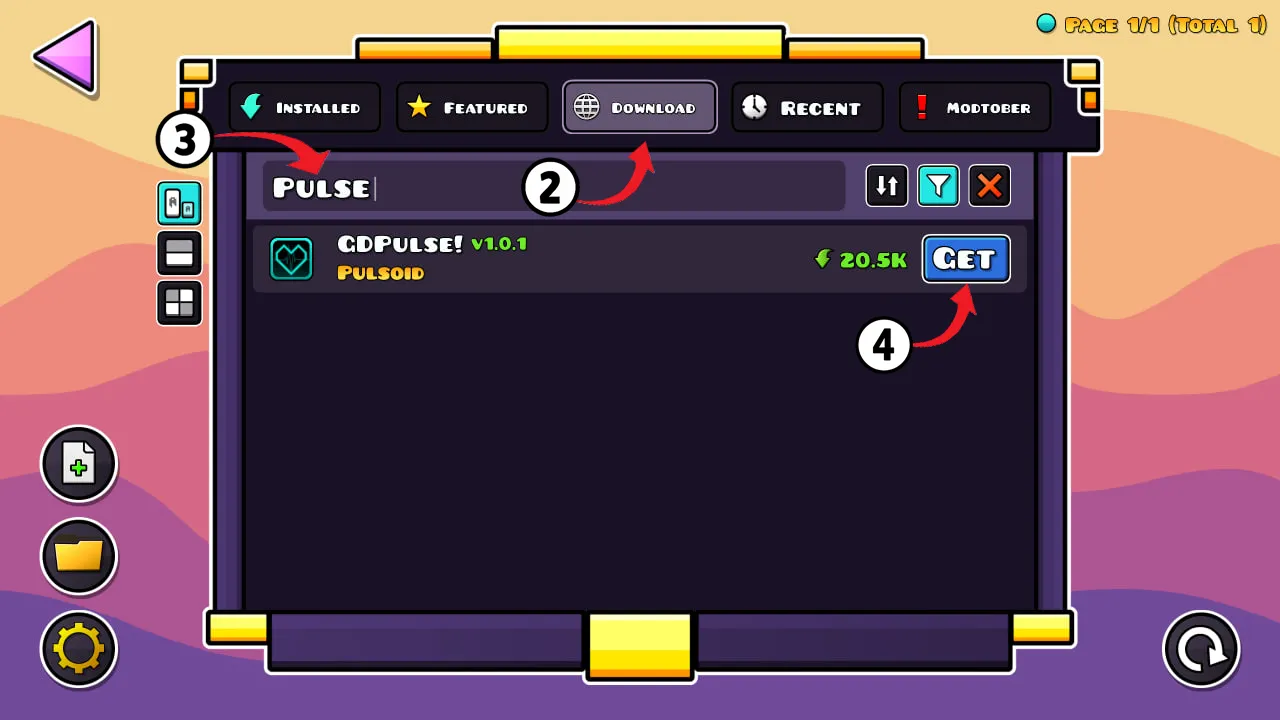
- Navigate to the Download tab at the top.
- Type GDPulse in the search bar.
- Find GDPulse! in the list and click GET.
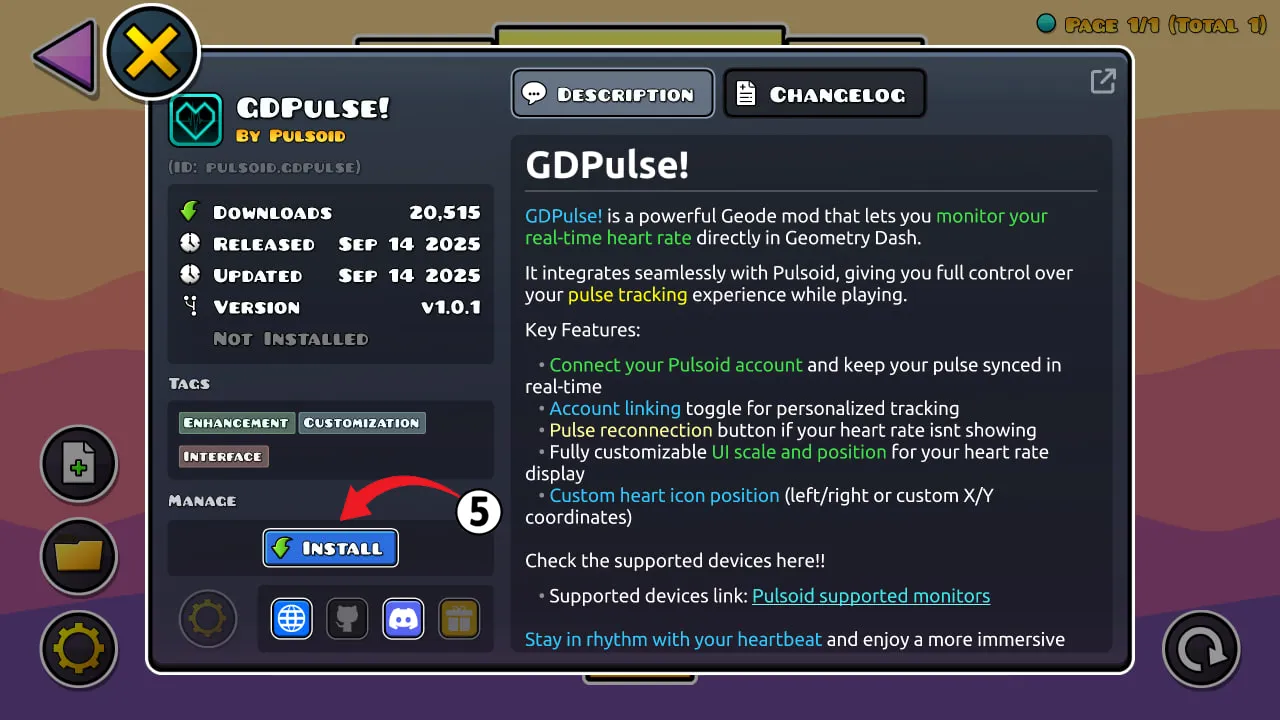
- Once downloaded, click INSTALL.
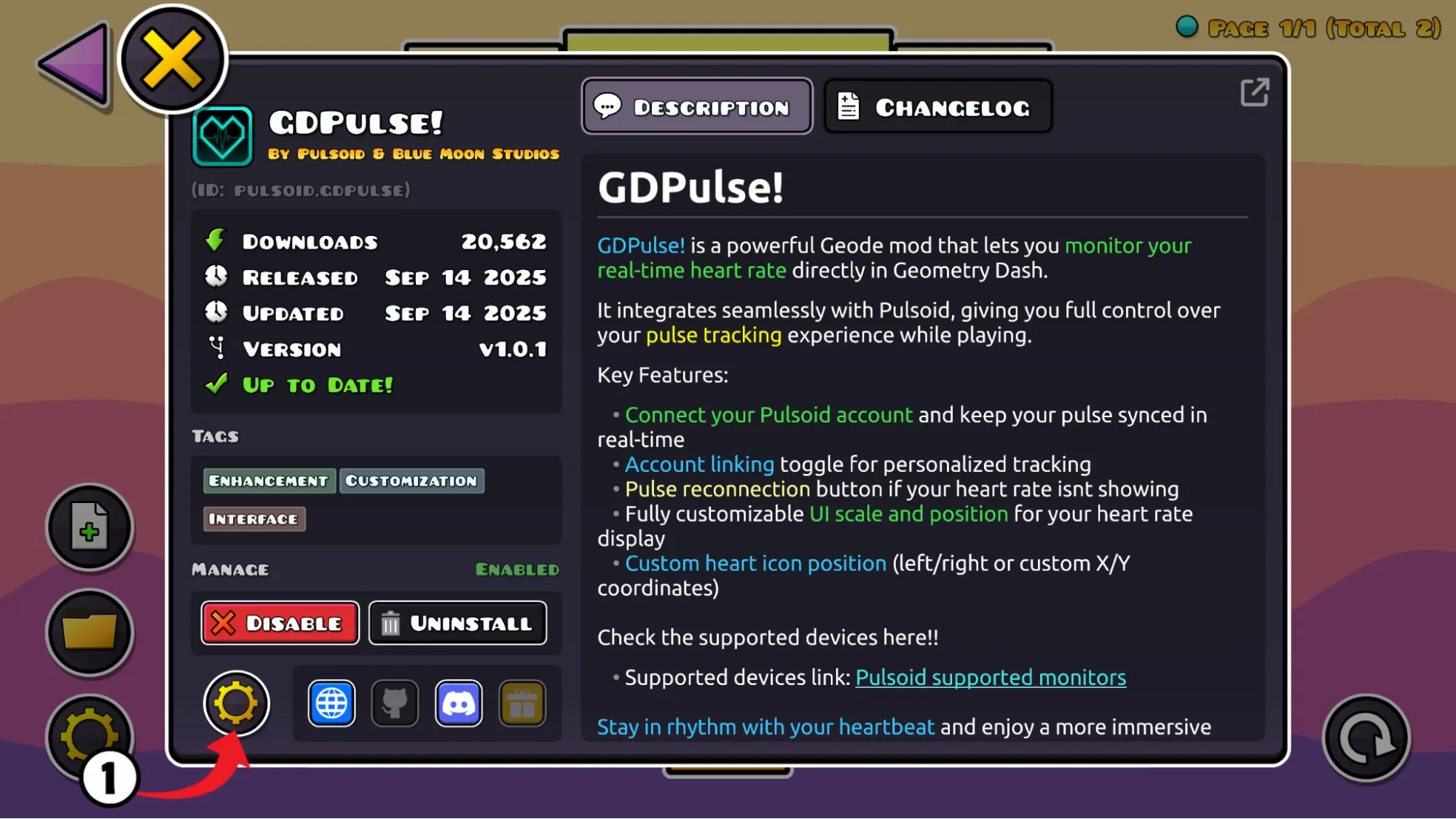
- Important: Restart Geometry Dash completely for the changes to take effect.
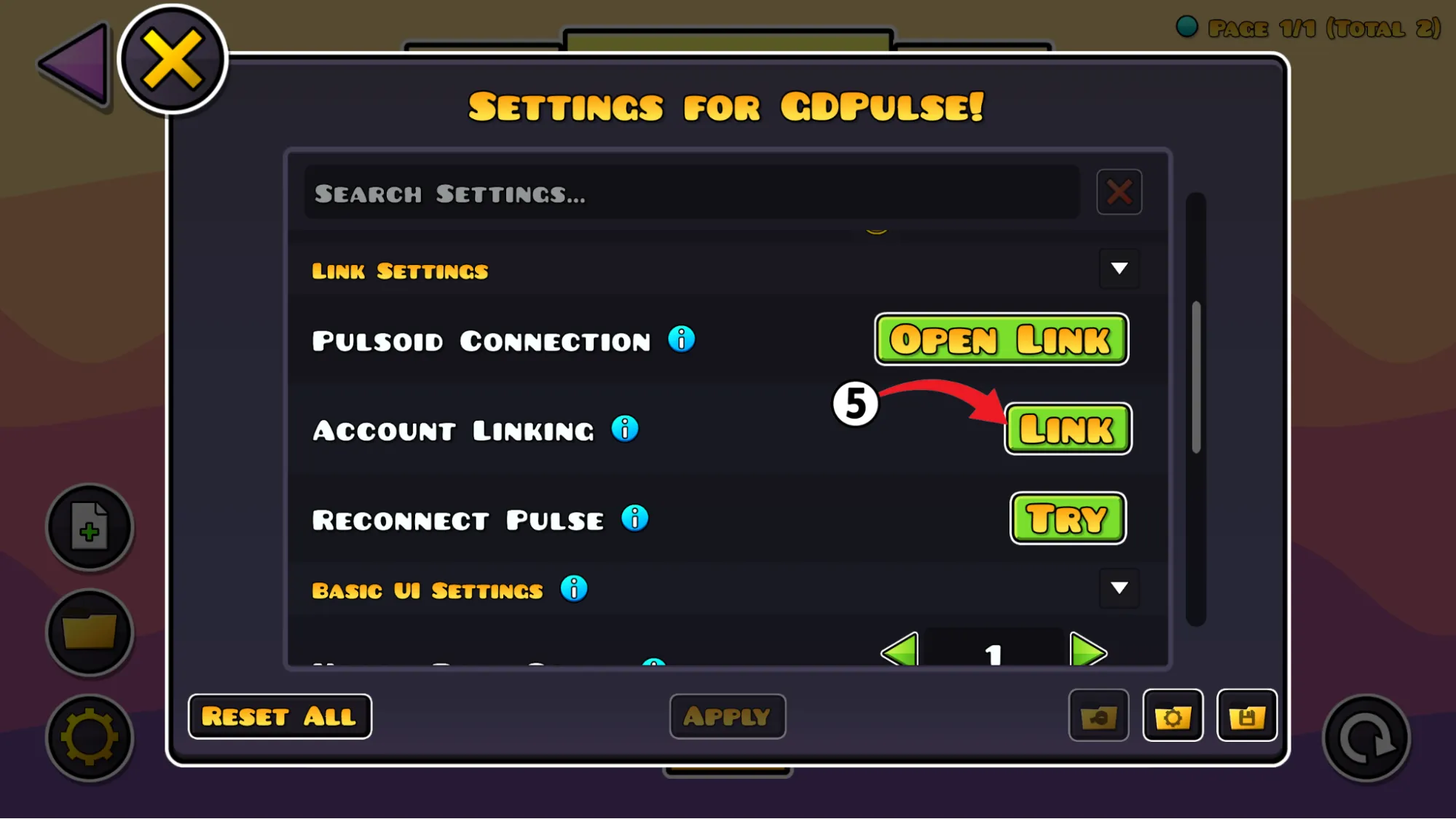
- After restarting the game click on Settings (gear icon) for the GDPulse! mod.
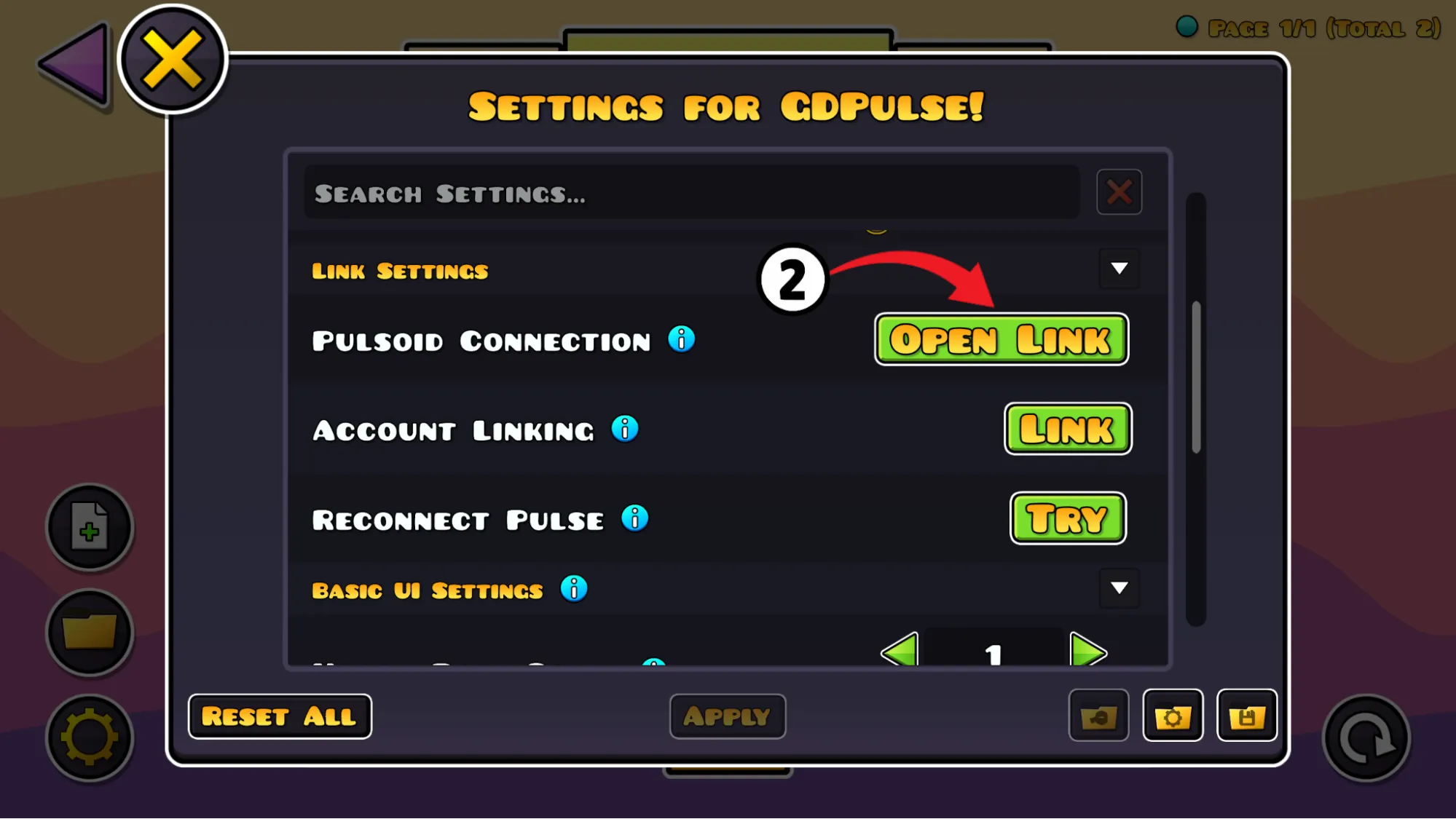
- Scroll to the Pulsoid Connection section and click Open Link. This will launch your browser.
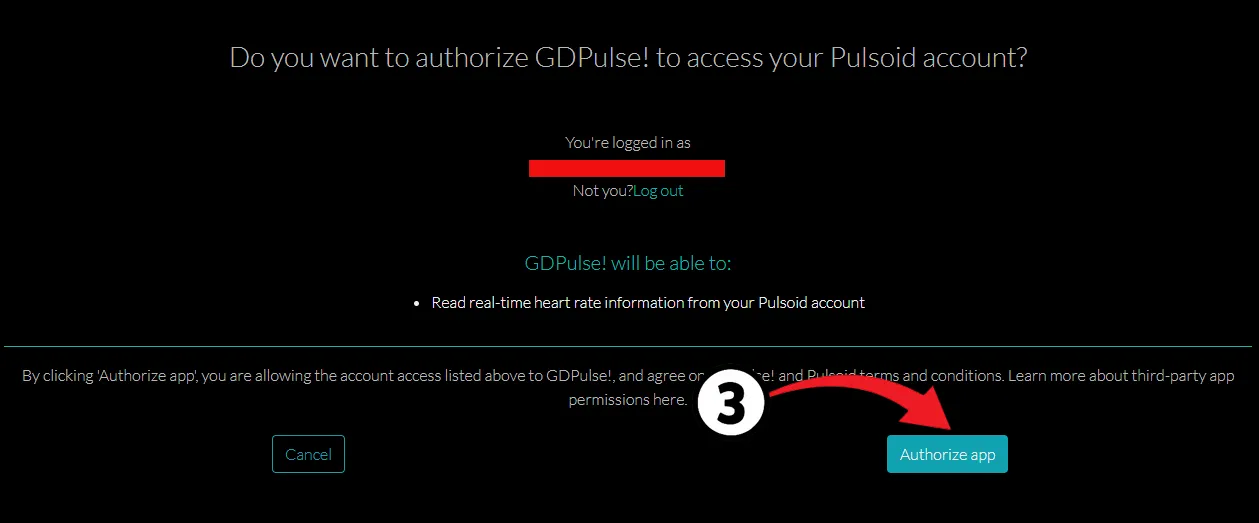
- Log in to Pulsoid if asked, and click Authorize App.
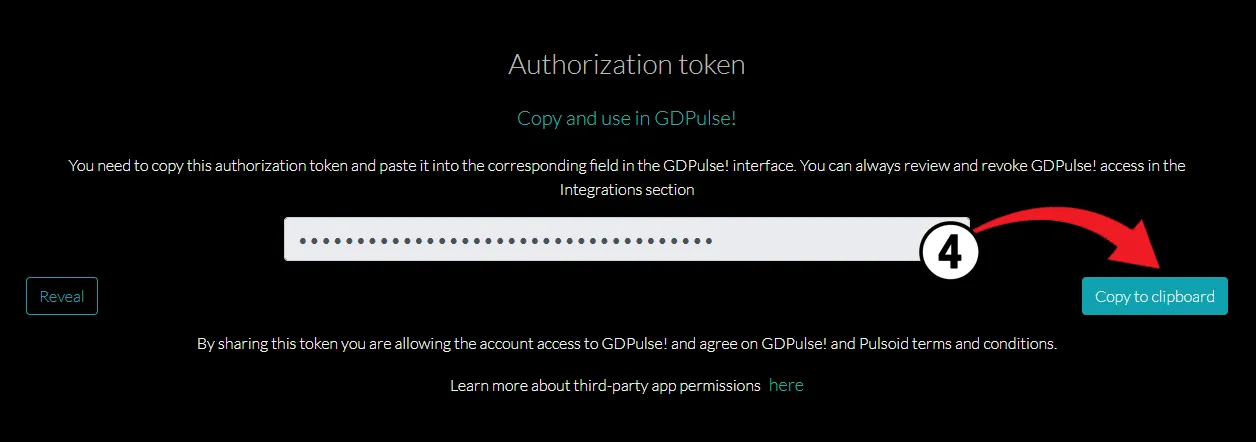
- You will see a Pulsoid Token. Copy it using the “Copy to clipboard” button.
- Return to the mod settings. Click LINK near the Account Linking and paste the token.
- Click Validate.
That’s all! Your heart rate should now appear directly in the Geometry Dash! But you can also explore the GDPulse flexible settings to make the widget fit your style, look seamless, and enable features like losing the level when your BPM hits a certain number, adding a fun new challenge to the game.
GDPulse mod Customizations and Features
All options are available within the mod’s settings menu:
Visuals & Customization (UI Settings)
You can fully adapt the counter’s appearance to fit your interface so it doesn’t distract from gameplay:
- Heart Rate Scale: A slider that allows you to change the size of the heart rate widget (making it smaller or larger).
- Heart Rate Position: Choose the location of the counter on the screen (e.g., Right Top) to ensure it doesn’t cover important level elements.
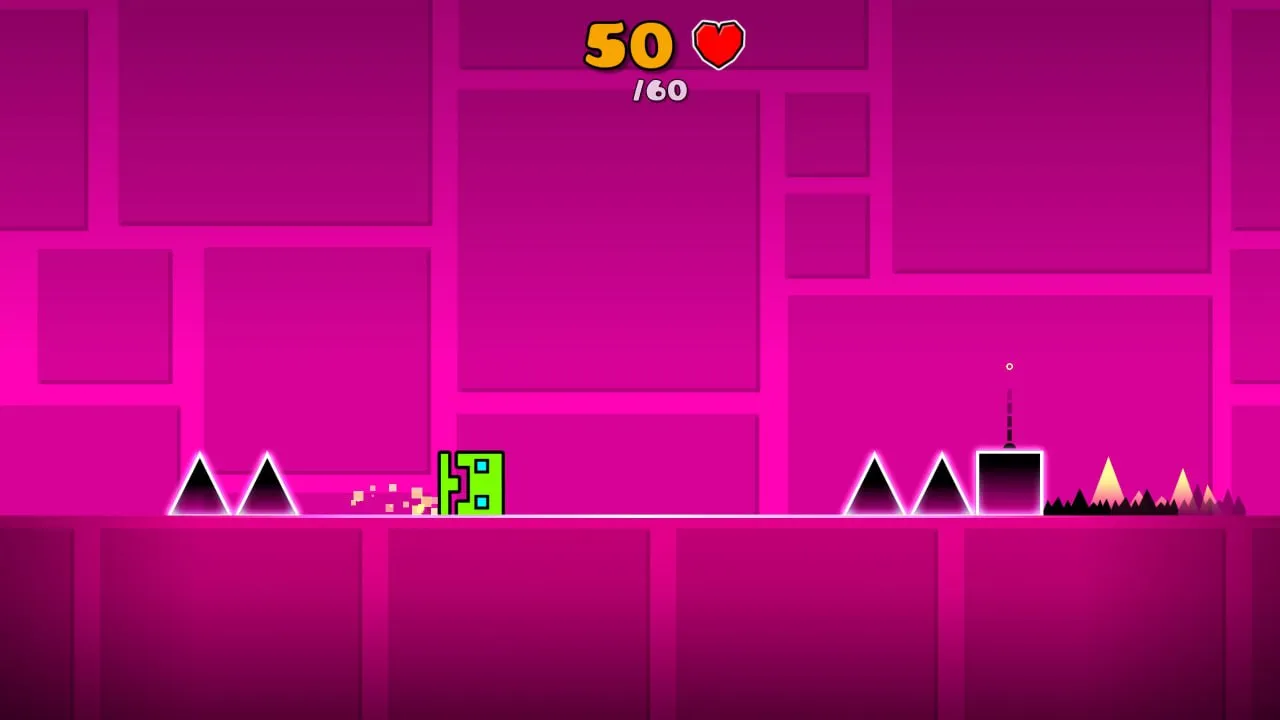
Hardcore Mode: “Death by BPM”
This feature turns your heart rate into a gameplay mechanic!
- Enable Death by BPM: If you activate this checkbox, you will die in-game if your heart rate gets too high.
- Death BPM Threshold: Set a heart rate limit (e.g., 140 BPM). This is the perfect tool for training your composure or creating intense challenges for videos (e.g., “Beating a Demon, but if I get scared — I die”).
Pulsoid Connection Management
- Reconnect Pulse: If the data stops streaming for any reason, you don’t need to restart the game. Simply click the Try button next to Reconnect Pulse to instantly restore the connection.
- Account Linking: A convenient menu for linking or unlinking (Unlink) your Pulsoid account.
Additional Options
- Disable on Start: An option to disable the heart rate display upon launching the game, allowing you to activate it only when needed.