How to Add a Live Heart Rate Overlay to Your Webcam
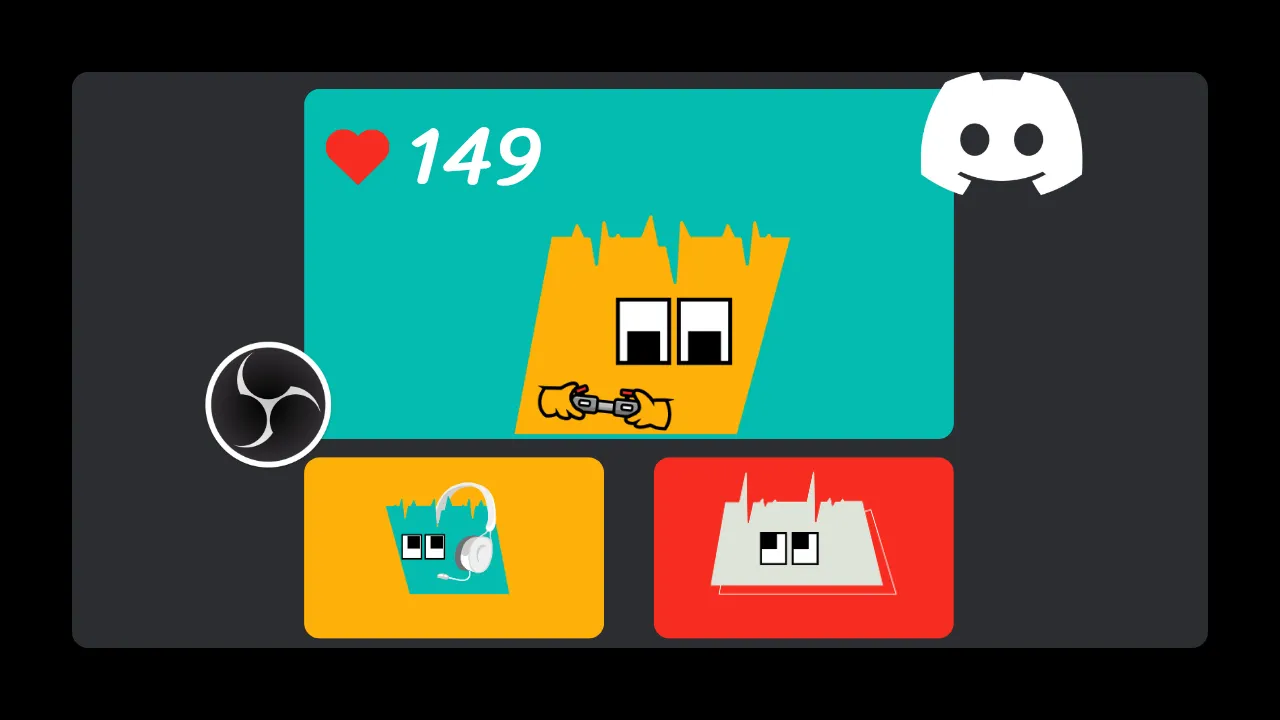
Want to show your live heart rate on your webcam during video calls? You can add a real-time heart rate overlay to your webcam using Pulsoid, OBS Studio, and the OBS Virtual Camera. This setup works with different video calling apps like Discord, Google Meet, and Zoom, as well as browser-based adult camming platforms like Chaturbate, Stripchat, MyFreeCams, etc.
What You Need for a Live Heart Rate Overlay on Your Webcam
Before you begin, make sure you have:
- A compatible heart rate monitor (e.g., chest straps like the Polar H10, or smartwatches like Apple Watch, Wear OS watches, or Garmin)
- A free Pulsoid account
- The Pulsoid app, installed on your phone (Android/iOS) or PC (Windows)
- OBS Studio
- Video calling app, camming broadcast room (e.g., Chaturbate/Stripchat), or webcam platform
How Do I Show My Live Heart Rate on My Webcam?
We’ll use Discord as an example, but the process should be similar on other platforms as well.
- Connect your heart rate monitor to Pulsoid.
New to Pulsoid? Check the setup guide to pair your monitor, or the Windows app setup guide if you’re connecting from a PC. If you have any issues connecting your monitor to Pulsoid, check this troubleshooting guide.
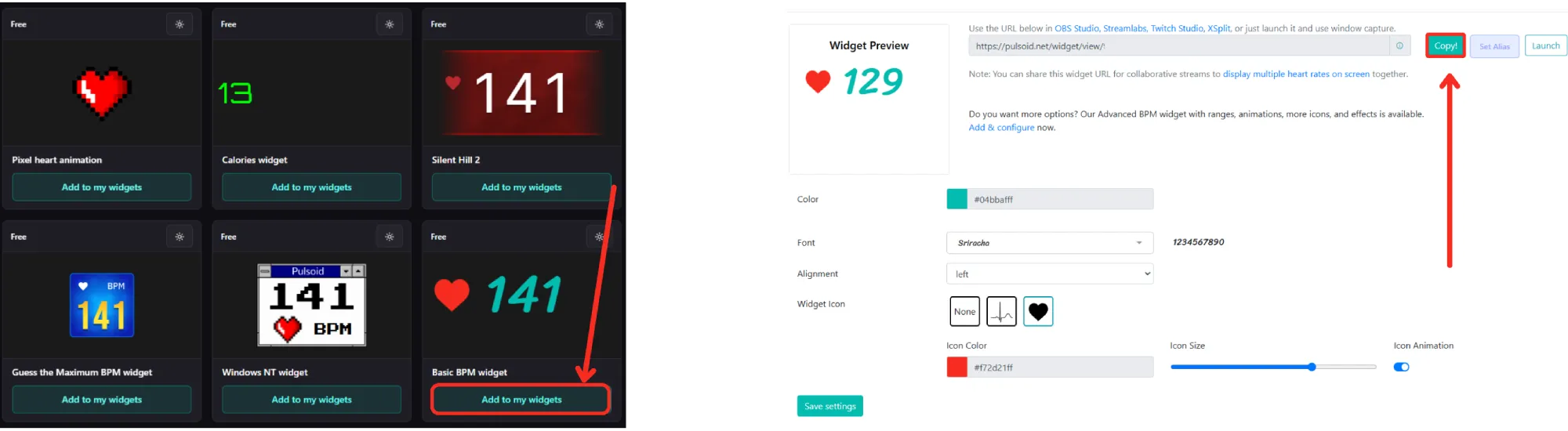
- Get your widget link.
Go to the Widgets page and choose the heart rate widget you’d like to display. Customize its appearance if you’d like, then copy the widget’s URL.
- Open OBS Studio and create a new scene (or use an existing one).
- Add your webcam.
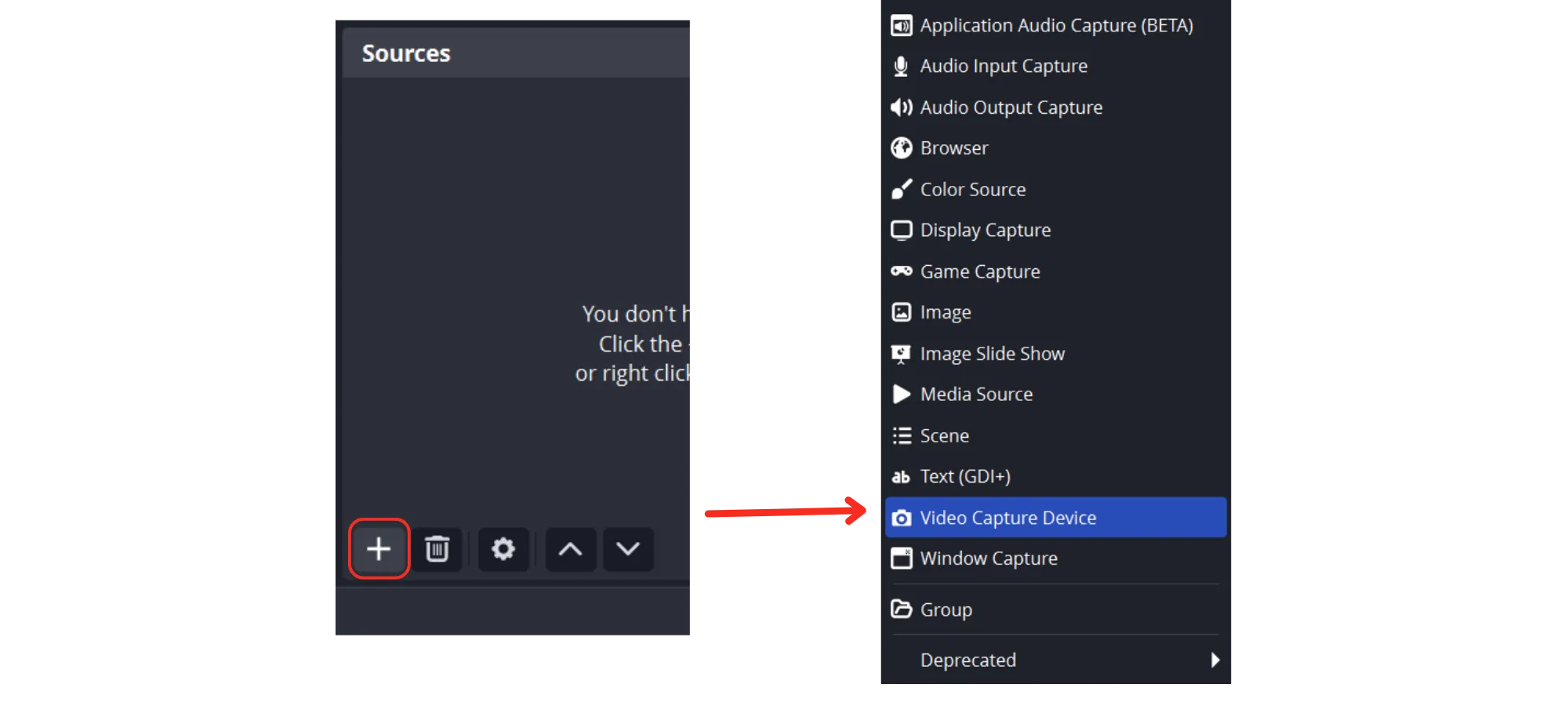
Click + under Sources, then select Video Capture Device and choose your webcam.
- Add the Pulsoid widget.
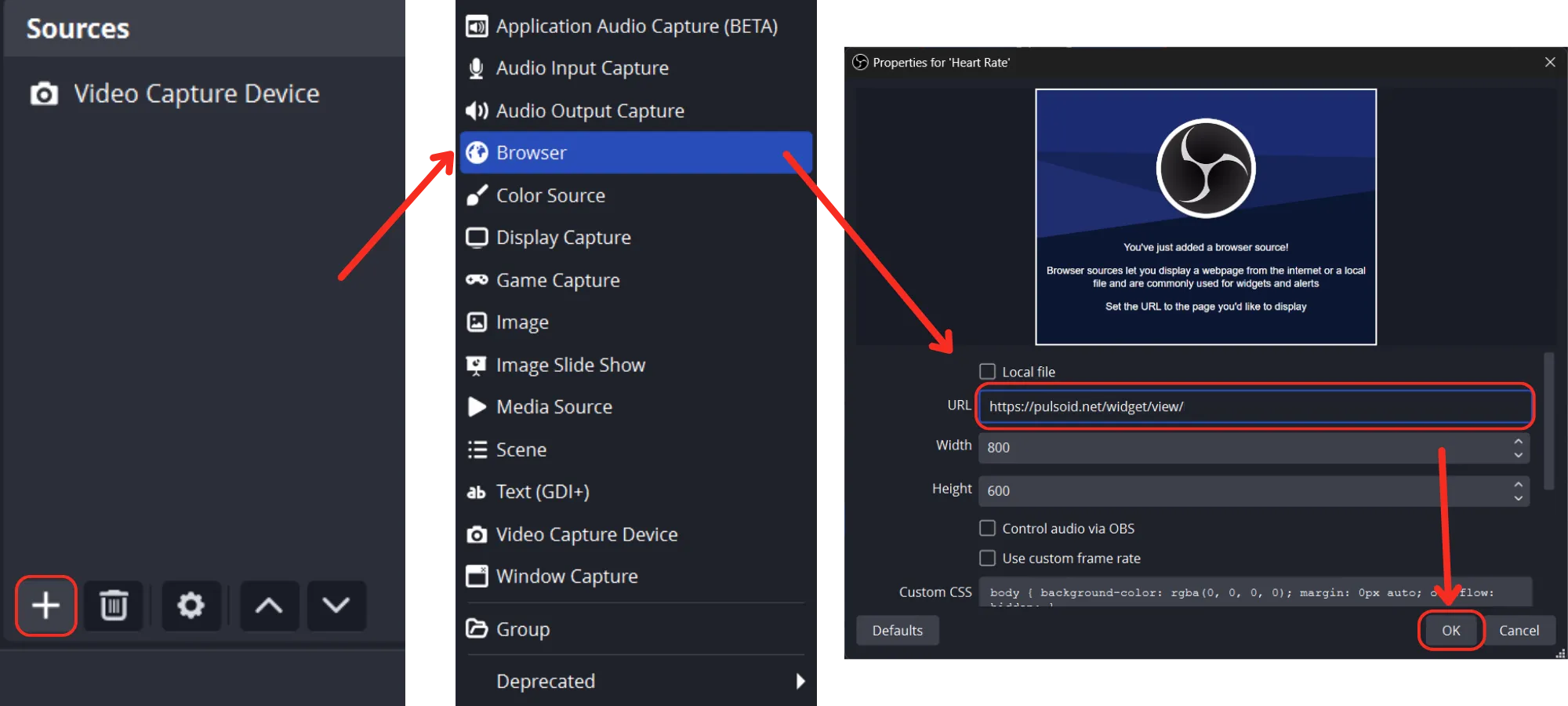
Click + again, select Browser, and paste the widget URL you copied in Step 2.
- Layer and position the overlay.
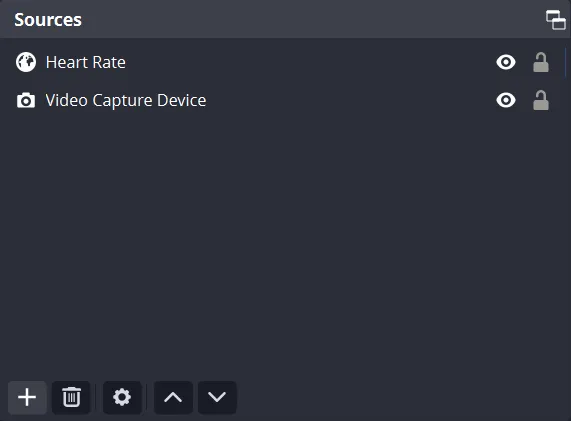
In the Sources list, make sure your Browser Source (widget) sits above your Video Capture Device (webcam) — sources higher in the list appear on top. Drag the widget in the preview window to position it where you want.
- Start the virtual camera.
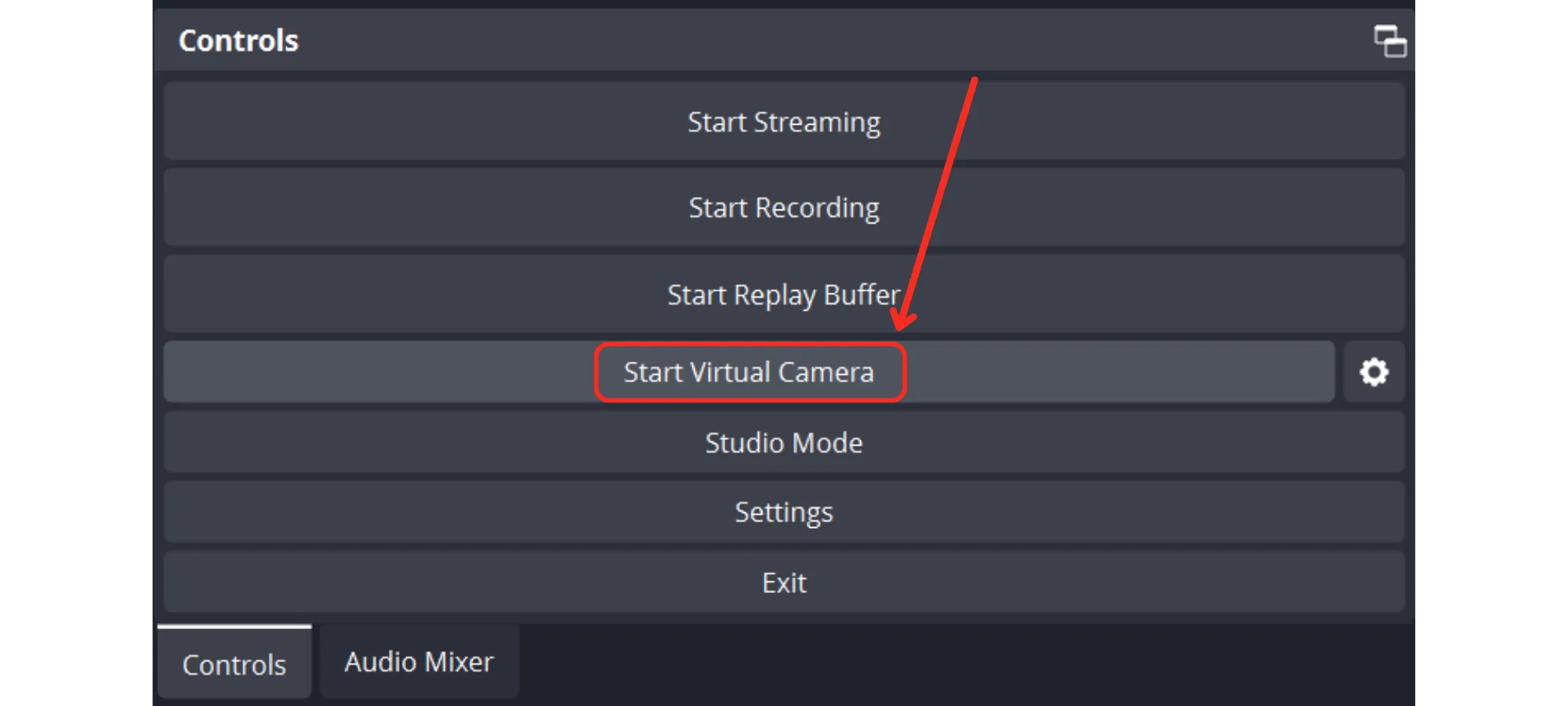
Click Start Virtual Camera in OBS Studio.
- Select OBS as your camera in Discord.
Open Discord and go to User Settings → Voice & Video, then select OBS Virtual Camera as your camera.
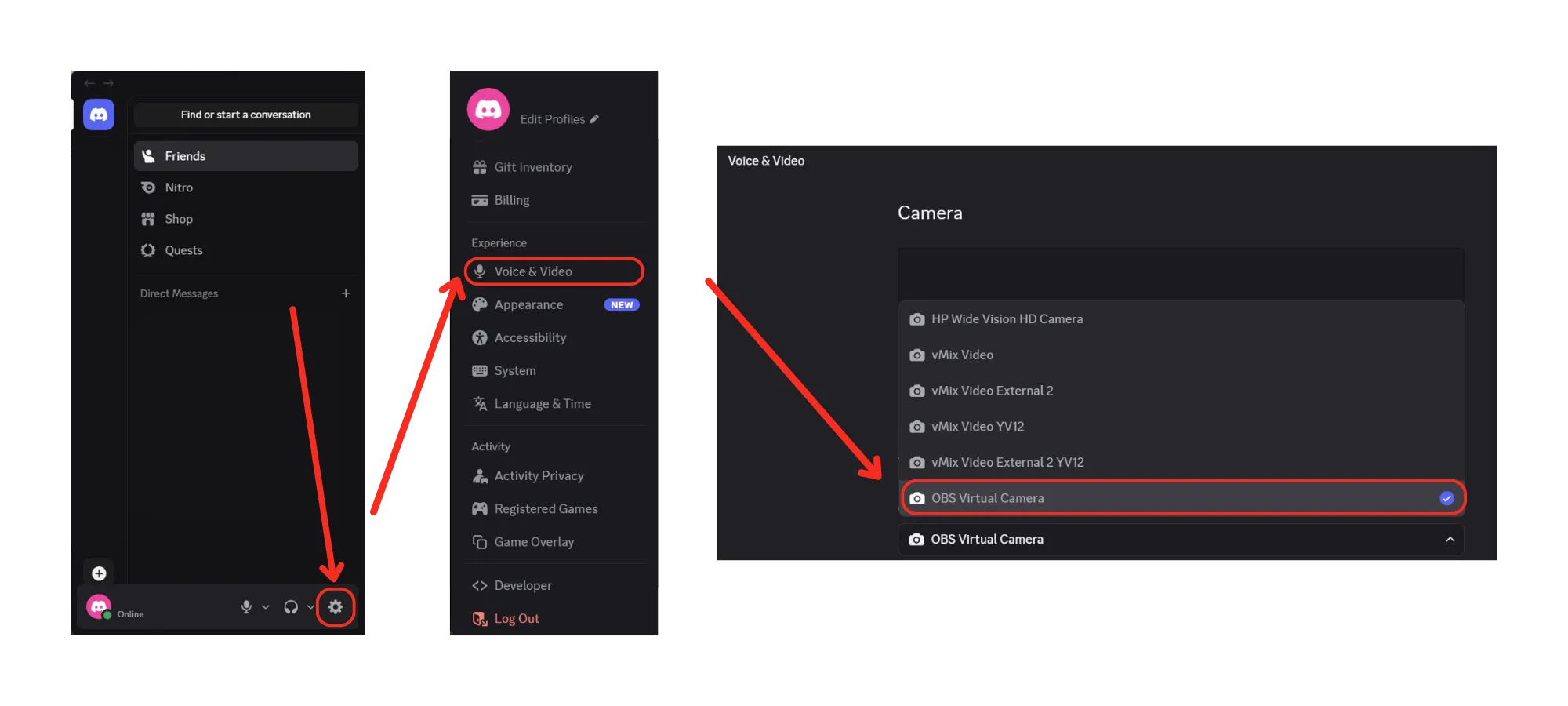
For Cam Models: If you are broadcasting on Chaturbate or Stripchat, simply open your broadcast settings in your web browser and select ‘OBS Virtual Camera’ as your primary video input.
- Start your video call or begin your broadcast
Now others will see your webcam with your live heart rate displayed in real time.
Note: running OBS alongside a browser source and virtual camera uses more system resources than a typical webcam call. If you notice lag on an older machine, try closing other background apps.
Need More Help Setting Up Pulsoid?
If you have any problems, contact us: