How to Automatically Create Twitch Stream Markers Using Heart Rate
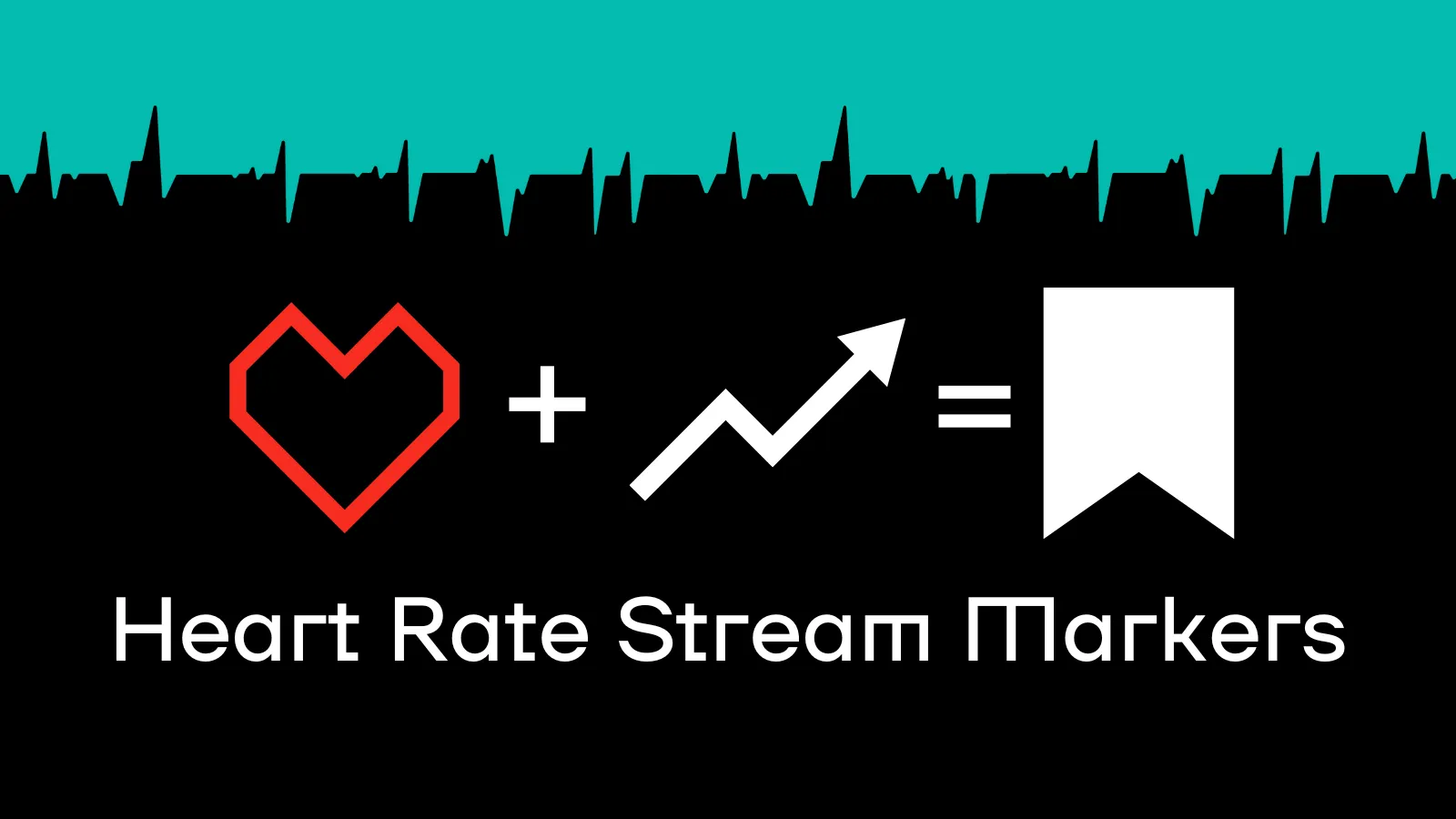
Twitch Stream Markers help you quickly find intense moments in your VODs and create Highlights. Pulsoid makes this even better by automating the process. With Pulsoid Stream Markers, a timestamp is automatically added when your heart rate goes above a set BPM. So while you’re live, you can focus on what matters most: your stream.
What is a Stream Marker on Twitch?
A Stream Marker is a timestamp that you or your channel editors add to a live broadcast to flag a moment you want to highlight later, like a clutch play, a jump scare or a funny chat interaction. After the stream, each marker shows up at its point on the Highlighter timeline, so you can jump straight to it instead of scrubbing through the whole VOD (Twitch Help: Creating Highlights and Stream Markers).
There are two ways to add a marker by hand:
- In Stream Manager, use the Add Stream Marker quick action. If you don’t see it, click + in the Quick Actions panel and add it from the Manage Your Stream section.
- Type /marker in your chat. You can add a description after it, up to 140 characters, for example /marker boss fight (Twitch Help: Chat Commands).
Markers can only be added while you’re live, not during a premiere or a rerun, and only if your channel stores past broadcasts (Twitch Developers: Markers). Turn on Store Past Broadcasts in your Stream settings on the Creator Dashboard before you go live. Without it, Twitch doesn’t save the broadcast, so you can’t make Highlights or Clips from it (Twitch Help: On-Demand Content on Twitch).
The problem is that the best moments are exactly when you’re too busy to stop and add a marker. Your heart rate spikes at those same moments, which is why Pulsoid can place the markers for you.
How to set up Stream Markers
Before you start, make sure that you have set everything up and connected your Twitch account.
- Open the Clips & Markers page
Tip: If you haven’t turned on Automated Clips yet, you can also enable them on this page.
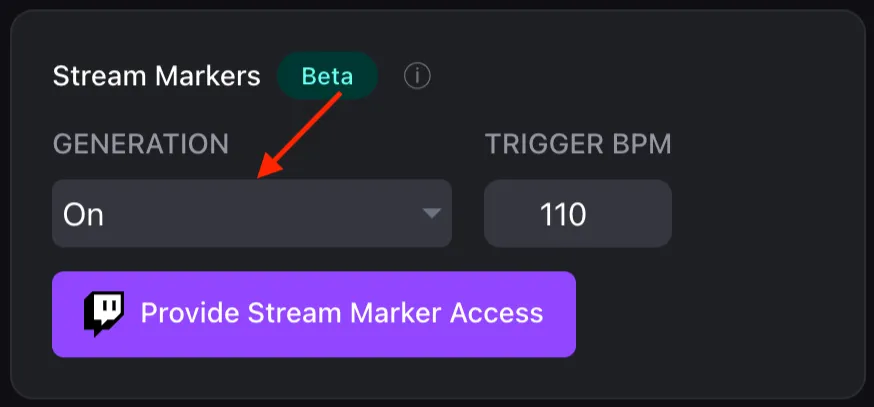
- Click “Provide Stream Marker Access” and authorize it on Twitch.
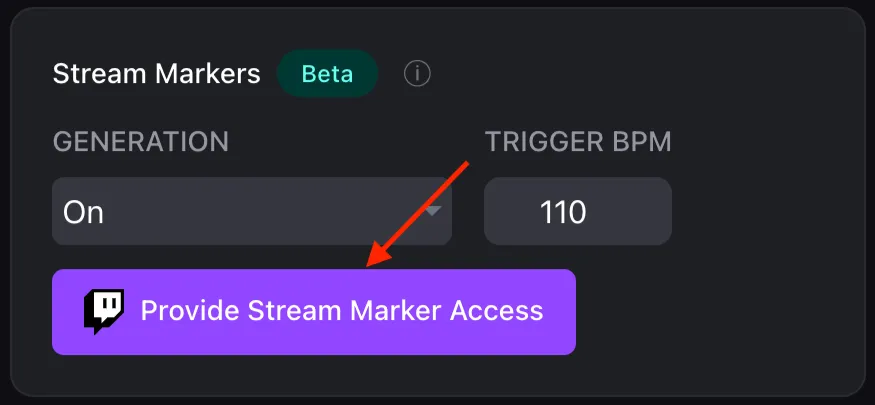
- Make sure Generation is set to On.
Note: Stream Markers are created once every 5 minutes.
- Set the Trigger BPM. This is the heart rate at which a Stream Marker will be created.
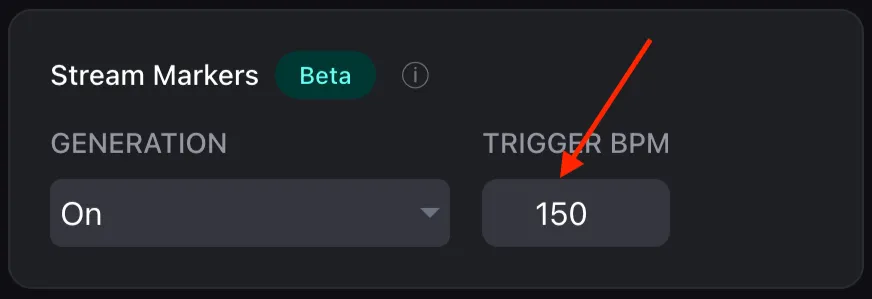
Tip: For best results, choose a value about 10–20 BPM below your max heart rate.
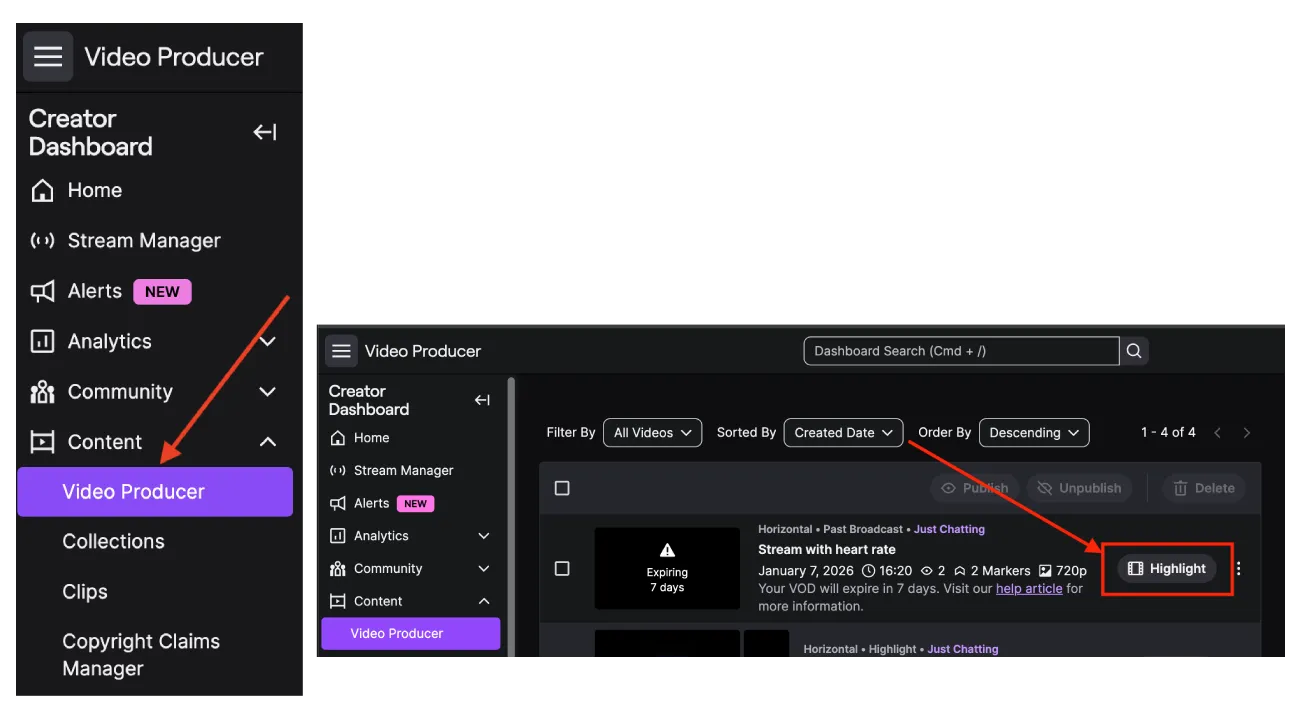
- Start your stream as usual. After the stream ends, go to Creator Dashboard → Content → Video Producer. Find your VOD and click Highlight.
- You’ll see Stream Markers on the timeline showing the most intense moments of your stream.
Tip: To include them all, add new segments at the playhead by clicking the + icon or pressing ALT +.
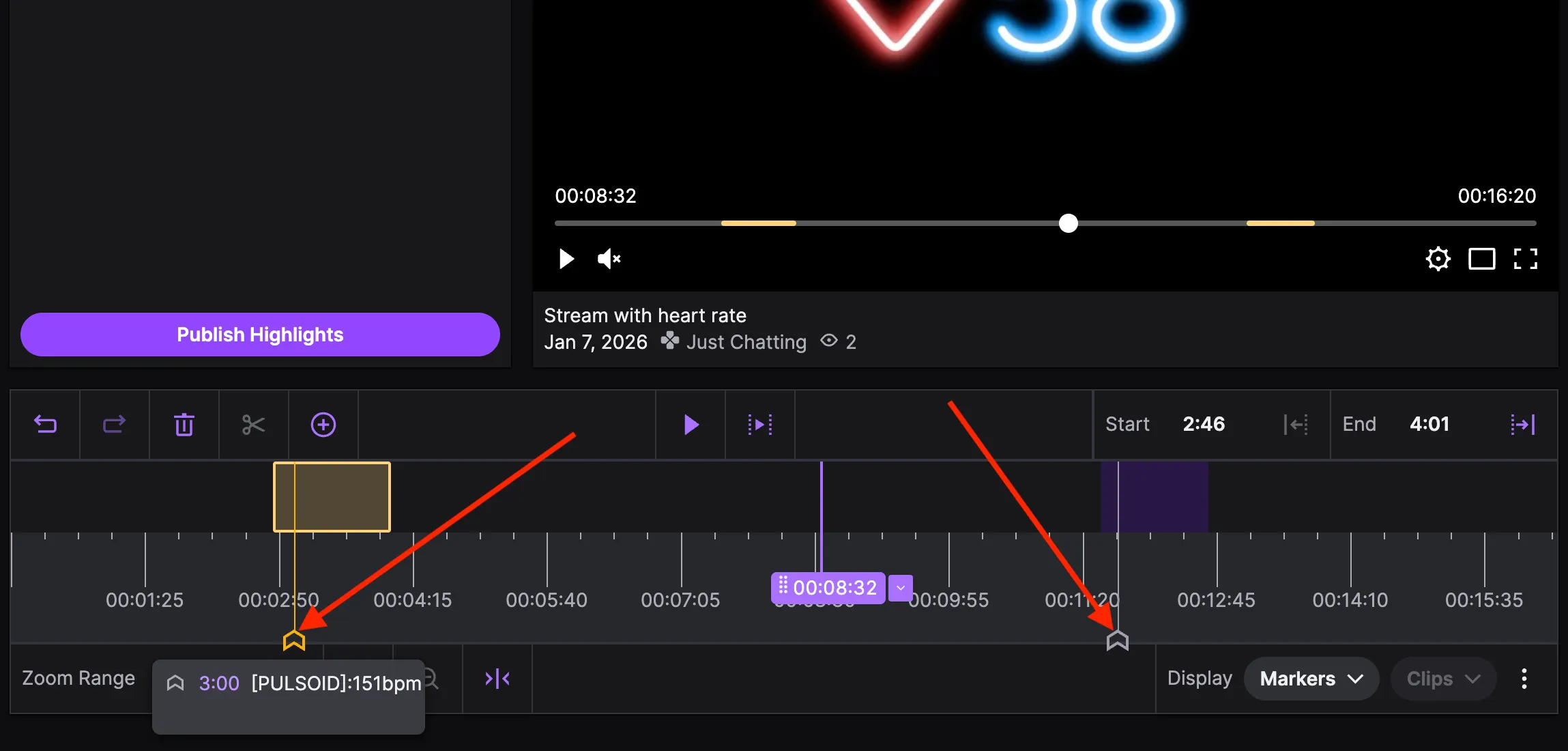
Once your segments are added, publish the Highlight. You’ll get a clean video made only from your most intense moments. You can also create Clips from the published Highlight, without digging through the full VOD.
If you have questions or want to share feedback, our Discord channel is the fastest way to reach us.