Pulsoid x Voicemod: the sound of your heart
Your voice changes with your emotions—tone, volume, and even small trembles show how you feel. But it won’t make you sound like a baby during a Resident Evil jump scare or a calm robot when nothing scares you… at least not until our Pulsoid x Voicemod integration.
Now your heart rate can shape your voice even more. With Voicemod’s full library of modifiers, you can let your heart decide how you sound. Just head to the Pulsoid integration tab, set it up, and start playing with a whole new audio tool.
Pulsoid has always focused on helping creators express emotions. Before, we mostly showed that through visuals like widgets, scripts, and interface integrations. We also already had a sound widget, but this Voicemod collaboration pushes things further. Your stream is made of both visuals and audio, so it only makes sense to level up both.
Why should you try this feature?
- To enhance your chat’s ability to hear your inner turmoil
- For comedic effect
- To add a fun talking point
- To create more clip-worthy moments
See and hear it for yourself—here’s how it works for NinaMeep
Here’s how to set everything up:
Got a Pulsoid heart rate widget? Great! If not, see this guide: How To Add Real Heart Rate To Your Stream.
No device yet? Check out Heart Rate Monitor for Streaming to find the right one for you.
- Open the Integrations tab, find Voicemod in the marketplace, and add it to your list.
- Click ‘Configure’ next to the integration to set up and launch it. This integration works locally, so you’ll need to have the Voicemod configuration tab open while using it.
- Configure your integration:
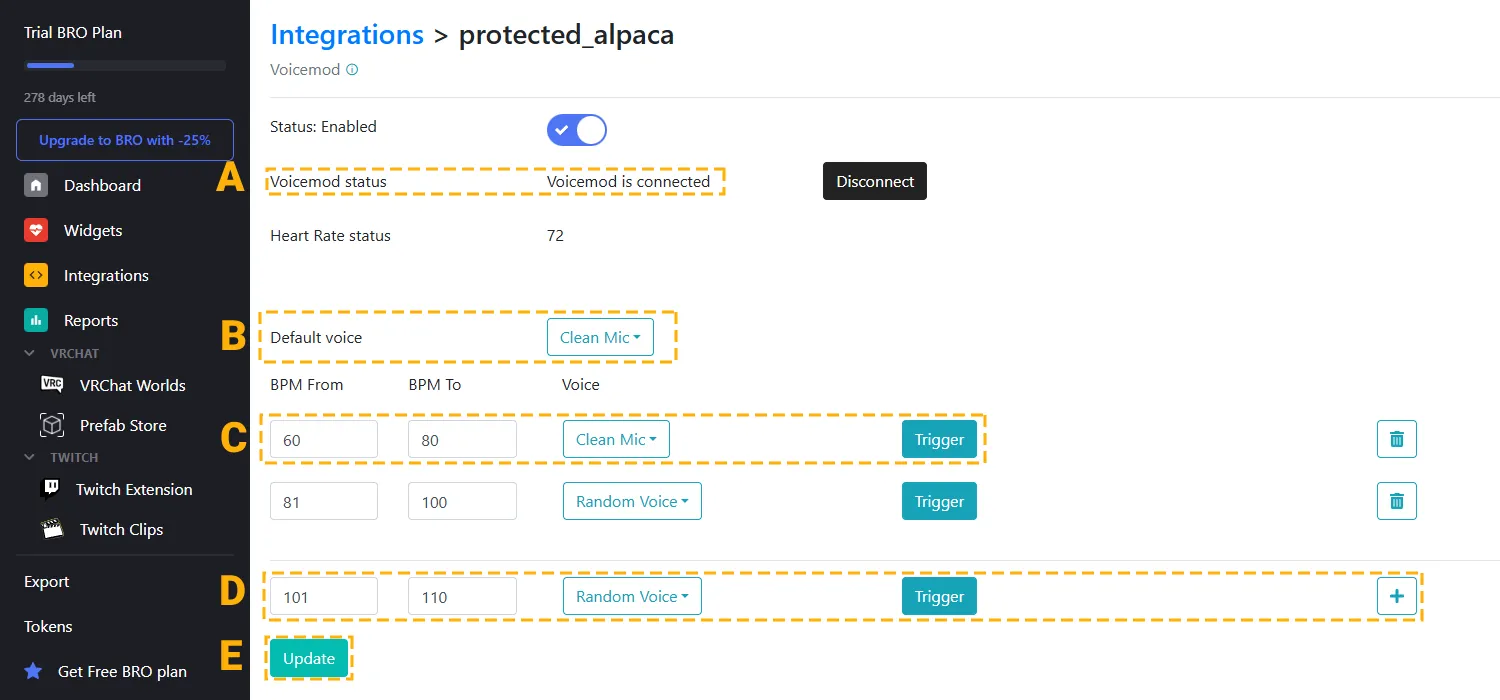
a. Make sure Voicemod is launched, and the status shows ‘connected’ on the integration page. This is required for the integration to work and to access all available voices for your ranges.
b. Choose a default voice to use when your heart rate is outside all other configured ranges.
c. Change existing heart rate ranges: edit the bpm values, pick a specific voice profile, or select a random one. You can click ‘Trigger’ to preview how you’ll sound in that range. Remove ranges if needed.
d. Add new ranges by clicking ‘+’.
e. Click ‘Update’ to make your changes live.
Done! Now your voice will change depending on your heart rate. Again, make sure you keep this page open for the duration of your session.
If you have any feedback, suggestions, or questions left contact us via our email support@pulsoid.net, Twitter @pulsoid_app, or Pulsoid Discord server.