New real-time heart rate graph widget with area and duration 🔥
The real-time graph is one of the favorite widgets among Pulsoid users. It shows your heart rate live and helps viewers clearly see how it changes during a stream.
We first launched the graph widget back in 2020, and now it’s time for an upgrade.
Real-time Graph Widget v2 comes with more design customization options and new cool settings you’re going to love!
Note: the graph widget is part of the BRO plan and requires an active subscription.
Pulsoid is still free for basic use, but the BRO plan helps us improve the service, add new features, and continue supporting content creators.
With a BRO subscription, you get access to all advanced widgets, range settings, integrations, automated clips, the Stream Deck plugin, and more.
If you’d like to use advanced features and support Pulsoid, consider subscribing.
What’s new in the graph?
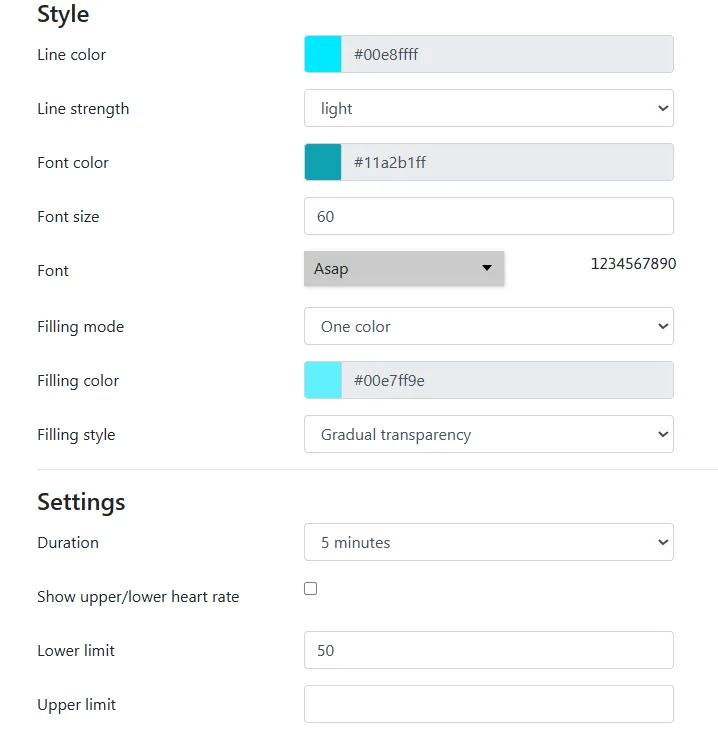
New design settings include:
- graph area filling color: one color, blue-red gradient, none
- graph area filling style: solid or gradual transparency
- line strength
New settings include:
- graph duration: 1,5,10,15 minutes
- hide BPM if you want to focus on the dynamic
And just as in the previous version line color, bpm color, bpm font size, font, lower, and upper limits settings remain available.
How to add the Real-time graph heart rate widget to stream:
-
Make sure your heart rate device is supported by Pulsoid. This can be a chest strap or armband with BLE support, or a smartwatch like Apple Watch or Wear OS. You can find more details in our list of supported devices.
-
Create an account on pulsoid.net
-
Download the Pulsoid app to your IOS or Android smartphone
-
Put on your heart rate monitoring device, open the app, and select your device there. Follow our troubleshooting guide if you have problems connecting your device to the app
-
Customize the widget to match your style.
-
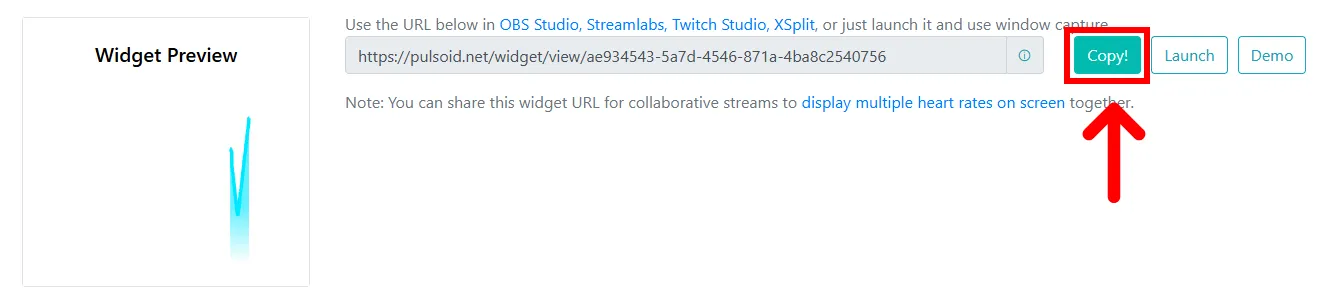
Copy your widget’s URL
-
Add this URL as your Browser Source in OBS, Streamlabs, Meld Studio, etc.
Here are a few examples of how you can set up the new graph widget.
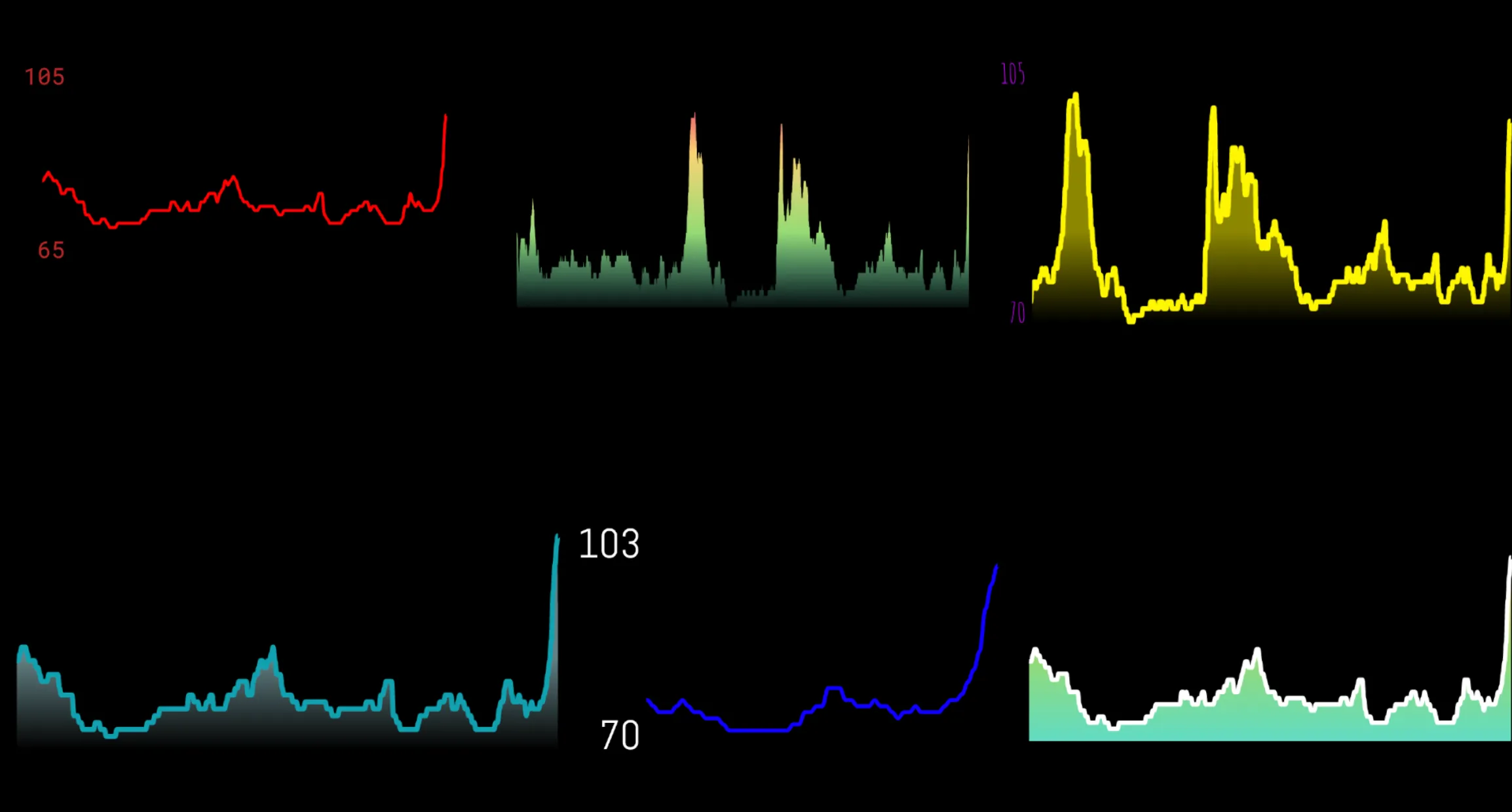
We hope that the new widget will be a great help in your streaming journey on Twitch, YouTube, Facebook, or other platforms. Please share your feedback and designs with us on Twitter and Discord. We really appreciate all the support you show us on social media, it inspires us and helps more people to know about the service ❤️