Automated clips creation in Discord with Pulsoid

We’re adding a new feature to Pulsoid: automated clip creation in Discord 🎉
Pulsoid will automatically clip the moments when your heart rate spikes and post them straight to a selected channel on your Discord server.
No fuss. Just a quick setup, and Pulsoid takes care of the rest.
How to set it up
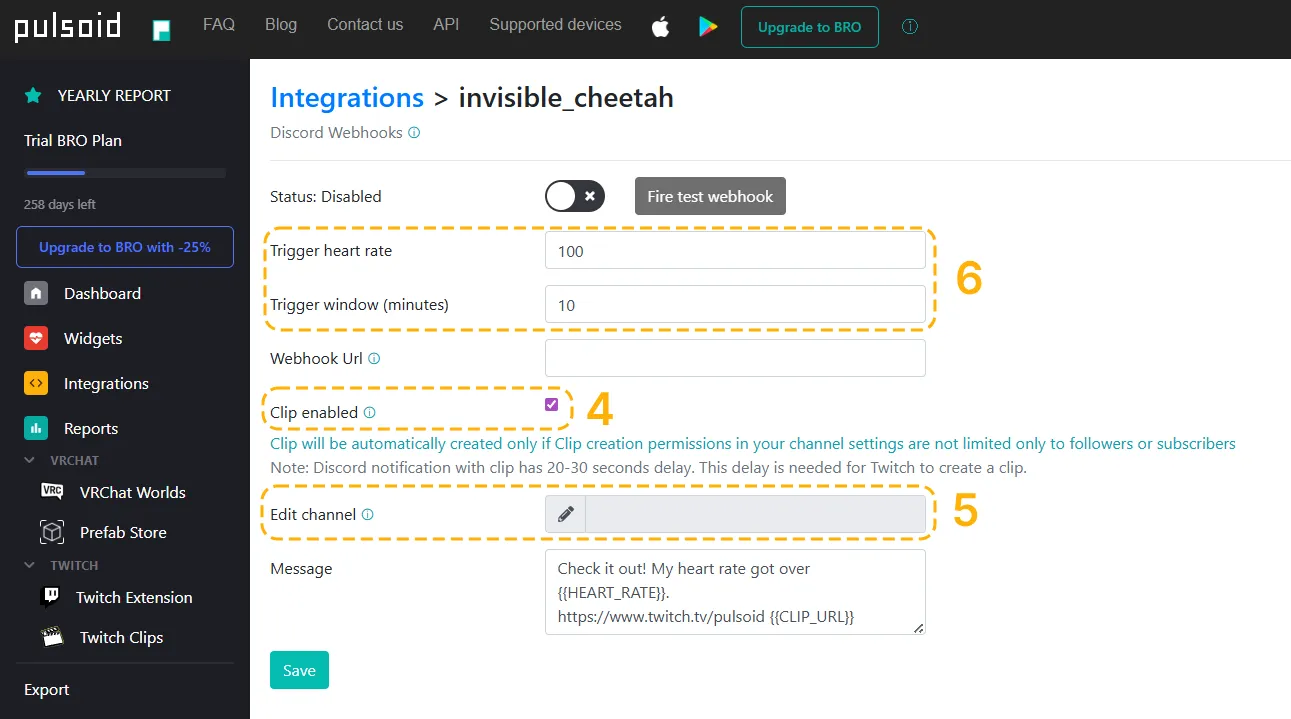
- Open your Pulsoid Dashboard and go to Integrations.
- Click Add to my integrations.
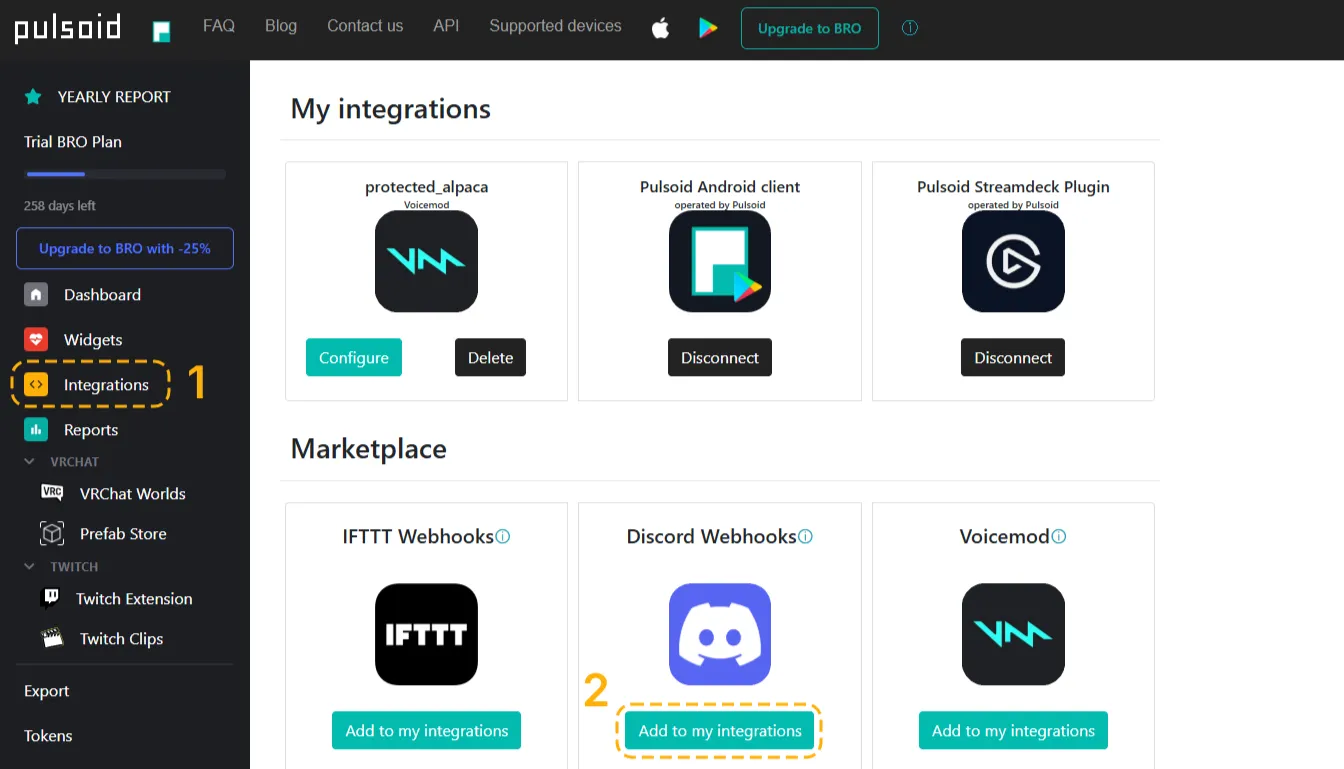
- Press Configure
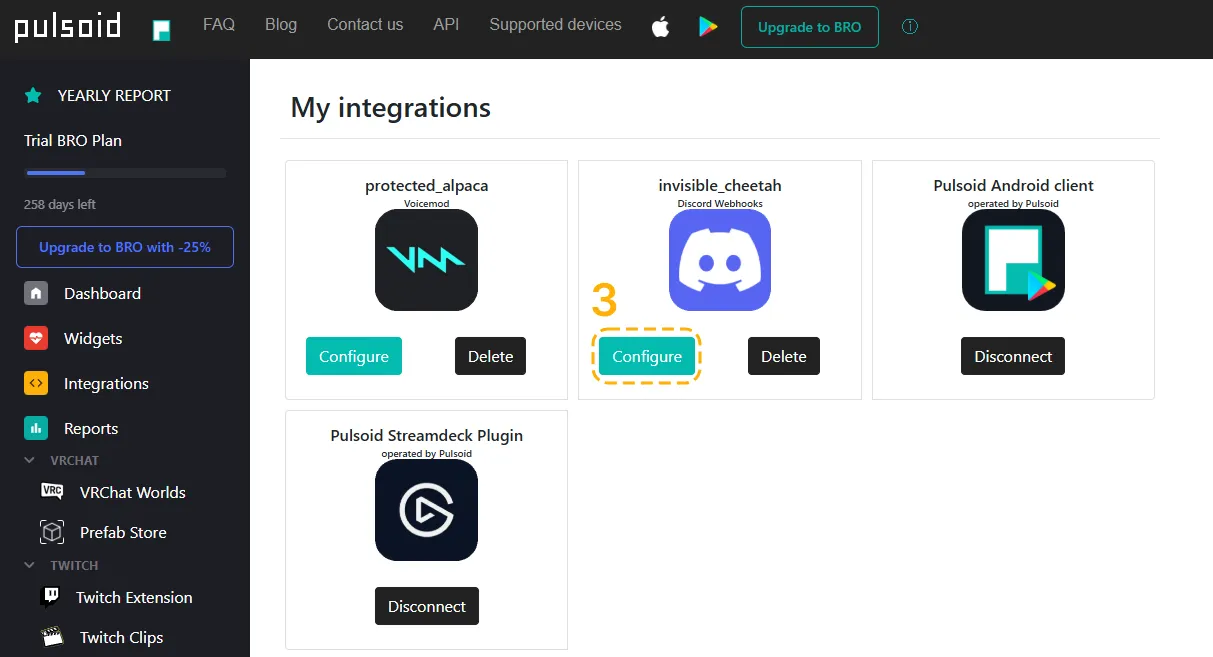
- Check the Clip enabled box.
- Add the correct URL for your Twitch channel.
- Set:
- Trigger heart rate – the heart rate at which clips will be created
- Trigger window – the minimum time between clip posts
Setting up a Discord Webhook
To get everything running, you’ll need to create a Discord webhook for one of your text channels.
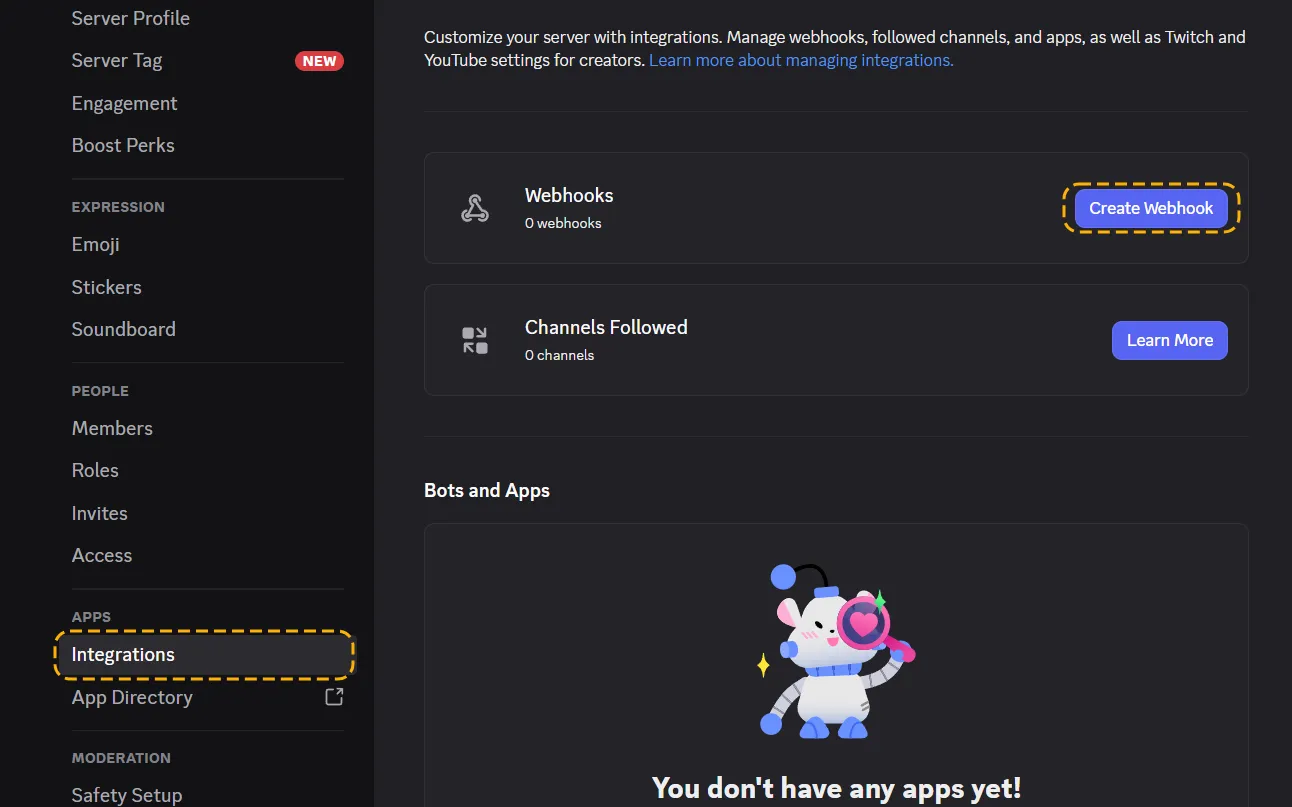
- Open your Discord server settings.
- Go to Settings → Integrations → Create Webhook.
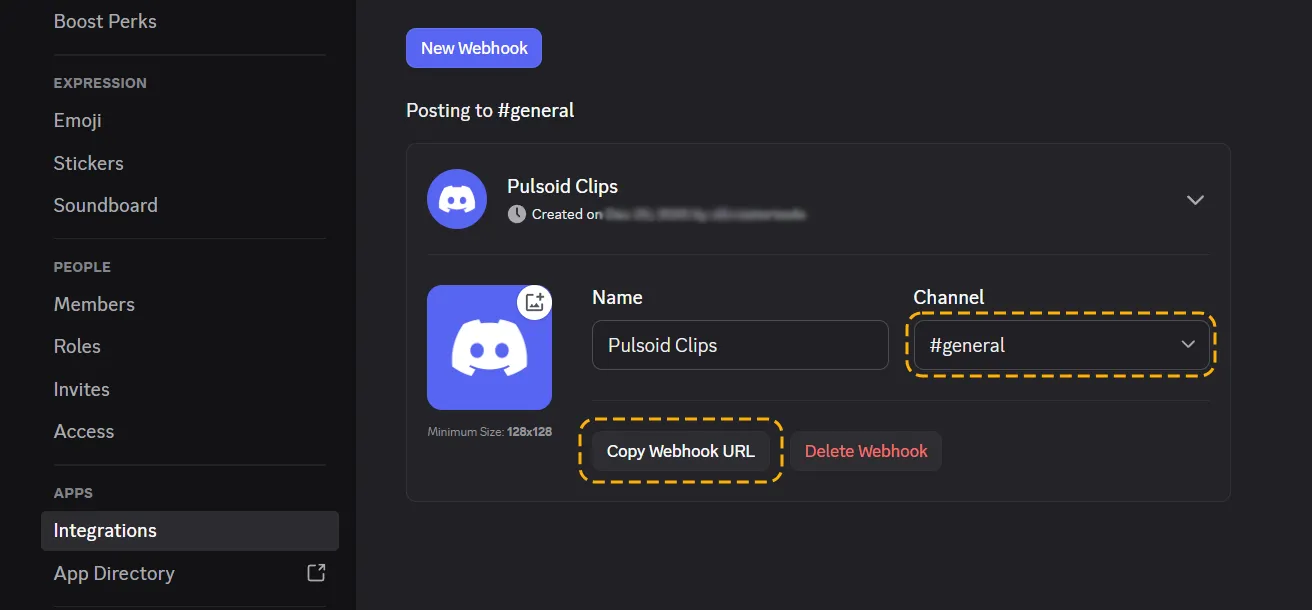
- Choose the channel where clips should be posted.
- Copy the webhook URL
- Paste the URL into the Webhook URL field in the Pulsoid Discord integration.
In the Message field, you can use these tags:
- {{HEART_RATE}} to show your heart rate at the moment the clip was taken
- {{CLIP_URL}} to include a link to the clip
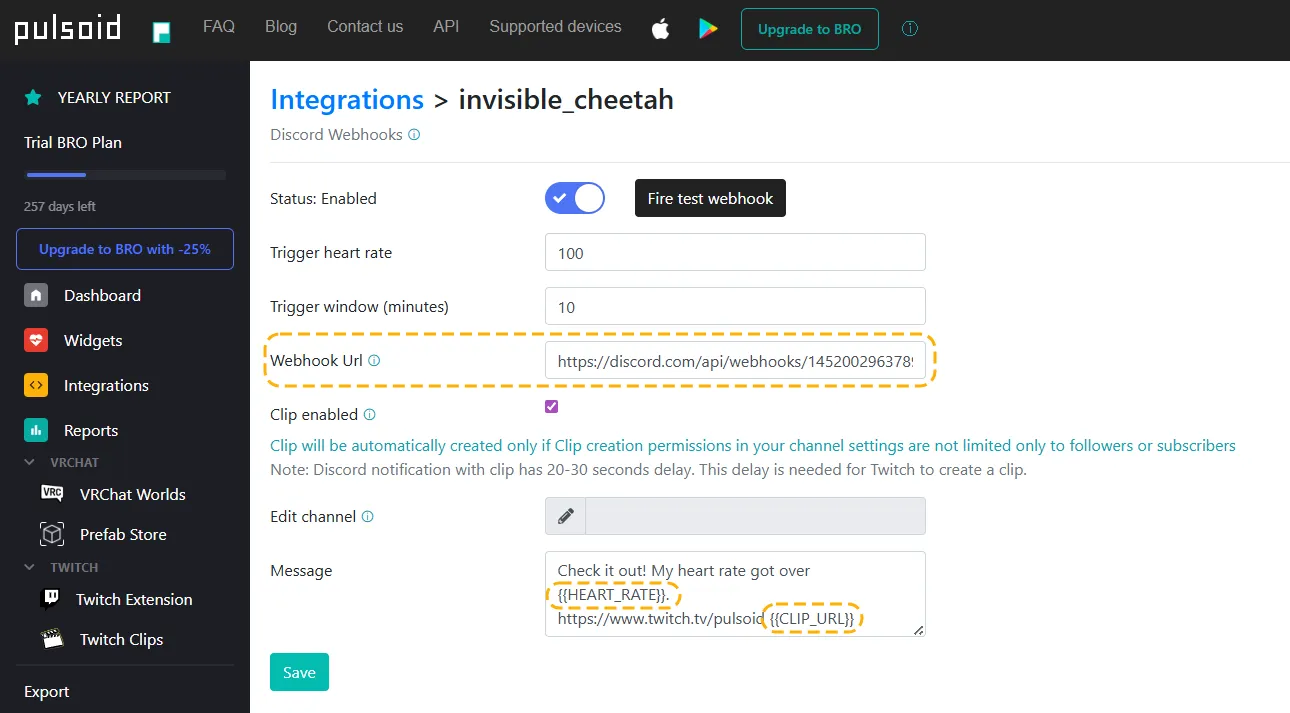
You’re all set!
Never miss moments of pure excitement, terror, or surprise in your past broadcasts. Having these moments clipped automatically makes them easy to reuse in posts, compilations, or channel trailers. Plus, your Discord members will always know when your stream is getting intense.
Note: Make sure clip creation is enabled for everyone in your Twitch settings. Due to Twitch restrictions, our bot can’t auto-follow your channel. If needed, contact our support, and we’ll help set it up manually.